

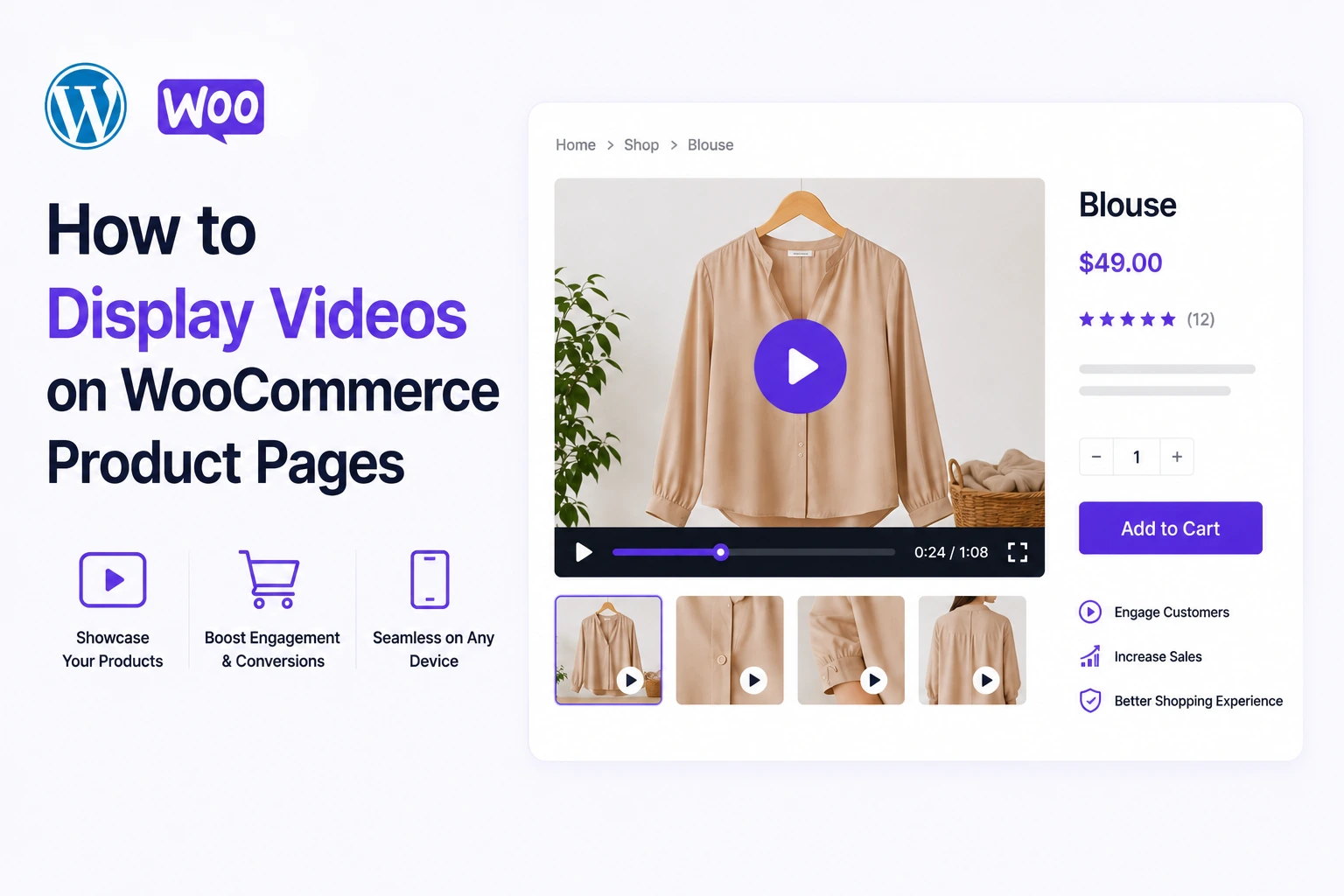
WooCommerce product pages have a fixed anatomy: the image gallery sits top-left, the product summary and Add to Cart button sit top-right, product tabs (Description, Additional Information, Reviews) run below, and related products fill the bottom.
MediaHaven Pro gives you three distinct, officially documented ways to display video within this structure — replacing the product gallery, adding a dedicated video tab, and embedding shoppable overlays directly inside the video itself. Each serves a different purpose. This guide covers exactly how to configure all three, based on MediaHaven’s official documentation.
Display Method 1: Replace the Product Image Gallery With Video
This method places your video directly where product images normally appear — the primary gallery position at the top of the product page.
Prerequisites
Per MediaHaven’s official documentation:
- WooCommerce must be installed and activated. Without it, the product editing screens and gallery options described below won’t appear.
- You must create your video gallery layout first, inside MediaHaven’s main settings, before assigning it to a product. See MediaHaven’s guide: How to Create a Professional Video Gallery in WordPress with MediaHaven.
Step-by-Step Configuration
Step 1 — Open the Product Editor Go to your WordPress admin dashboard → Products → All Products → click the product you want to edit (for example, “Blouse”).
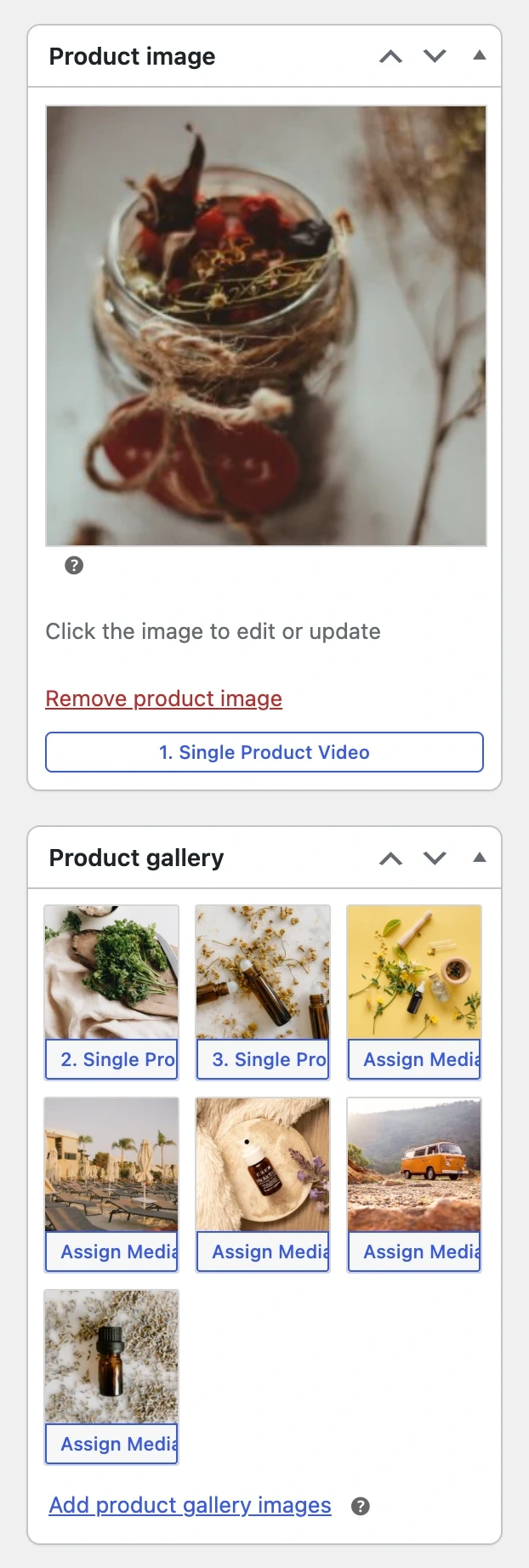
Step 2 — Assign the Video Gallery Look at the right-hand sidebar of the product editor for the Product image or Product gallery meta boxes. Click the Assign MediaHaven Gallery button located directly inside these image boxes. A Select Gallery popup appears — use the search bar or list to choose the specific video layout you built earlier.
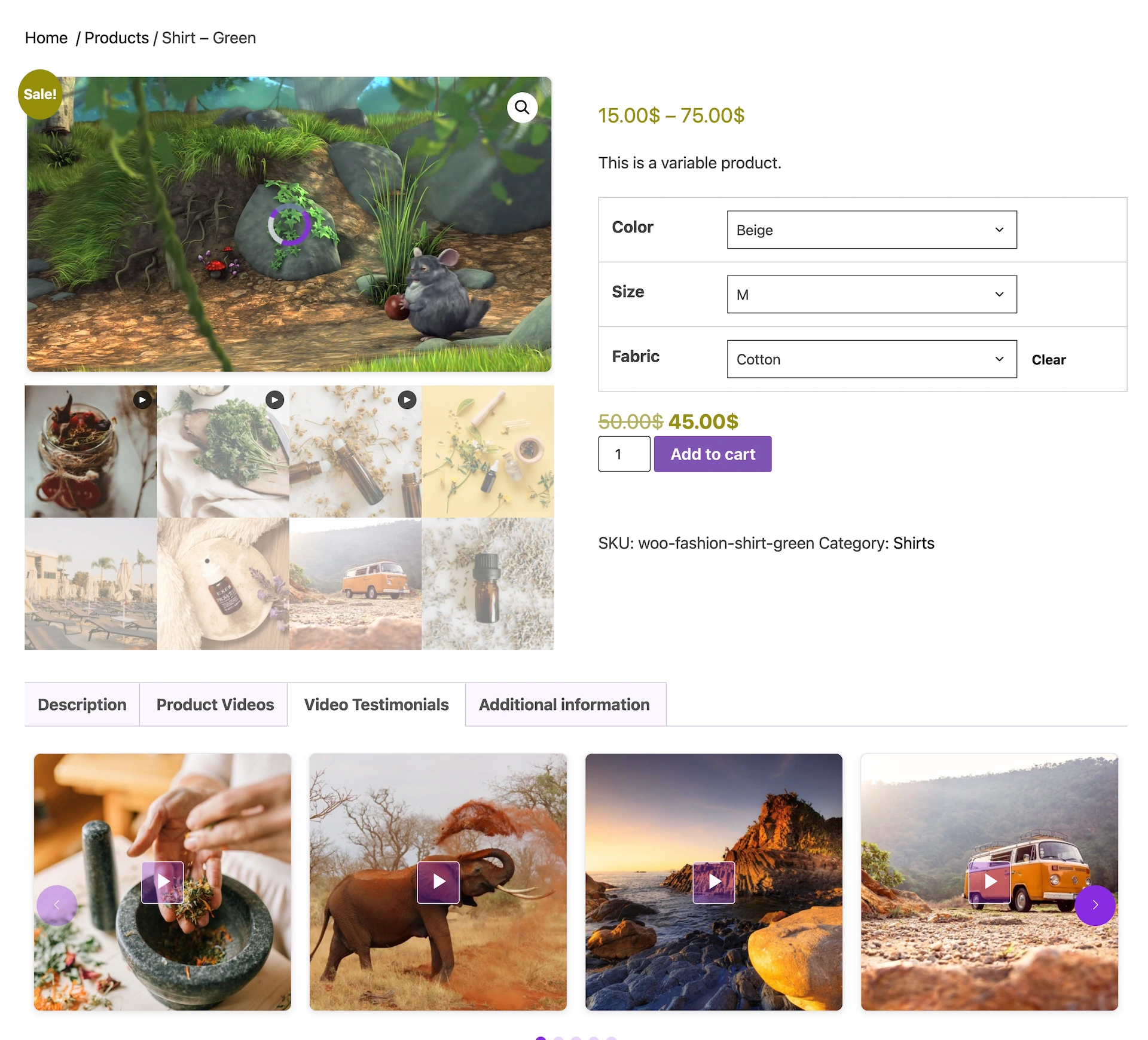
Step 3 — Save Your Changes Scroll back up to the Publish meta box at the top right of the editor and click Update. Your video gallery is now live on the front-end product page, appearing in the same position where static product images normally display.
Live example: MediaHaven’s documentation demo shows this exact flow on a product called “Shirt – Green,” with the video occupying the primary product gallery position.
Display Method 2: Add a Dedicated Video Tab
If you’d rather keep your product images as the primary gallery and show video in a separate, clearly labeled tab — this is the documented approach for that.
Prerequisites
Same as above — WooCommerce must be installed and active before these fields appear.
Step-by-Step Configuration
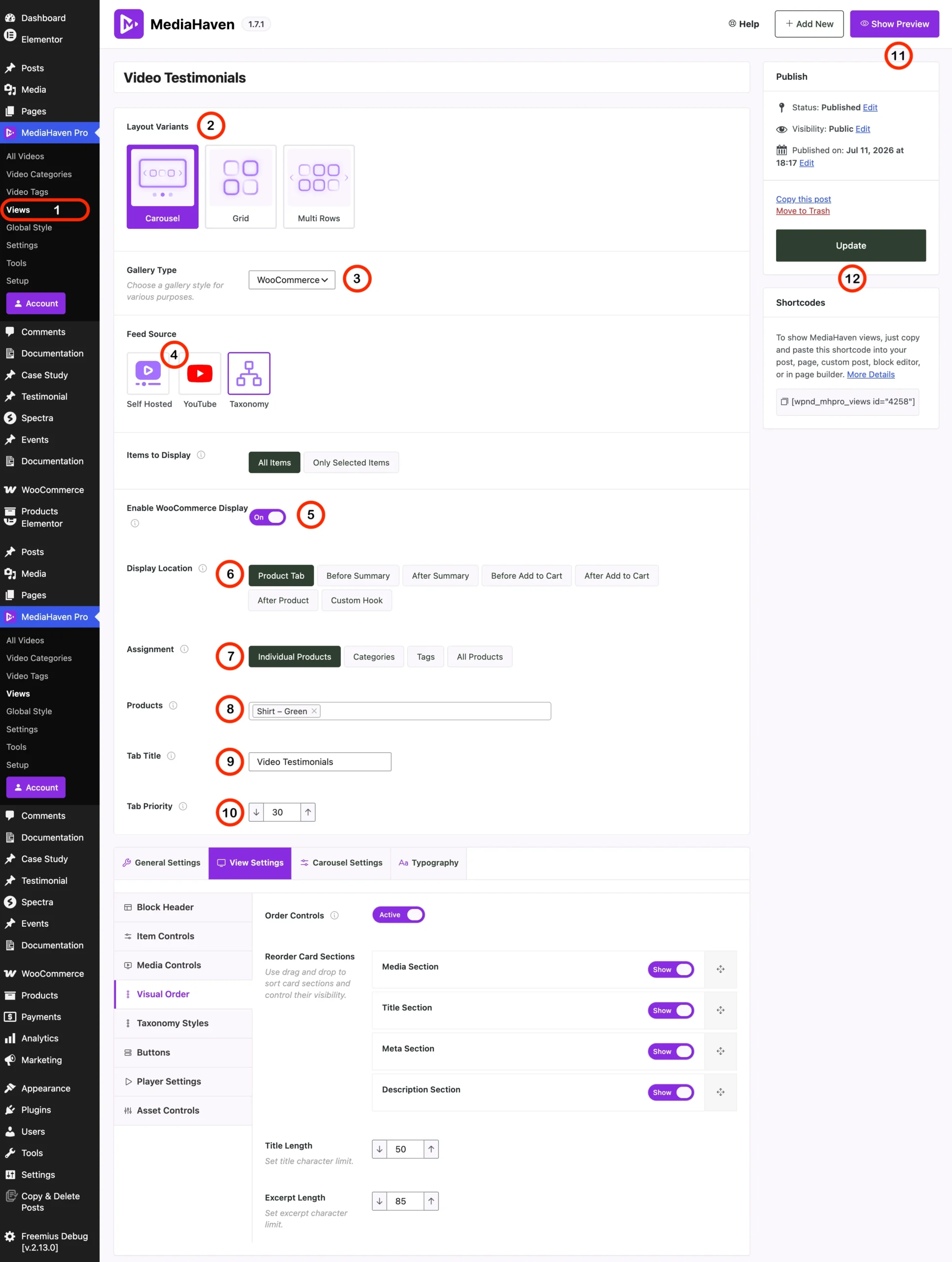
Step 1 — Open the Views Manager Go to MediaHaven → Views in your WordPress sidebar. Click Add New, or select an existing view to edit.
Step 2 — Choose Your Video Layout and Source
- Layout Variants: Carousel / Multi Rows (swipeable horizontal slider) or Grid (fixed layout)
- Gallery Type: Set to WooCommerce to enable e-commerce-specific triggers
- Feed Source: Self Hosted (uploaded to your WordPress media library), YouTube (external links or playlists), or Taxonomy (dynamically loaded by category/tag — not recommended for this use case)
Step 3 — Configure the WooCommerce Tab Settings
This is the exact configuration table from MediaHaven’s official documentation:
| Configuration Setting | Required Action / Value | Description |
|---|---|---|
| Enable WooCommerce Display | Toggle to On | Activates product page injection |
| Display Location | Select “Product Tab” | Creates a unique tab next to “Description” or “Reviews” |
| Assignment | Select “Individual Products” | Restricts this gallery to chosen items only |
| Products | Search and select your product (e.g., “Shirt – Green”) | Links the layout to the exact product page |
| Tab Title | Enter a custom title (e.g., “Video Testimonials”) | The public heading customers see on the front-end tab |
| Tab Priority | Enter a numeric weight (e.g., 30) | Determines placement order — lower numbers appear first |
Step 4 — Customize the Interface Components
Under View Settings → Visual Order, refine how elements appear inside the tab:
- Order Controls: Toggle to Active to enable rearranging
- Reorder Card Sections: Drag handles to arrange Media Section, Title Section, Meta Section, and Description Section — or toggle each to Show/Hide
- Character Limits: Cap Title Length and Excerpt Length for consistent text layout
Step 5 — Save and Publish Click Show Preview in the top right to verify alignment and card structure. Click Update to push the configuration live. If you want to place this same gallery layout elsewhere — an Elementor page, a blog post — copy the unique shortcode from the sidebar panel, for example:
[wpnd_mhpro_views id="x"]Real documented example: MediaHaven’s own guide uses a tab titled “Video Testimonials” at priority 30, assigned specifically to the “Shirt – Green” product — demonstrating exactly how a testimonial-style video tab is meant to be configured.
Display Method 3: Shoppable Video Overlays (Add to Cart Inside the Video)
This is MediaHaven’s most advanced display method — not just showing video on the product page, but turning the video itself into a point of purchase.
Accessing Video Monetization
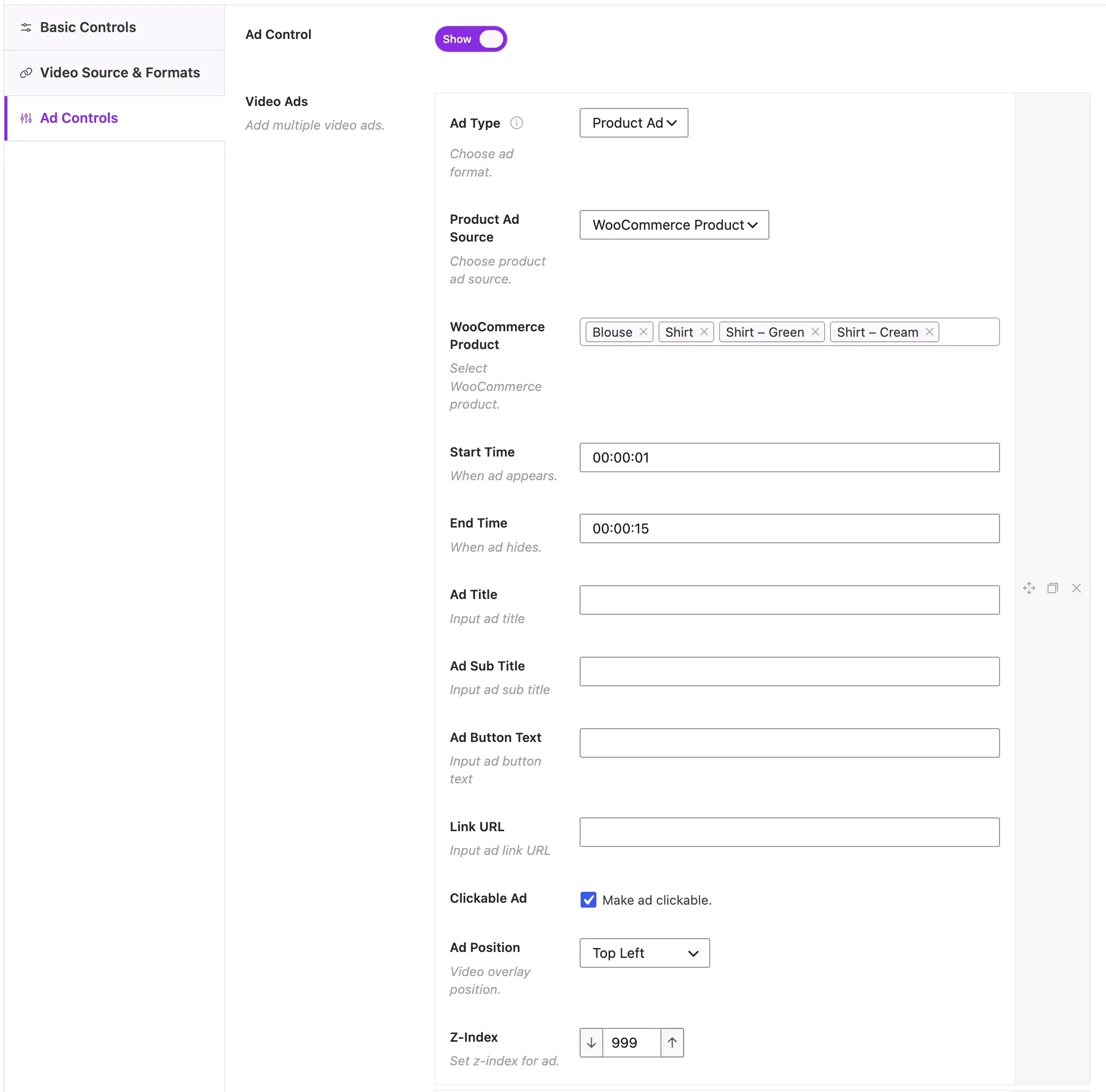
In your video’s settings panel, select the Video Monetization tab from the left sidebar. Toggle the master Show switch to ON to activate the overlay system for that video.
What the Overlay Displays to Shoppers
Per MediaHaven’s official documentation, a configured overlay includes:
| Element | What the Shopper Sees |
|---|---|
| Sponsored bar | “Sponsored · 1 of 5 ads · yoursite.com” — rotates through tagged products |
| Product image | Auto-pulled from WooCommerce product media |
| Product name | Bold headline (e.g., “Blouse”) |
| Short description | Brief summary pulled from WooCommerce |
| Sale price | Current price with original struck through (e.g., ~~$10.00~~ $5.00) |
| Variant selectors | Color, Size, Fabric — clickable directly in the overlay |
| Quantity control | − / + stepper |
| Add To Cart button | Full-width CTA button — adds directly to the WooCommerce cart |
| Close button (×) | Lets the viewer dismiss and keep watching |
The shopper never leaves the video. They select a variant, choose a quantity, and add to cart — entirely inside the overlay card.
Field-by-Field Configuration
| Field | What to Enter | Why It Matters |
|---|---|---|
| Ad Type | Product Ad (default) | Optimized specifically for WooCommerce — auto-renders image, pricing, variants, Add to Cart |
| Product Ad Source | WooCommerce Product (default) | Pulls live data — no manual entry; sale prices update automatically the moment you change them in WooCommerce |
| WooCommerce Product | Search and tag 4–6 products | Multiple tagged products rotate randomly across viewer sessions — one video becomes a rotating storefront |
| Start Time | HH:MM:SS (e.g., 00:00:08) | Set this to match the exact moment the product appears on screen |
| End Time | HH:MM:SS (e.g., 00:00:20) | A 10–15 second display window is the documented sweet spot |
| Ad Title | Short headline text | Add urgency or campaign context: “Today Only — 50% Off” |
| Ad Sub Title | Secondary text line | Pre-handle objections: “Free shipping on orders over $50” |
| Ad Button Text | CTA label | “Add to Cart,” “Shop Now,” or “Get Yours” |
| Link URL | Destination URL | Optional override — supports WooCommerce’s ?add-to-cart=PRODUCT_ID parameter to skip the product page entirely |
| Clickable Ad | Checked (default) | Makes the entire card clickable, not just the button — important given 67% of video shopping happens on mobile (Statista, 2024) |
| Ad Position | Top Left / Top Right / Bottom Left / Bottom Right | Position so the overlay does not cover the product being shown on screen |
| Z-Index | 999 (default) | Leave as-is unless you have a visual conflict with your theme |
Placement Strategy for Multiple Overlays in One Video
For a 60-second product video, MediaHaven’s documentation recommends scheduling multiple overlay windows targeting different products:
0:05–0:18→ Product 10:25–0:38→ Product 20:45–0:58→ Product 3
This turns a single video into a sequential, three-product sales journey, rather than a single static promotion.
Choosing the Right Display Method for Your Product Page
| Your goal | Recommended method |
|---|---|
| Replace static photos with motion — fashion, movement, texture | Method 1: Replace Product Gallery |
| Keep images primary, add supporting video content (testimonials, demos) | Method 2: Video Tab |
| Turn video views directly into Add to Cart actions | Method 3: Shoppable Overlays |
| Maximum conversion — combine all three | Gallery video for the hero demo + a testimonials tab + shoppable overlay inside the gallery video |
Many of the highest-performing WooCommerce implementations combine all three: a product demo video replaces the image gallery, a separate “Video Testimonials” tab holds customer proof content, and the demo video itself carries shoppable overlays tagged to the exact product and 2–3 complementary items.
Why Display Position and Timing Drive Real Revenue
The data behind these display methods is not incidental — it explains why timing and placement fields exist at all in MediaHaven’s configuration:
- 80% of shoppers say product videos give them more confidence to purchase (Animoto)
- Shoppable video increases conversion rates by up to 30% compared to a standard video with only a link in the description (Smartzer, 2023)
- Retailers using in-video product overlays report average order value increases of 15–25% from surfacing multiple products in a single video session
- Cart abandonment drops when the purchase path shortens — every extra page a customer must visit before checkout costs roughly 10–20% of conversions (Baymard Institute)
- Well-timed overlays (matched to when the product appears on screen) convert 2–3× higher than poorly timed ones (Wirewax interactive video data)
- Sequential multi-product exposure in one video increases cross-sell revenue by up to 35% (Salesforce Commerce Cloud)
Verification Checklist Before Going Live
- WooCommerce is installed and activated
- Video gallery layout created in MediaHaven → Views
- Gallery assigned via Assign MediaHaven Gallery button on the product (Method 1), or Product Tab configured (Method 2)
- Video Monetization tab enabled and configured if using shoppable overlays (Method 3)
- Start Time / End Time tested — overlay appears exactly when the product is shown
- Ad Position confirmed not to cover the product in the video frame
- Show Preview used to confirm layout before clicking Update
- Tested on both desktop and mobile — 67% of video shopping happens on mobile
Frequently Asked Questions
How do I display videos on WooCommerce product pages?
MediaHaven lets you display videos directly on WooCommerce product pages without custom coding. You can assign a video gallery to individual products and display it in product tabs, before the product summary, after the summary, or alongside the product gallery, depending on your preferred layout.
Can I add videos to the WooCommerce product gallery?
Yes. MediaHaven supports displaying videos alongside your product images, giving customers a richer way to explore products. MediaHaven Pro also lets you replace or enhance the default product gallery with engaging video experiences for supported products.
Which video sources does MediaHaven support on WooCommerce product pages?
MediaHaven supports self-hosted videos, Bunny Stream, HLS (M3U8), YouTube, Vimeo, TikTok, Facebook, Instagram, LinkedIn, Twitch, Wistia, Dailymotion, Rumble, and external video URLs. This allows you to showcase product videos from multiple platforms using a single WordPress plugin.
Can I display different videos for different WooCommerce products?
Yes. MediaHaven lets you assign specific video galleries to individual WooCommerce products. MediaHaven Pro also supports automatically assigning galleries by product category, product tag, or across your entire store, making it easier to manage large product catalogs.
Can I add interactive product overlays inside WooCommerce videos?
Yes. MediaHaven Pro includes Interactive Shoppable Video, allowing you to display clickable WooCommerce product overlays inside supported videos. You can customize the CTA button, control when overlays appear, and create a more engaging shopping experience for your customers.
Does MediaHaven improve SEO for WooCommerce product videos?
Yes. MediaHaven automatically generates Schema.org VideoObject structured data for published videos, helping search engines better understand your content. Combined with dedicated video pages and responsive galleries, this can improve your visibility in Google Video search and rich results.
Will videos slow down my WooCommerce product pages?
No. MediaHaven is designed for performance using Smart Asset Loading, lazy loading, and optimized video delivery. Plugin assets load only on pages where MediaHaven content is displayed, helping maintain fast page speeds while delivering a smooth viewing experience.
Can I stream WooCommerce product videos using HLS?
Yes. MediaHaven supports existing HLS (.m3u8) streams and integrates with Bunny Stream for adaptive HLS streaming. This provides smoother playback across different devices and network conditions while helping deliver high-quality product videos.
Does MediaHaven work with Gutenberg and page builders?
Absolutely. MediaHaven includes native Gutenberg blocks and shortcode support for Elementor, Divi, Beaver Builder, WPBakery, and other popular WordPress page builders. You can display WooCommerce product videos anywhere on your website without writing custom code.
Can I monetize WooCommerce product videos?
Yes. MediaHaven Pro supports VAST advertising, including pre-roll, mid-roll, and post-roll ad placements for compatible videos. You can also combine video ads with Interactive Shoppable Video to promote products while generating additional advertising revenue.
Is MediaHaven suitable for large WooCommerce stores?
Absolutely. MediaHaven is built to scale with responsive galleries, WooCommerce integration, Ajax filtering, multiple video source support, performance optimizations, and advanced gallery assignment options, making it an excellent choice for growing eCommerce businesses.
Why choose MediaHaven for WooCommerce product videos?
MediaHaven combines WooCommerce product videos, responsive galleries, multiple video source support, HLS streaming, Interactive Shoppable Video, VideoObject schema, Gutenberg blocks, VAST advertising, and performance optimization in one platform. Instead of relying on multiple plugins, you get a complete WordPress video solution designed to improve customer engagement, showcase products more effectively, and increase conversions.
- Install free: wordpress.org/plugins/mediahaven-lite
- Official documentation: mediahaven.io/docs/
- Upgrade to Pro: mediahaven.io/pricing — $79/year · 14-day money-back guarantee
- Support: support@wpninjadevs.com
Leave a Reply