

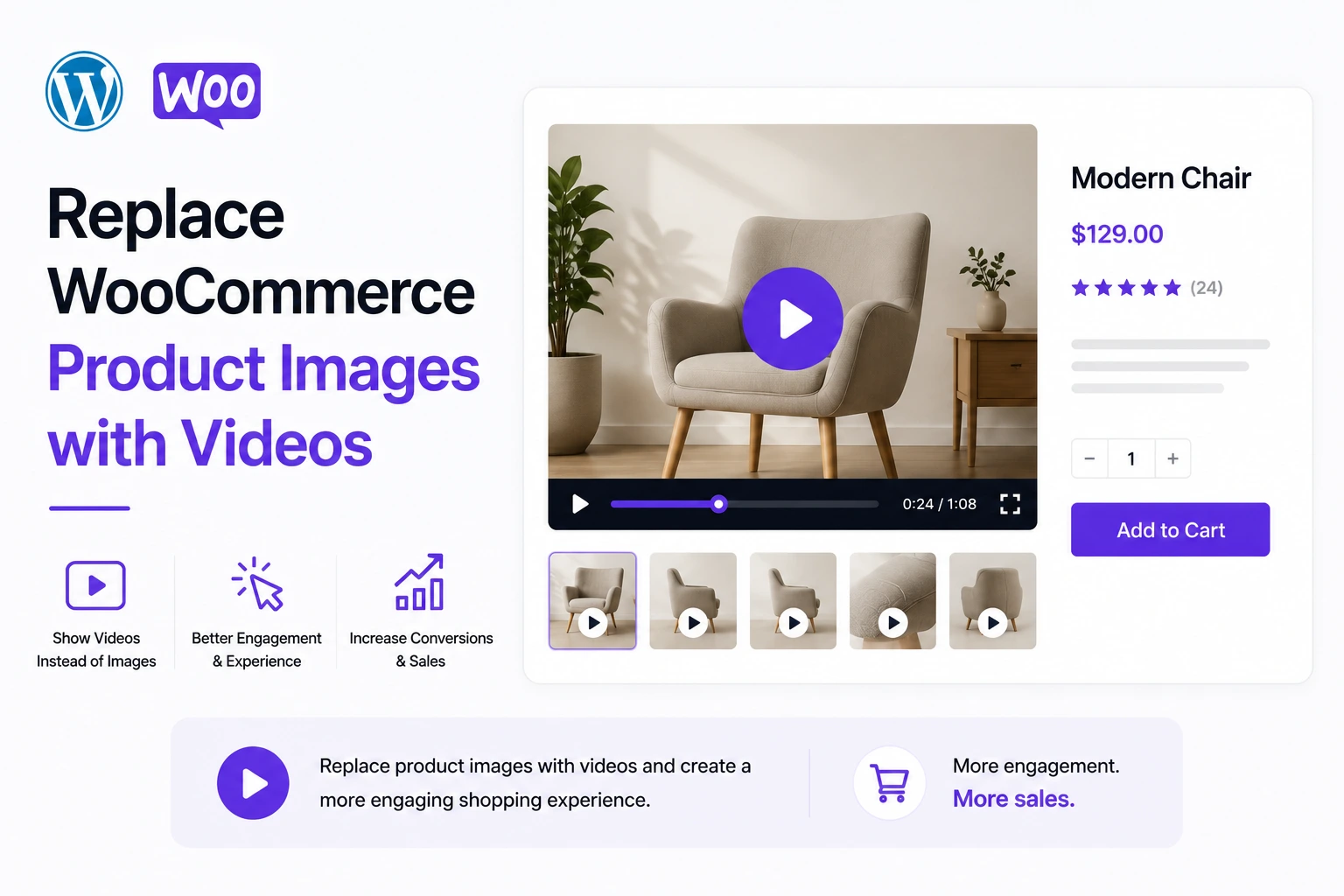
Static product images cannot show movement, fit, texture, sound, or a product actually working. A single well-produced product video communicates in 15 seconds what a dozen photographs cannot — and shoppers respond to it: 80% say product videos give them more confidence to purchase (Animoto).
MediaHaven Pro replaces the default WooCommerce product image gallery with video — directly, officially, and without custom code. This guide follows MediaHaven’s exact documented process for configuring this, plus the shoppable overlay layer that turns the replaced gallery video into a direct point of purchase.
What “Replacing” the Image Gallery Actually Means
WooCommerce’s native product gallery — the image carousel at the top-left of every product page — is built to display static images only. When you “replace” it with MediaHaven, your video takes over that primary gallery position. Instead of a shopper’s first view being a static photo, it’s a playable video.
This is different from adding a video tab elsewhere on the page (a separate MediaHaven feature) — this method makes video the primary visual experience the moment a shopper lands on the product.
Prerequisites (Per Official MediaHaven Documentation)
Before you begin, two requirements must be met:
- Install WooCommerce. The WooCommerce plugin must be installed and activated on your WordPress site. If it’s missing, the product editing screens and gallery-assignment options described below will not appear at all.
- Create your video gallery layout first. Before you can assign a gallery to a product, you must build the video gallery layout inside MediaHaven’s main settings. MediaHaven’s own documentation points to this as a required first step: How to Create a Professional Video Gallery in WordPress with MediaHaven.
Skipping either step means the “Assign MediaHaven Gallery” button described below simply won’t have anything to connect to.
Step-by-Step: Replace the Product Image Gallery With Video
Step 1: Build Your Video Gallery Layout
Go to MediaHaven → Views → Add New.
Configure:
- Layout: Grid (recommended for a single featured product video) or Carousel if showing multiple angles
- Gallery Type: WooCommerce
- Feed Source: Self Hosted (recommended — gives you the most control over overlay timing if you plan to add shoppable elements later), YouTube, or Taxonomy
- Responsive columns: Set for each breakpoint (Extra-small through Extra-large)
- Card Display Settings: For a gallery-replacement use case, most operators turn off title, description, and metadata display — the video itself is the content, matching how a static image gallery behaves
Click Save.
Step 2: Open the Product Editor
Go to your WordPress admin dashboard → Products → All Products → click on the product you want to edit. MediaHaven’s own documentation uses a product called “Blouse” as its working example.
Step 3: Assign the Video Gallery
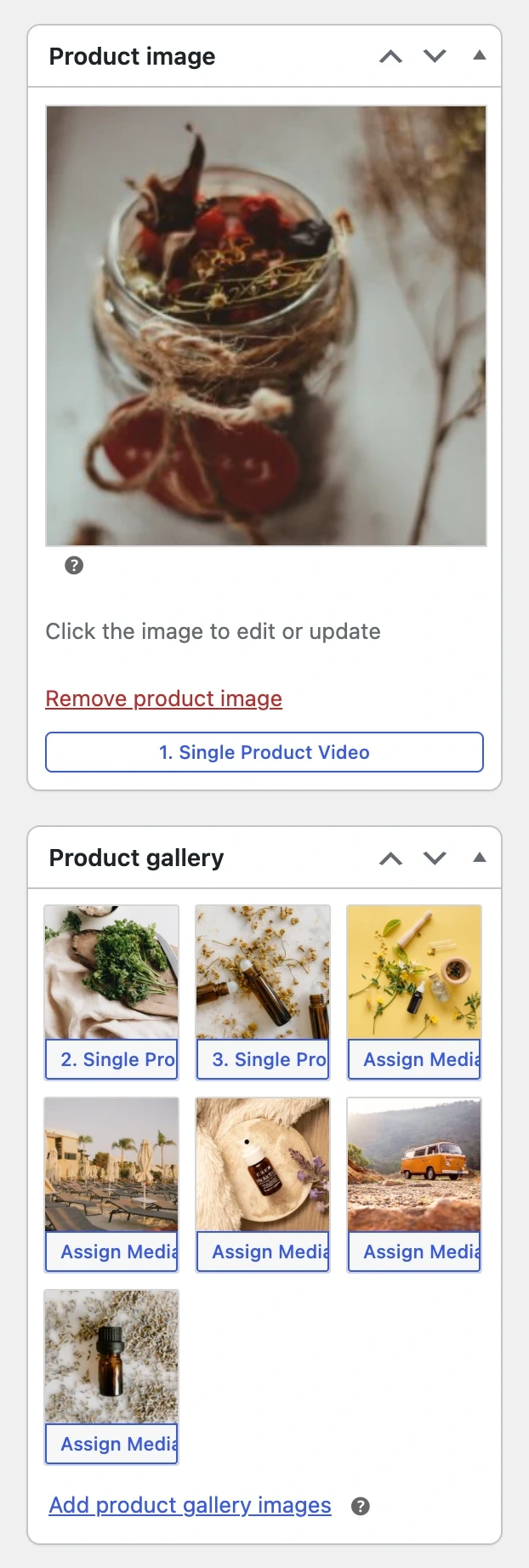
This is the core action that performs the replacement:
- Look at the right-hand sidebar of the product editor
- Locate the Product image or Product gallery meta boxes
- Click the Assign MediaHaven Gallery button — located directly inside these image boxes
- A Select Gallery popup window opens — use the search bar or the list to choose the specific video layout you created in Step 1
- Confirm your selection
Step 4: Save Your Changes
Scroll back up to the Publish meta box at the top right of the editor. Click the blue Update button. This pushes the video gallery live to the front-end product page — replacing the static image gallery your customers would otherwise see.
That’s the complete, documented process. No shortcode typing, no template file edits, no custom hooks.
When to Replace Images vs. When to Keep Images Primary
Replace with video when:
- Your product benefits from being seen in motion — apparel movement, mechanical products in use, texture and material quality
- You have a genuinely high-quality video (a poor-quality video actively damages first impressions)
- Your product category has a high return rate driven by expectation mismatch — video substantially closes that gap
- You’re selling a higher-consideration item where the buying decision benefits from richer context than a photo provides
Keep images as primary and use the Video Tab method instead when:
- Your video quality isn’t yet strong enough to be the first thing a shopper sees
- Your product is simple enough that photos alone communicate everything needed
- You want to test video performance before committing it to the highest-visibility position on the page
Add Shoppable Overlays to Your Replaced Gallery Video
Once your video occupies the primary gallery position, the natural next step — per MediaHaven’s Video Monetization documentation — is making that video directly shoppable, so a viewer can add the product to their cart without ever leaving the gallery.
Accessing the Feature
In the video’s settings, select the Video Monetization tab from the left sidebar. Toggle the master Show switch to ON.
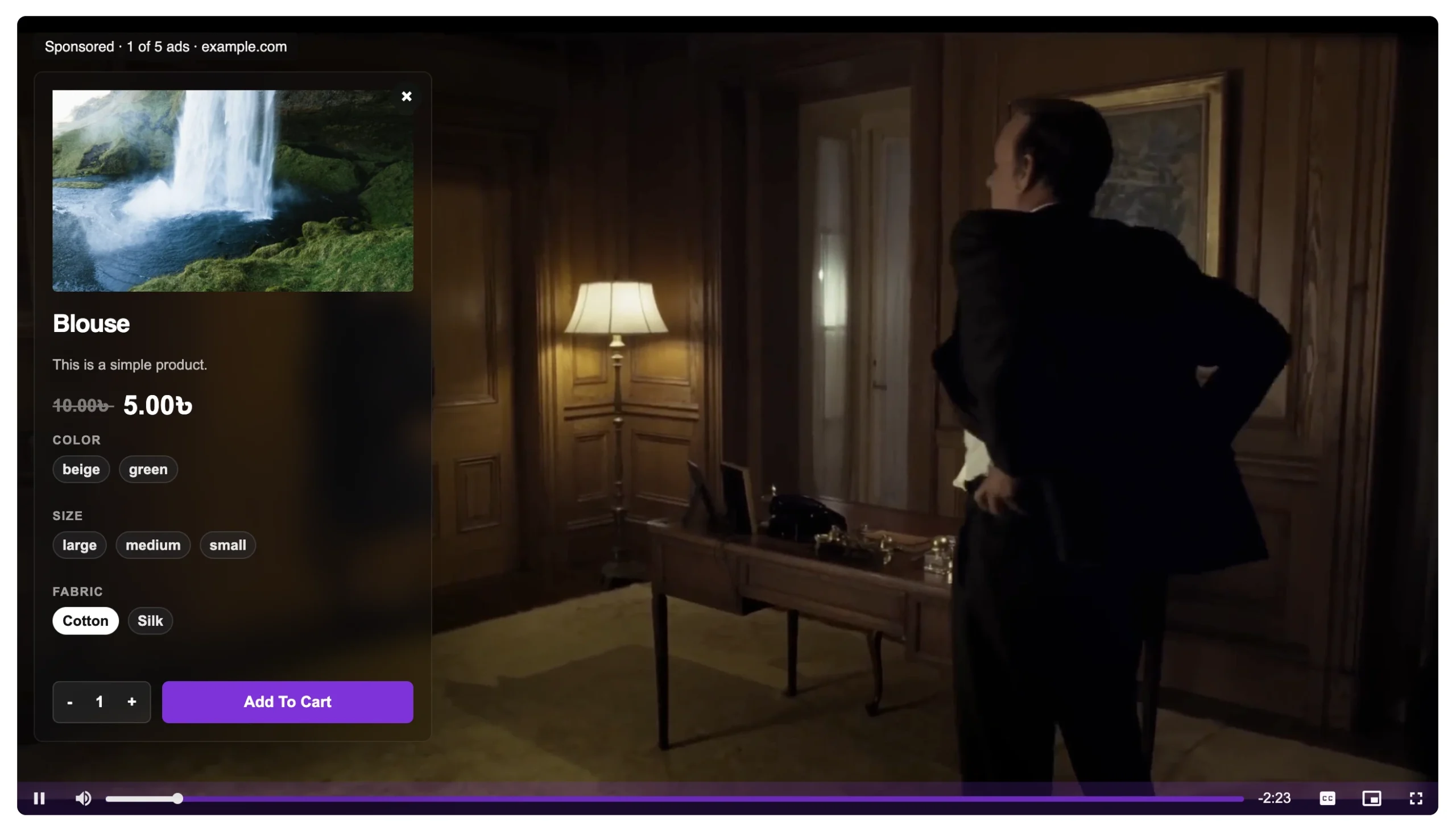
What Shoppers See
| Element | Description |
|---|---|
| Sponsored bar | “Sponsored · 1 of 5 ads · yoursite.com” |
| Product image | Auto-pulled from WooCommerce |
| Product name | Bold headline |
| Sale price | Current price with original struck through (e.g., ~~$10.00~~ $5.00) |
| Variant selectors | Color, Size, Fabric — selectable directly on the overlay |
| Quantity stepper | − / + control |
| Add To Cart button | Full-width CTA — adds directly to cart |
| Close (×) | Dismiss and continue watching |
Key Configuration Fields
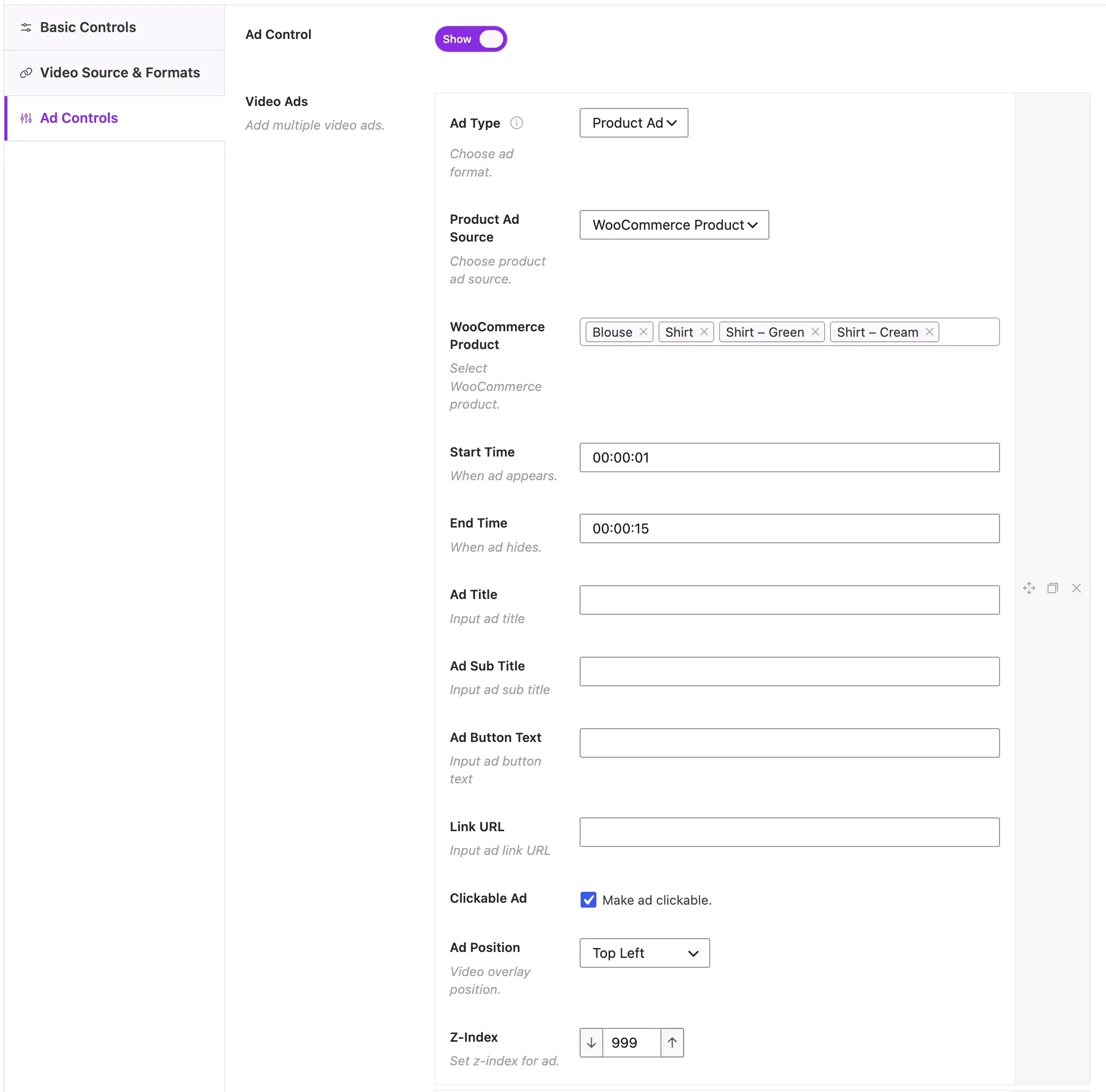
Ad Type: Leave as “Product Ad” — the default mode built specifically for WooCommerce.
Product Ad Source: Leave as “WooCommerce Product” — this syncs pricing, images, and variants live from your catalog. Change a price in WooCommerce and the overlay updates automatically, with no separate edit required.
WooCommerce Product: Tag 4–6 complementary products (not just the one shown in the video). MediaHaven’s documentation specifically recommends this: for a “summer wardrobe” video, tag the blouse, trousers, belt, bag, and sandals. Tagged products rotate randomly across viewer sessions — each visit to the page may surface a different product first, meaning your full collection gets even exposure over time rather than just the one item on screen.
Start Time / End Time: Match the overlay’s appearance to the exact moment the product is visually shown in the video (format HH:MM:SS). A 10–15 second display window is the documented sweet spot — long enough to read the name and price and make a selection, short enough not to obstruct the video itself.
Ad Position: Choose Top Left, Top Right, Bottom Left, or Bottom Right — specifically so the overlay does not cover the product being shown on screen. The intended effect is dual exposure: the shopper sees the product in context (worn, in use, demonstrated) and the buy option simultaneously.
Clickable Ad: Leave checked. This makes the entire overlay card clickable, not just the CTA button — meaningful given that 67% of video shopping happens on mobile (Statista, 2024), where a larger tap target directly increases accidental-but-welcome clicks.
The Business Case for Replacing Images With Shoppable Video
MediaHaven’s documentation is direct about the revenue mechanics behind this feature:
- Shoppable video increases conversion rates by up to 30% compared to standard video with just a link in the description (Smartzer, 2023)
- Retailers using in-video product overlays report average order value increases of 15–25%, driven by surfacing multiple products in a single video session
- Cart abandonment drops as the purchase path shortens — every additional page a customer must visit before checkout costs roughly 10–20% of conversions (Baymard Institute)
- Multi-product rotation in a single video (“1 of 5 ads” style exposure) increases cross-sell revenue by up to 35% (Salesforce Commerce Cloud)
- Well-timed overlays — matched precisely to when the product appears on screen — convert 2–3× higher than poorly timed placements (Wirewax)
The strategic framing from MediaHaven’s own materials: this replicates the TikTok Shop / Instagram Shopping video-commerce experience on your own WooCommerce store, under your own brand, with zero platform commission. You keep 100% of the revenue that a social commerce platform would otherwise take a cut of.
Realistic Revenue Impact
For a WooCommerce store with $30,000/month in revenue on product pages that currently use only static images:
- Adding product video to the gallery position (documented uplift range 20–65% from various e-commerce video studies) can realistically shift conversion meaningfully upward
- Adding a shoppable overlay on top of that video adds a further 15–25% average order value lift (per MediaHaven’s documented Smartzer/retailer benchmark) by surfacing complementary products during the same viewing session
Combined, a store that implements both — video-first gallery plus shoppable multi-product overlays — is stacking two independently documented conversion levers on the same page, at the cost of a single $79/year Pro license.
Frequently Asked Questions
Can I replace WooCommerce product images with videos?
Yes. MediaHaven Pro lets you display videos in place of product gallery images or alongside them within the native WooCommerce gallery. This allows customers to watch product demonstrations directly from the gallery while preserving a familiar shopping experience.
Why use product videos instead of static images?
Product videos help demonstrate features, movement, size, and real-world usage in ways that static images cannot. Replacing or complementing images with videos can increase buyer confidence, reduce uncertainty, and create a more engaging shopping experience for WooCommerce customers.
Which video sources can I use in the WooCommerce product gallery?
MediaHaven supports self-hosted videos, Bunny Stream, HLS (M3U8), YouTube, Vimeo, TikTok, Facebook, Instagram, LinkedIn, Twitch, Wistia, Dailymotion, Rumble, and external video URLs. This flexibility lets you choose the best hosting solution while managing everything from one plugin.
Can I display videos alongside product images instead of replacing them?
Absolutely. MediaHaven Pro gives you the flexibility to either replace WooCommerce product gallery images with videos or display videos alongside existing images. This allows shoppers to browse product photos while also watching demonstrations before making a purchase.
Can I replace the featured product image with a video?
Yes. MediaHaven Pro can turn your featured product media into an engaging video experience while maintaining compatibility with the WooCommerce product gallery. This helps highlight product demonstrations immediately when customers open a product page.
Can I add interactive shopping features to product videos?
Yes. MediaHaven Pro includes Interactive Shoppable Video for supported videos, allowing you to display clickable product cards, live pricing, quantity selectors, variation options, coupons, and customizable Add to Cart buttons directly inside the video player.
Does replacing images with videos affect SEO?
MediaHaven automatically generates Schema.org VideoObject structured data for published videos, helping search engines better understand your video content. When combined with optimized product pages, this can improve your eligibility for Google Video search and rich results.
Will product videos slow down my WooCommerce store?
No. MediaHaven is built for performance with Smart Asset Loading, lazy loading, automatic image optimization, and adaptive streaming support. Plugin assets are loaded only where they’re needed, helping keep WooCommerce product pages fast and responsive.
Can I use secure HLS streaming for product videos?
Yes. MediaHaven integrates with Bunny Stream to provide automatic HLS conversion, adaptive streaming, and secure signed URL delivery. You can also use your own HLS (.m3u8) streams for smooth, high-quality playback across devices.
Does MediaHaven work with Gutenberg and page builders?
Absolutely. MediaHaven includes native Gutenberg blocks and shortcode support for Elementor, Divi, Beaver Builder, WPBakery, and other popular WordPress page builders. You can add WooCommerce product videos and galleries anywhere on your website without writing custom code.
Is MediaHaven suitable for growing WooCommerce stores?
Yes. MediaHaven is designed to scale with your business by combining WooCommerce product videos, responsive galleries, multiple video sources, HLS streaming, VideoObject schema, performance optimizations, and advanced gallery assignment options in one platform.
Why choose MediaHaven for WooCommerce product gallery videos?
MediaHaven combines WooCommerce product gallery videos, featured video replacement, Interactive Shoppable Video, HLS streaming, VideoObject schema, VAST advertising, responsive galleries, and support for multiple video sources in one plugin. Instead of installing separate tools for video playback, SEO, monetization, and product galleries, you get a complete WordPress video commerce platform built to increase engagement, conversions, and long-term growth.
Full Configuration Checklist
- WooCommerce installed and activated
- Video gallery layout created in MediaHaven → Views
- Product opened in Products → All Products
- Assign MediaHaven Gallery button clicked in the Product Image/Gallery meta box
- Correct gallery selected from the Select Gallery popup
- Changes saved via Update in the Publish meta box
- Front-end product page checked — video now appears in the primary gallery position
- (Optional) Video Monetization tab enabled for shoppable overlays
- 4–6 complementary products tagged for random rotation
- Start Time / End Time set to match when the product appears on screen
- Ad Position chosen so the overlay doesn’t cover the product
- Tested on mobile — the majority of video shopping traffic
- Install free: wordpress.org/plugins/mediahaven-lite
- Official documentation: mediahaven.io/docs/
- Demo: demo.mediahaven.io/
- Upgrade to Pro: mediahaven.io/pricing — $79/year · 14-day money-back guarantee
- Support: support@wpninjadevs.com
Leave a Reply