

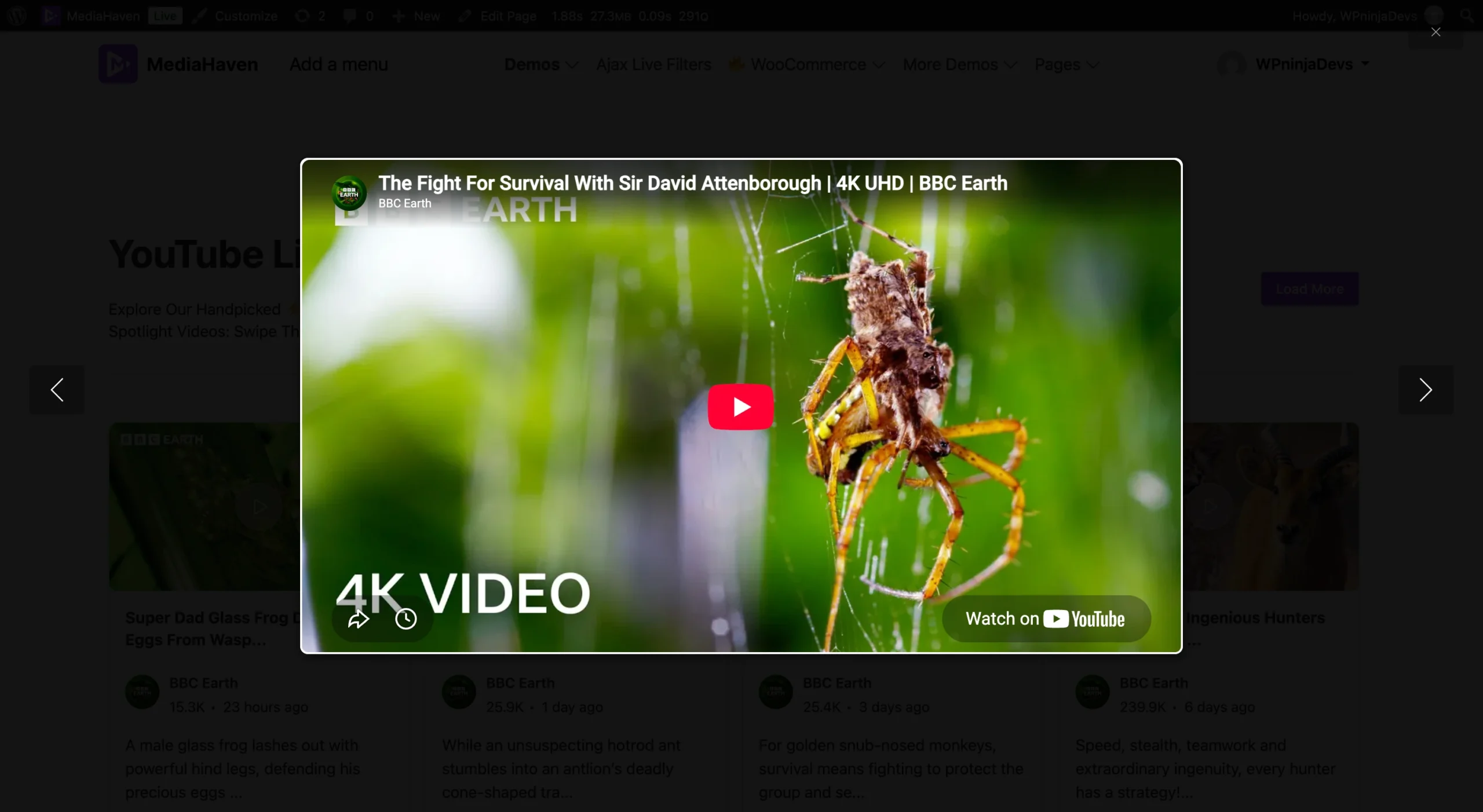
A Lightbox (Popup) video gallery keeps visitors on the same page. Instead of clicking a video thumbnail and being sent to a separate single-video page, the video opens in an overlay on top of the current page — the visitor watches, closes it, and picks up exactly where they left off in your gallery, blog post, or landing page.
This guide walks through building one from scratch inside MediaHaven Pro, using the Views builder — covering the beginner setup, the specific setting that actually enables the popup behavior, and the advanced styling controls available once it’s working.
See live demo – https://demo.mediahaven.io/lightboxpopup-gallery/
What a Lightbox (Popup) Video Gallery Actually Is
By default, MediaHaven can display a video gallery where each video plays inline (directly inside the grid item) or where clicking a thumbnail takes the visitor to a dedicated single video page. Lightbox Video is a third display mode: clicking a thumbnail opens the video in a popup overlay above the current page, with the rest of the page dimmed behind it.
This is controlled by the Media Type setting inside a View’s Media Controls tab — it’s not a separate gallery layout, but a display mode you apply to any layout (Grid, Carousel, Multi Rows, or Playlist).
Requirements
- MediaHaven Pro — Views are managed through the MediaHaven Pro admin menu
- At least one video already added under All Videos, or a connected YouTube source, so you have content to preview while building the gallery Add Your First Video and Configure External Video Sources
Create a New View
A “View” in MediaHaven is a saved gallery configuration — layout, source, and styling — that generates a shortcode you place anywhere on your site.
Step-by-Step
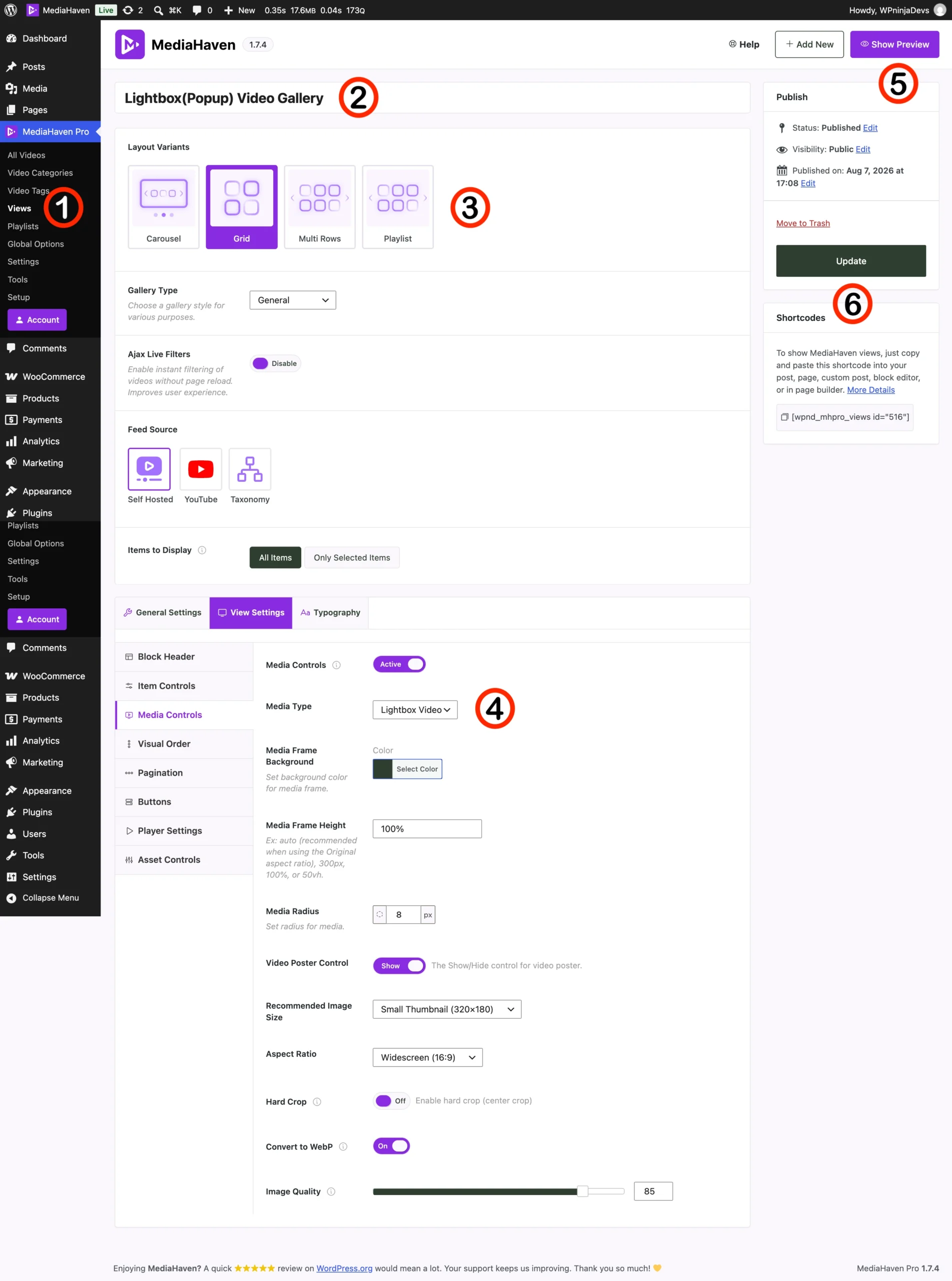
- In your WordPress admin sidebar, go to MediaHaven Pro → Views.
- Click Add New (top right).
- Give the View a clear name — for example, “Lightbox(Popup) Video Gallery” — so you can identify it later in your Views list.
- Under Layout Variants, choose one of the four options:
- Carousel
- Grid
- Multi Rows
- Playlist
- Under Gallery Type, choose a style for your purpose from the dropdown (default: General).
- Under Ajax Live Filters, decide whether to enable instant, no-reload filtering for this gallery. Leave it Disabled for a simple popup gallery unless you specifically want search/filter controls alongside it.
- Under Feed Source, choose where the videos come from:
- Self Hosted
- YouTube
- Taxonomy
- Under Items to Display, choose:
- All Items — automatically includes every video from the selected source
- Only Selected Items — manually pick specific videos for this gallery
At this point, you have a working gallery shell. The next part is what actually turns it into a popup.
Publish and Get Your Shortcode
- Once your layout, Media Type, and any additional styling are set, click Update in the Publish box.
- Confirm the Status shows Published and Visibility shows Public.
- Scroll to the Shortcodes box in the sidebar. You’ll see a generated shortcode in the format:
(with your View’s actual ID number in place ofXXX) - Click the copy icon next to the shortcode.
- Paste it into any page, post, Gutenberg block, or page builder text/shortcode element.
Your popup video gallery is now live wherever you’ve placed that shortcode.
Real-World Use Cases
Blog Posts and Articles
Embed a product demo or tutorial video mid-article using the Lightbox mode — readers can watch without being pulled away from the article they’re reading, then continue scrolling right where they left off.
Landing Pages
Use a Grid or Carousel layout with Lightbox Video for a testimonial or feature-showcase section — visitors browse thumbnails and watch on demand without the page layout shifting or navigating elsewhere.
Portfolio or Case Study Pages
A Multi Rows layout with Lightbox popups works well for agencies showcasing multiple client videos on one page, letting visitors sample several without leaving the overview.
Course or Resource Libraries
A Playlist layout combined with Lightbox Video lets learners browse a list of lessons and watch each one in a popup, keeping the full lesson list visible and accessible throughout.
Frequently Asked Questions
1. What’s the difference between Lightbox Video and the default gallery display? By default, a video either plays inline within its grid item or takes the visitor to a dedicated single video page when clicked. Lightbox Video instead opens the video in a popup overlay on top of the current page, so the visitor never leaves it.
2. Is Lightbox (Popup) video gallery a free or Pro feature? Views, including the Media Type / Lightbox Video setting, are managed through the MediaHaven Pro admin menu.
3. Can I use Lightbox Video with any layout — Grid, Carousel, Multi Rows, or Playlist? Yes — Media Type is set independently of the layout, so any of the four Layout Variants can use the Lightbox Video display mode.
4. Does the popup work with YouTube videos, or only self-hosted ones? Media Type and the Lightbox popup display are part of the general Views/gallery display system, which supports Self Hosted, YouTube, and Taxonomy feed sources at the Feed Source step — select the source that matches your content when creating the View.
5. Can I show multiple popup galleries with different settings on the same page? Yes — each View is independent with its own shortcode, so you can place multiple Views (each with its own layout, Media Type, and styling) on the same page if needed.
6. Will the popup gallery slow down my page? It shouldn’t — MediaHaven uses smart, per-shortcode asset loading and built-in lazy loading, so gallery assets only load on pages where a View shortcode is actually placed.
7. Where do I find the shortcode once my popup gallery is set up? After publishing or updating the View, the generated shortcode appears in the Shortcodes box in the right-hand sidebar of the View editor, in the format — copy it from there and paste it into any page, post, or page builder.