

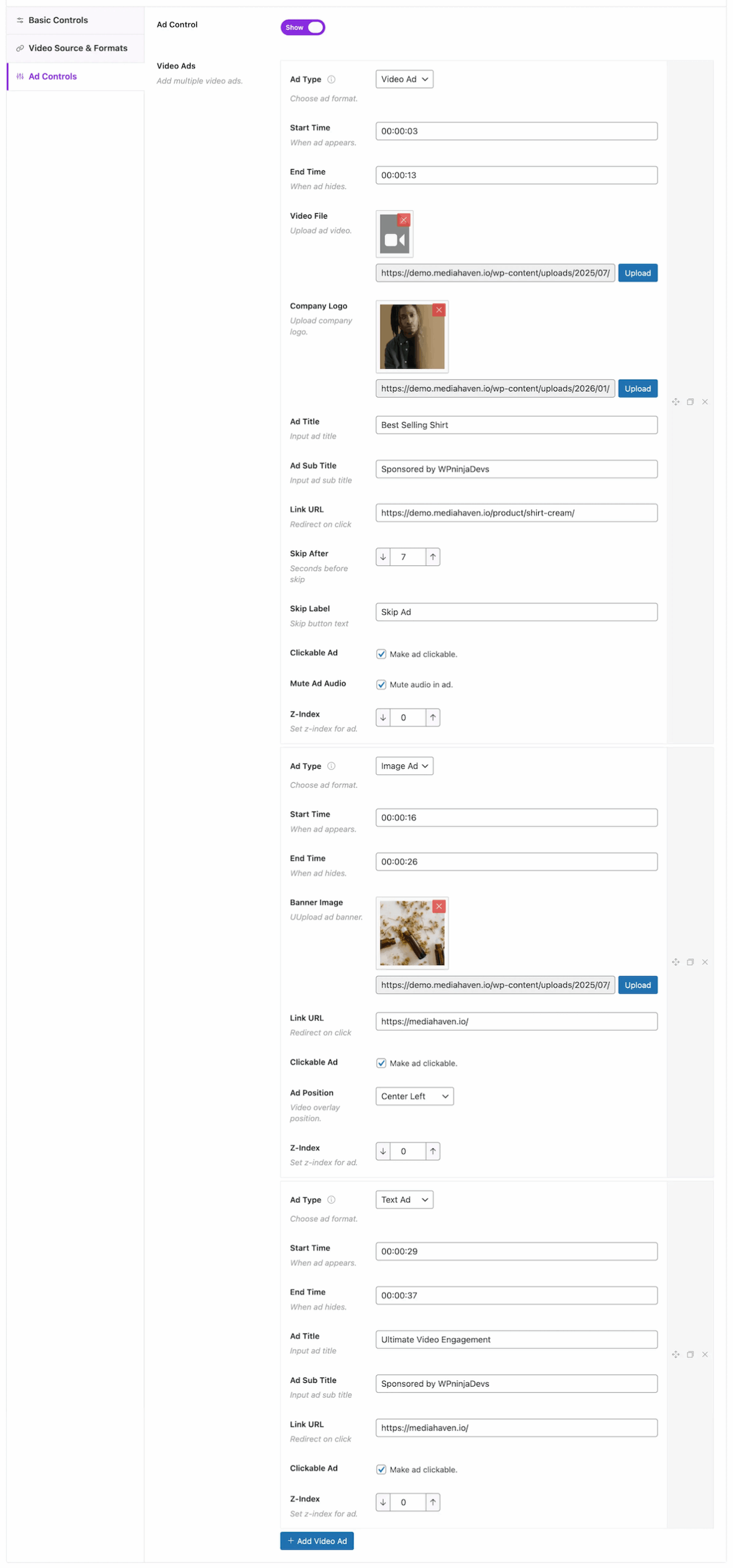
MediaHaven includes a built-in advertising system that lets you display product ads, video ads, image banners, and text ads inside the player at specific timestamps.
This allows you to:
- Monetize videos
- Promote products
- Display sponsors
- Run pre-roll, mid-roll, and overlay campaigns
Where to Find Video Monetization Settings
- Go to WordPress Dashboard → MediaHaven -> All Videos -> Add New Video
- Scroll to Video Settings
- Click Video Monetization (Ad Controls)
- Active or show Ad Control
Once enabled, you can add multiple ads for a single video.
Supported Ad Types
MediaHaven supports 4 ad formats:
Turn your videos into interactive shopping experiences.
Display one or multiple WooCommerce products directly inside your videos. Customers can choose product variations, update quantities, and add products to their cart without leaving the video.
Shoppable videos have become one of the fastest-growing ecommerce trends. Platforms like TikTok Shop, Instagram Shopping, and YouTube Shopping are transforming how customers discover and buy products, making video a powerful sales channel. Global social commerce is projected to exceed $1.6 trillion in 2026, driven largely by video-first shopping experiences.
Perfect for:
- 🛍️ Featured and best-selling products
- 🚀 New product launches and promotions
- 💰 Sponsored products and paid campaigns
- 📈 Upselling and cross-selling related products
- ⏱️ Showing products before, during, or after a video—or at any custom timestamp
- 🛒 Creating interactive shopping experiences that reduce the steps from discovery to checkout
Video Ads
Monetize your videos with professional video advertisements.
Play sponsored or promotional videos before, during, or after your content. Video advertising has become one of the world’s largest digital advertising channels, with brands investing billions of dollars each year because video consistently delivers strong engagement and conversion opportunities.
Perfect for:
- 💰 Sponsored video campaigns
- 🚀 Product launches and trailers
- 📢 Brand awareness campaigns
- 🎬 Pre-roll, mid-roll, post-roll, or custom timestamp ads
Image Ads
Promote products with eye-catching image overlays.
Display clickable banners while your video plays to showcase featured products, special offers, affiliate promotions, or seasonal campaigns. Image overlays keep products visible throughout playback, encouraging more clicks and potential purchases.
Perfect for:
- 🛍️ Product promotions
- 💸 Affiliate marketing
- 🔥 Seasonal discounts
- 📢 Announcements and event promotions
Text Ads
Drive action with simple, effective messages.
Show promotional text, coupon codes, announcements, or call-to-action messages at the perfect moment. Text overlays help direct viewers to your products, offers, or website without interrupting the viewing experience.
Perfect for:
- 🎁 Coupon codes and special offers
- 📢 Sponsor messages
- 🛒 Call-to-action prompts
- 📧 Newsletter and website promotions
Ad Timing (Important Concept)
Every ad appears based on video playback time.
You must define:
Start Time
When the ad appears
Format:
hh:mm:ss
End Time
When the ad disappears
✔ Example:
- Start: 00:00:03
- End: 00:00:13
This shows the ad between 3s and 13s.
Video Ad Configuration
After selecting Ad Type → Video Ad, configure:
Video File
Upload or select ad video.
Company Logo
Branding image shown with ad.
Ad Title
Main headline of the ad.
Ad Sub Title
Supporting message or sponsor text.
Link URL
Destination when user clicks the ad.
Skip After
Number of seconds before skip button appears.
Skip Label
Text displayed on skip button.
Clickable Ad
Enable to allow user clicks.
Mute Ad Audio
Start ad muted if enabled.
Z-Index
Controls display priority when multiple overlays exist.
Image Ad Configuration
After selecting Ad Type → Image Ad, configure:
Banner Image
Upload ad banner.
Link URL
Destination when clicked.
Clickable Ad
Enable click interaction.
Ad Position
Where banner appears on player:
- Top Left
- Top Right
- Top Center
- Bottom Left
- Bottom Right
- Bottom Center
- Center Left
- Center Right
- Center Center
Z-Index
Controls overlay stacking order.
Text Ad Configuration
After selecting Ad Type → Text Ad, configure:
Ad Title
Main message text.
Ad Sub Title
Secondary description.
Link URL
Click destination.
Clickable Ad
Enable interaction.
Z-Index
Controls overlay priority.
Adding Multiple Ads
You can display multiple ads in one video.
Steps:
- Configure first ad
- Click Add Video Ad
- Repeat configuration
Ads can:
- Appear at different times
- Use different formats
- Overlap if configured intentionally
Best Practices for High Performance
✔ Keep video ads short
✔ Use optimized media files
✔ Avoid overlapping ads unnecessarily
✔ Keep image banners lightweight
✔ Ensure link URLs are valid
For large-scale deployments:
- Host media externally
- Avoid heavy overlays
- Use consistent Z-index hierarchy
Common Use Cases
Pre-Roll Advertisement
Start: 00:00:00
End: 00:00:10
Type: Video Ad
Mid-Roll Sponsor
Start: 00:01:30
End: 00:01:45
Type: Video Ad
Persistent Brand Banner
Start: 00:00:05
End: Video duration
Type: Image Ad
Call-To-Action Message
Start: 00:00:20
End: 00:00:30
Type: Text Ad
Troubleshooting
Ad not appearing
✔ Check start and end times
✔ Ensure ads enabled
✔ Verify video duration exceeds ad timing
Click not working
✔ Enable clickable option
✔ Check URL format
Overlapping ads
✔ Adjust timing
✔ Modify Z-index
What Happens After Publishing
When video is published:
MediaHaven automatically:
- Registers ad timeline
- Injects ads into player
- Handles timing display
- Applies click behavior
- Manages overlay stacking
No additional configuration required.