

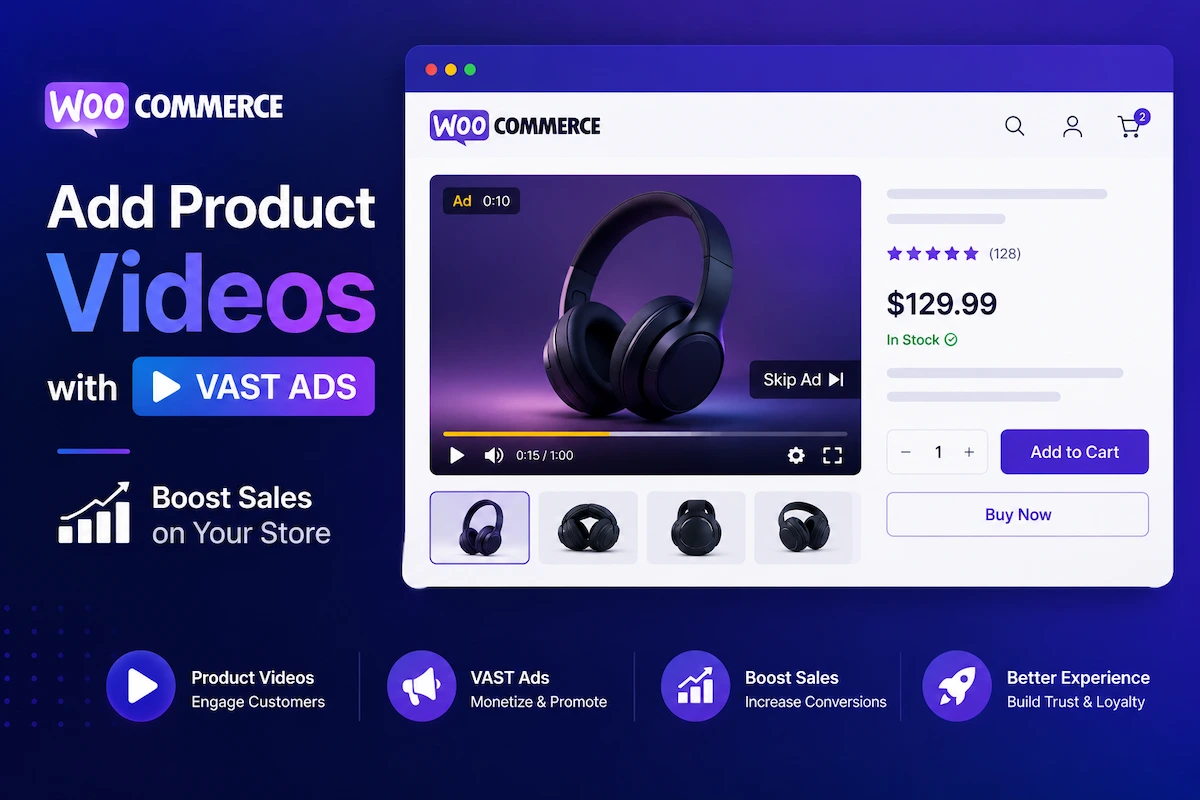
Most WooCommerce stores are running on half their potential revenue. The product images are clean, the descriptions are detailed, and the checkout flow works — but the single most powerful conversion tool in 2026 ecommerce is still missing from most product pages: video.
Websites with video achieve an average conversion rate of 4.8%, while websites without video average just 2.9% (WebFX, 2026). That 65%+ uplift is not a feature A/B test — it is the documented baseline difference between two approaches to product page design. The likelihood of adding a product to cart increases by 144% after watching a product video (Invesp). Product videos also reduce returns by up to 35% by closing the expectation gap between what buyers imagine and what they receive (SellersCommerce, 2026).
And then there is the revenue layer that almost no WordPress store has tapped yet: VAST video ad monetization on the same product page where the video plays. Every product demo view becomes both a conversion opportunity and an ad impression. This guide shows you how to build both simultaneously using MediaHaven Pro.
The Business Case: Two Revenue Streams From One Product Video
The standard WooCommerce video strategy is linear: add video → increase conversions → earn more from product sales. That is real and significant. But MediaHaven’s WooCommerce integration adds a second revenue track running in parallel.
Track 1: Product sales conversion lift A WooCommerce store with 20,000 monthly product page visitors at a $79 average order value:
| CVR without video | CVR with video | Revenue difference |
|---|---|---|
| 2.9% → 580 orders | 4.8% → 960 orders | +$30,010/month |
Track 2: VAST ad revenue from video plays Every product video play generates a pre-roll, mid-roll, or overlay ad impression. At 20,000 monthly product video plays and a $5 CPM (conservative mid-range for e-commerce audiences):
- 20,000 plays × $5 CPM / 1,000 = $100/month in additional ad revenue
- At 100,000 monthly plays: $500/month in passive ad revenue
Two revenue streams. Same plugin. Same product page. The $79/year MediaHaven Pro license cost is recaptured in the first few hundred additional product sales.
What MediaHaven Provides for WooCommerce: Verified Features (May 2026)
All features below are confirmed from the official mediahaven.io homepage and wordpress.org/plugins/mediahaven-lite/, verified May 2026.
Free (MediaHaven Lite)
| Feature | Details |
|---|---|
| 12+ video source embeds | YouTube, Vimeo, TikTok, HLS, self-hosted MP4, Facebook, Instagram, LinkedIn, Twitch, Wistia, Dailymotion, Rumble |
| Grid, Carousel, Multi-row Carousel layouts | All three layouts free |
| Schema.org VideoObject markup | Automatic on every video — no SEO plugin needed |
| Built-in lazy loading | Images, video, and iframes — on by default |
| Smart per-shortcode asset loading | Zero plugin overhead on pages without galleries |
| Ajax view counter | Auto-updating view count per video |
| Ajax like/dislike | Engagement feature built in |
| Video subtitles | WebVTT (.vtt) and SubRip (.srt) support |
| Export/import (JSON/CSV) | Gallery portability across sites |
| Shortcode View Gutenberg block | Live preview inside the block editor |
| Setup Wizard | Guided onboarding with server checks |
Pro ($79/year, 1 site — 14-day money-back guarantee)
| Feature | Business impact |
|---|---|
| WooCommerce product video overlays | Show product demo → prompt viewer to add to cart — directly inside the video player |
| VAST ad monetization | Pre-roll, mid-roll, post-roll, and overlay ads with VAST-compliant ad networks |
| 9 ad position zones | Top left/center/right, middle left/center/right, bottom left/center/right |
| Ad types: video, banner, link | Monetize with any VAST-compatible format |
| Clickable ads with custom CTA button | Ad Button Label field to customize button text (e.g., “Shop Now”) |
| Ad audio mute option | Browser autoplay compliance, confirmed in v1.6.2 changelog |
| Ajax Video Live Filter | Real-time filter by category, tag, duration, resolution, featured status |
| Video Chapters | Clickable chapter markers for long product demos |
| Drag & Drop Video Card Builder | Full control over card layout without code |
| WebP thumbnail conversion | 30–50% smaller images, better Core Web Vitals |
| Player Unlimited Styles | Control bar, buttons, progress bar styling |
| Indexed lookup table | High-performance AJAX for large video libraries |
MediaHaven is confirmed compatible with: WooCommerce, SureCart, FluentCart, Elementor, Gutenberg — as shown on the mediahaven.io homepage.
The WooCommerce Video-Ad Architecture: How It Works
The official mediahaven.io homepage describes the WooCommerce integration explicitly: “Show a product demo, then prompt the viewer to add a related item to visit or cart — directly inside the video player. Upsell and cross-sell without sending shoppers away from the page.”
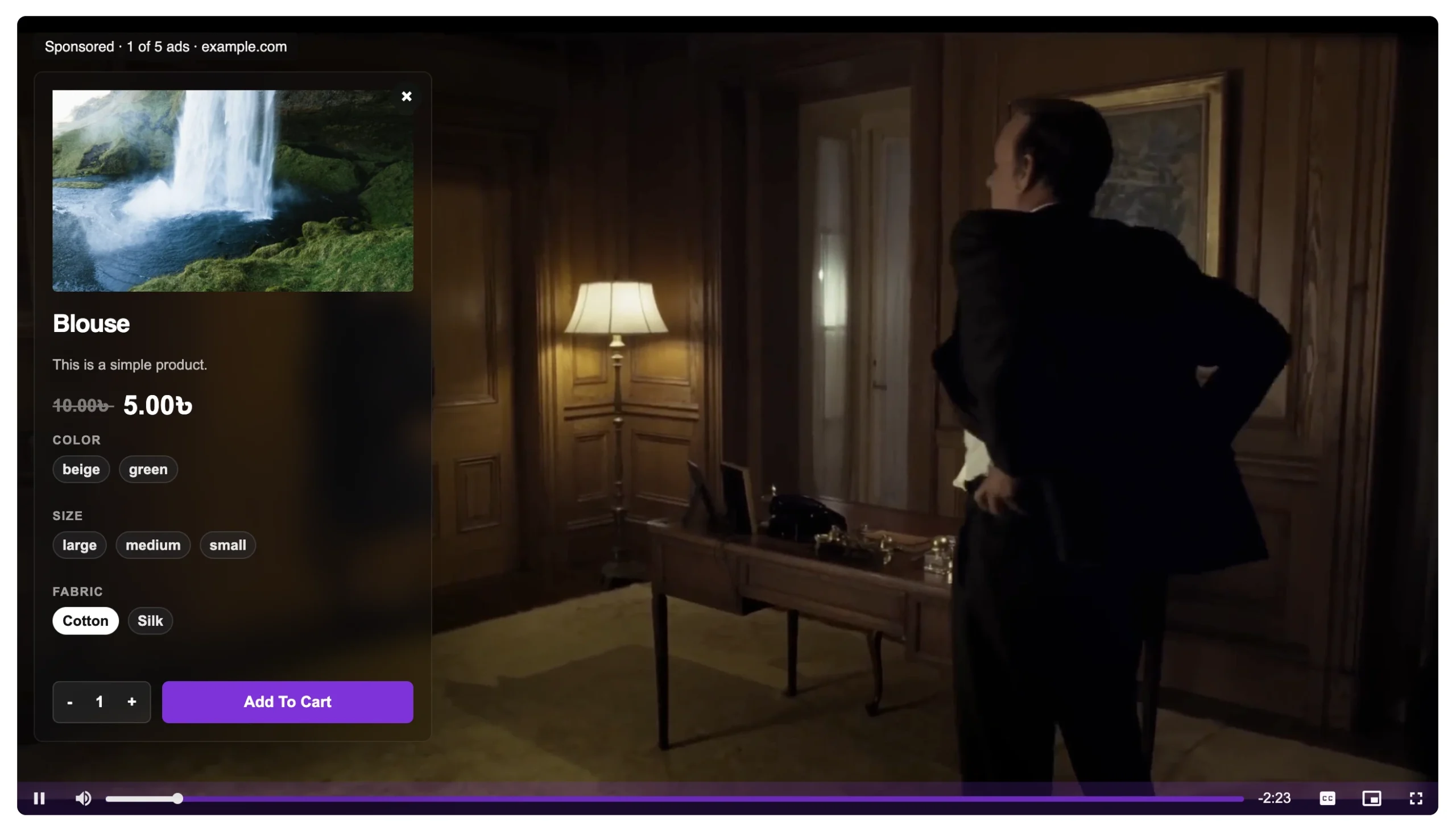
Here is the architecture in practice:
- A buyer lands on a WooCommerce product page
- They see a MediaHaven video gallery showing the product demo (or a demo + lifestyle video)
- A VAST pre-roll ad plays for 5–15 seconds before the product demo — generating ad revenue
- The product demo plays — a WooCommerce product overlay prompt appears inside the player: “Add to Cart” or “View Related Product”
- The viewer converts either from the overlay prompt inside the player or from the standard WooCommerce buy button on the page
- You have captured both ad revenue (from the pre-roll) and a product sale (from the demo) in the same session
This is not a theoretical workflow. The VAST demos at demo.mediahaven.io/mhpro-video/custom-vast-video-advertising-pro-dynamic-positions-for-image-video-text-ads/ show the ad positioning system live.
Step 1: Install MediaHaven Lite
- In your WordPress dashboard, go to Plugins → Add New
- Search for MediaHaven
- Install and activate “MediaHaven – Video Gallery & HLS Player for YouTube and TikTok” by WPninjaDevs
The plugin menu appears as “MediaHaven Lite” in the admin sidebar. The Setup Wizard launches automatically on first activation — it takes under 2 minutes and includes server compatibility checks and sample shortcode templates.
After testing the free version, upgrade to Pro at MediaHaven Pro. Install the Pro plugin via Plugins → Add New → Upload Plugin and activate your license key in MediaHaven Lite → Settings → License.
Step 2: Create Your Product Videos
Navigate to MediaHaven Lite in the admin sidebar and add each product video.
For each video, configure:
Source Type — choose based on your hosting strategy:
- Self-hosted MP4 — paste the direct
.mp4URL (hosted on your server, CDN, or AWS S3) - HLS stream — paste the
.m3u8URL for adaptive bitrate streaming (recommended for long demos) - YouTube embed — paste the YouTube video URL
- Vimeo embed — paste the Vimeo URL
Why HLS for long product demos: HLS (HTTP Live Streaming, M3U8 format) automatically adapts video quality to each viewer’s connection speed. A buyer on a slow mobile network sees the demo without buffering. MediaHaven supports HLS natively in the free version — confirmed on the WP.org plugin page: “Live Video Streaming in M3U8 Format.”
Poster image — upload a high-quality product thumbnail. For self-hosted and HLS videos, WordPress cannot auto-generate a frame — you must upload one. This is the image buyers see before clicking play and the thumbnail in your product gallery grid. Use your strongest product image.
Title and description — write keyword-rich, accurate copy. MediaHaven uses these fields to generate the VideoObject schema.org output. Your title and description directly populate Google’s rich result data.
Subtitles — upload a .vtt or .srt file. 85% of video on mobile is watched without sound (GoDAM, March 2026). Captions make your product demo accessible and give Google a crawlable text version of the demo content.
Video Chapters (Pro) — for product demos longer than 90 seconds, add chapters:
0:00— Overview0:30— Key features1:15— How it works2:00— Use cases2:45— Pricing and options
Chapters enable Google’s Key Moments in search results — clickable timestamps that appear directly in the SERP for your product queries.
Categories and Tags — assign to relevant product categories and style tags. These power the filtering system.
Click Publish.
Step 3: Build Your Product Video Gallery (View)
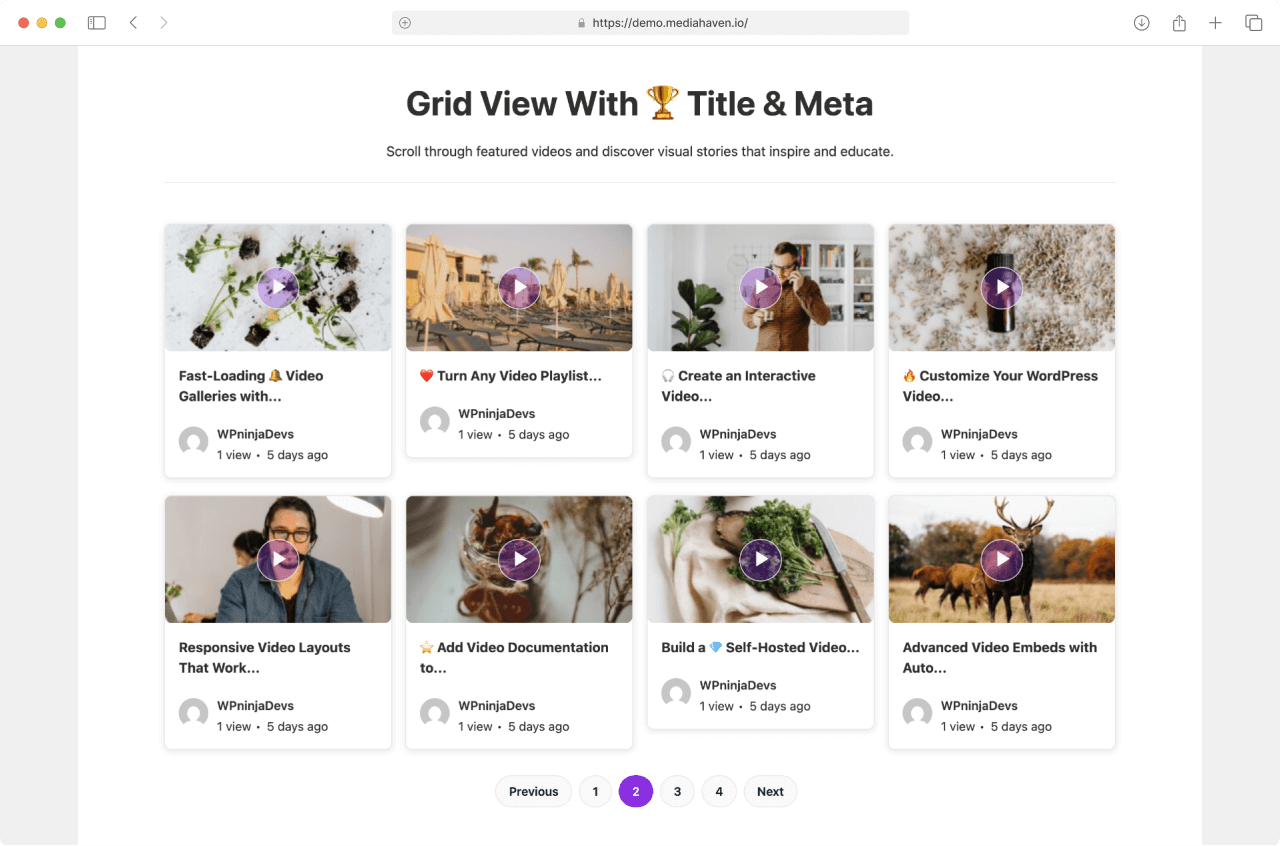
Go to MediaHaven Lite → Views → Add New.
For a single-product demo gallery (on individual WooCommerce product pages):
- Layout: Grid, 1 column (or 2 columns if showing multiple product angles)
- Display: Title visible, description hidden (keep the card clean — description lives in the product page body)
- Pagination: Off (show 1–3 videos, no Load More needed)
- Smart Shortcode Live Preview: MediaHaven includes a live preview directly in the admin — you see exactly how the gallery renders before publishing. No save-and-check-frontend loop required.
For a product video hub (dedicated “Video Reviews” or “See It In Action” page):
- Layout: Grid, 3 columns on desktop, 2 on tablet, 1 on mobile
- Ajax Video Live Filter (Pro): Enable filtering by product category, style, or use case — visitors browse the video library without page reloads
- Display: Title, view count, and category tags visible
- Pagination: Ajax Load More button
Click Save. Copy the generated shortcode:
Step 4: Embed on WooCommerce Product Pages
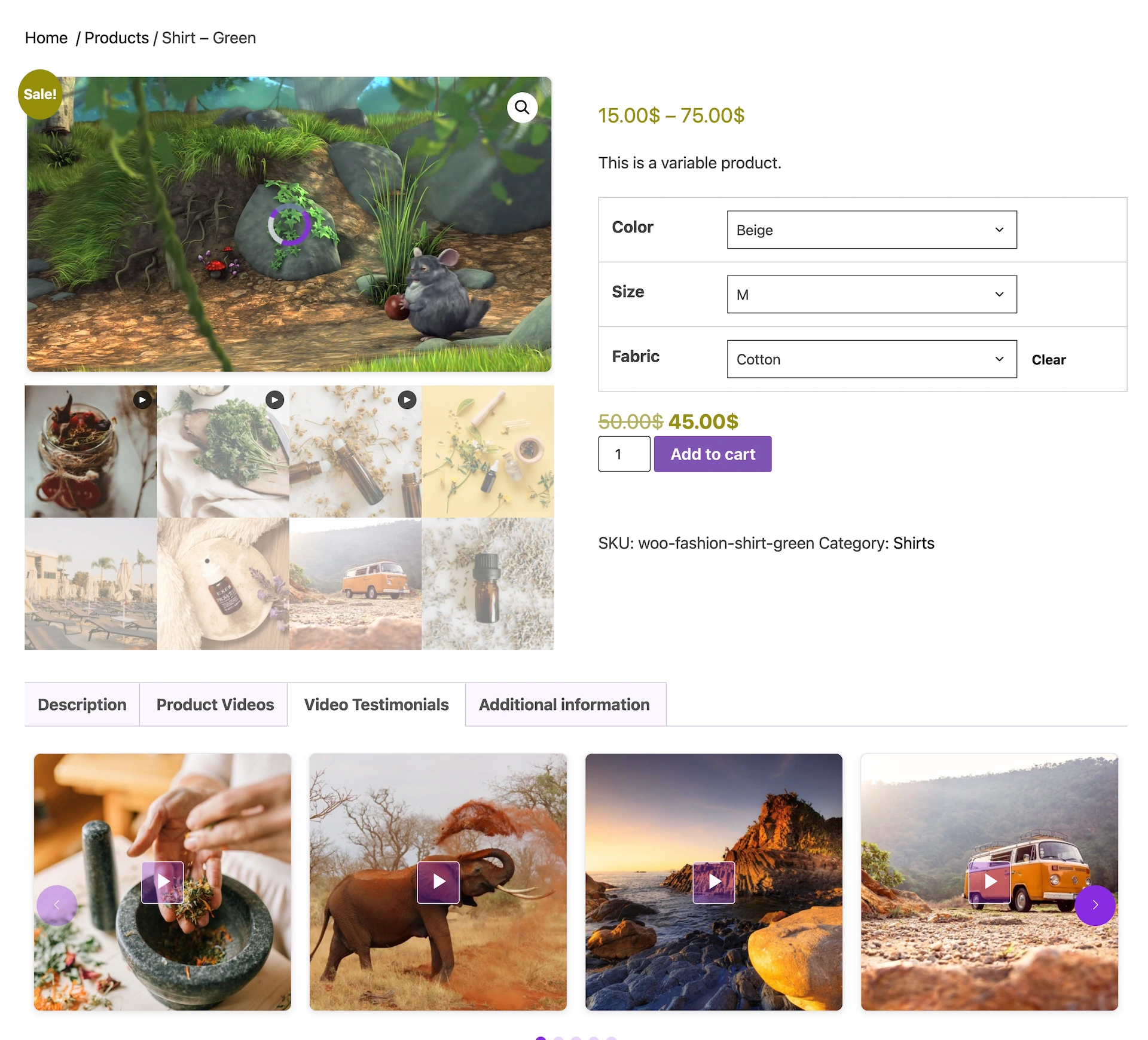
Option A — WooCommerce Short Description (highest-converting placement): In the WooCommerce product editor, paste in the Short Description field. This places the video gallery directly below the product title and above the Add to Cart button — the highest-visibility position on a product page.
Option B — Elementor product page template: If you use an Elementor product page template, add a Shortcode widget and paste the shortcode. Position it between the product image gallery and the product description.
Option C — Gutenberg block editor: Add a MediaHaven Shortcode View block. Select your gallery from the dropdown — a live preview renders inside the editor.
Option D — Classic editor or any page builder: Add a Shortcode element and paste . Compatible with WPBakery, Divi, Beaver Builder, and all major builders (confirmed in the WP.org FAQ).
Placement note: “Nearly 50% of consumers search for product videos online before visiting a store” (Think with Google). Video must be visible without significant scrolling. Place it in the first scroll zone — within 400px of the top of the product page body.
Step 5: Configure VAST Ad Monetization (Pro)
VAST monetization is a Pro feature. Once Pro is active, the ad configuration panel appears in your MediaHaven settings.
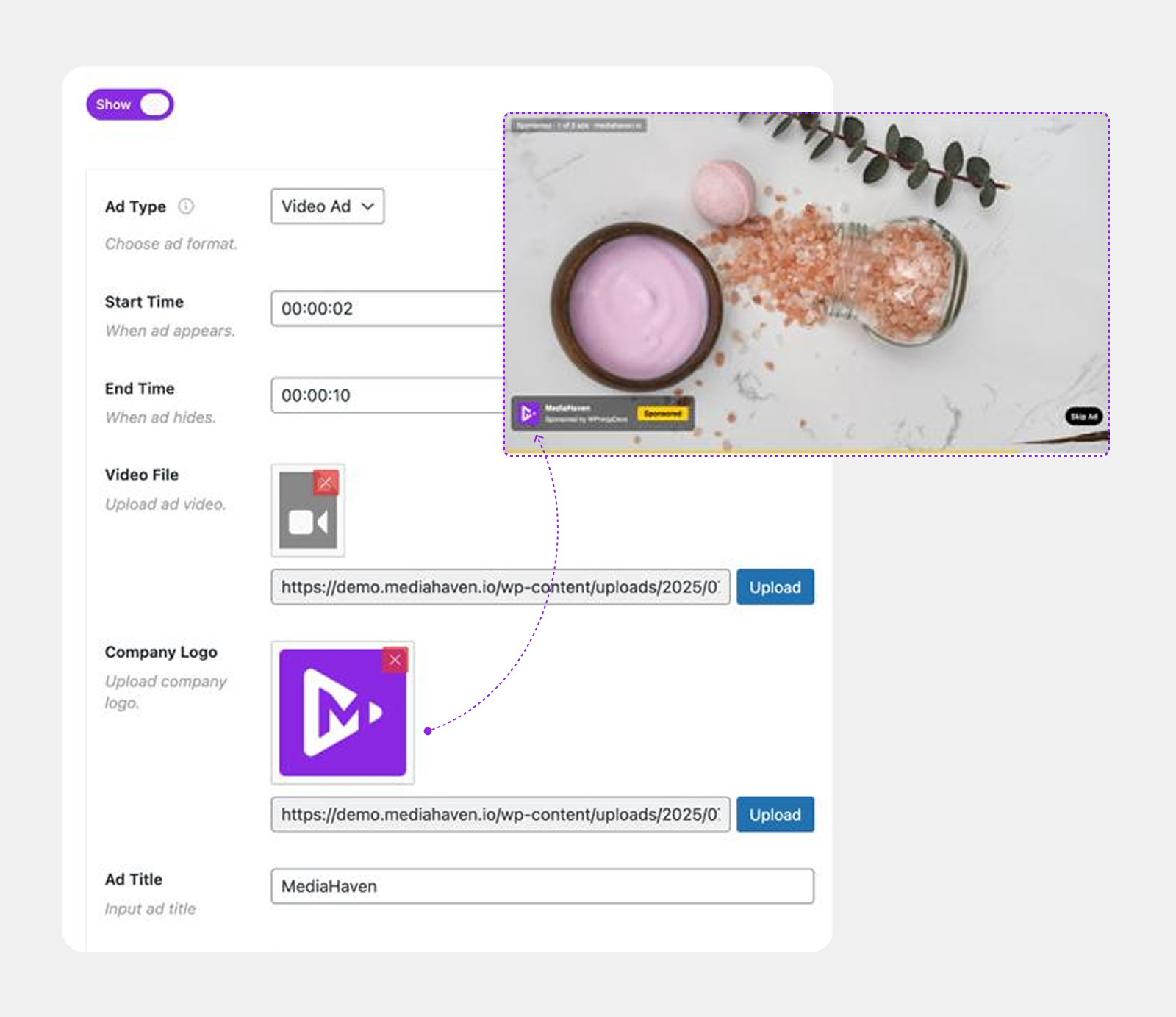
Get a VAST Tag
Google Ad Manager (recommended):
- Sign up free at admanager.google.com
- Create a video ad unit under Inventory → Ad units → Video
- Generate a VAST tag URL and copy it
Google AdSense for Video (AFV): Apply separately from standard AdSense at ads.google.com. Once approved, create a video ad unit and copy the VAST URL.
Configure MediaHaven VAST Settings
Based on confirmed changelog entries and the mediahaven.io VAST system documentation:
Global VAST setup:
- Navigate to VAST/monetization settings in MediaHaven Lite → Settings
- Enable ads
- Paste your VAST tag URL
- Set Ad Position: Pre-roll (plays before the product demo starts — highest CPM position)
- Enable Ad Audio Mute — required for browser autoplay compliance (added v1.6.2)
- Set Ad Button Label — customize the CTA text (e.g., “Shop Now,” “See Product,” “View Deal”) — added v1.6.5
- Save
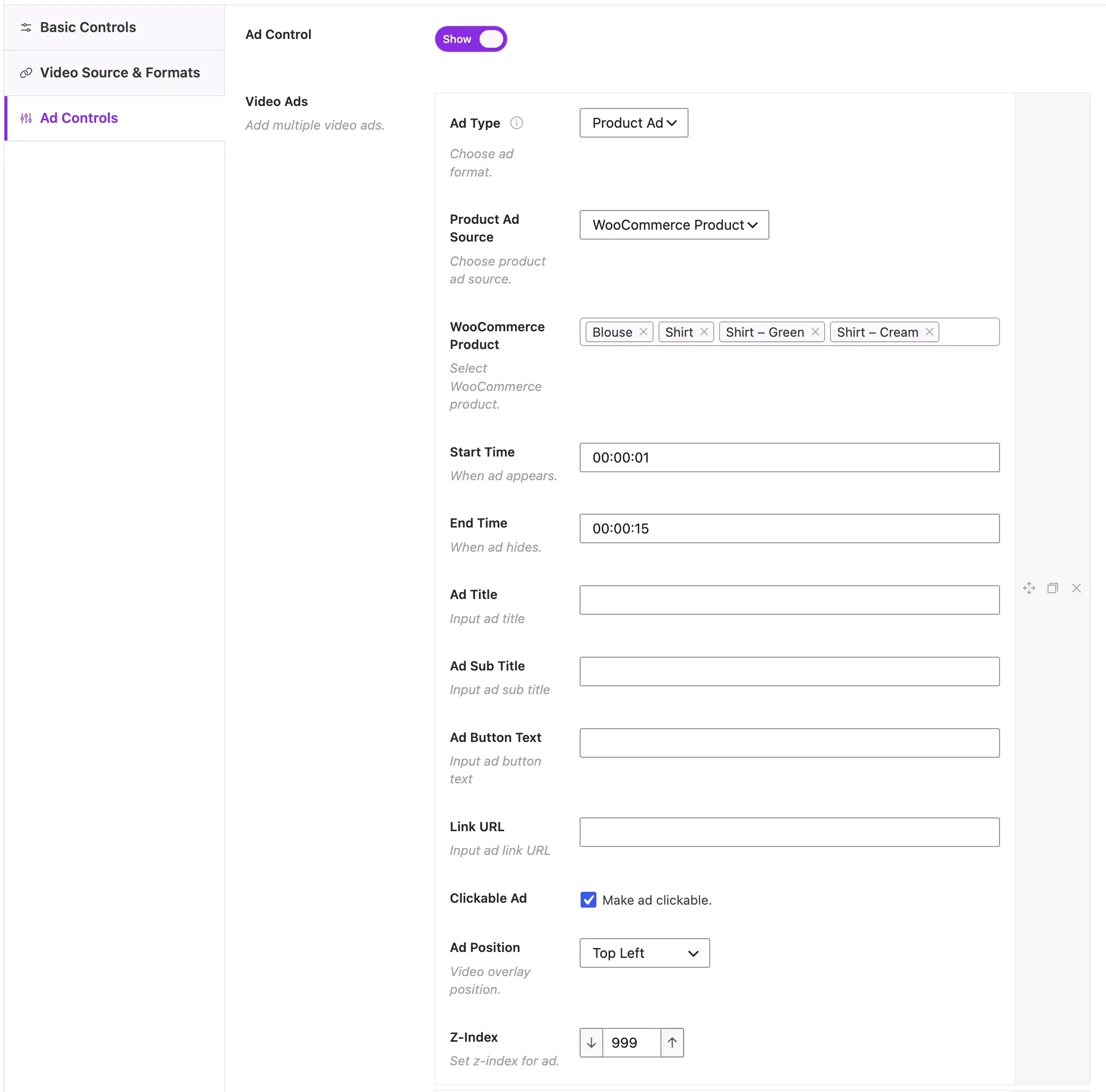
Per-video VAST override: For premium products with direct-sold advertising campaigns, use the Override VAST URL field on each video post. A specific sponsor’s VAST tag plays only on that product’s video.
Overlay ad positioning: Navigate to overlay ad settings. MediaHaven Pro provides 9 position zones across the video frame:
- Bottom center — least intrusive, best for product-page contexts
- Bottom right — natural eye-path position for CTA overlays
- Avoid top and middle zones on product pages — they obscure the product demo
Ad types available (confirmed from mediahaven.io):
- Video ads (short video clips as overlay ads)
- Banner/image ads (static image with clickable link)
- Link ads (text-based clickable CTA)
Key from v1.6.5 changelog: “Fixed: Resolved ad position conflicts between the main player and related videos on single video pages.” This is a critical fix for WooCommerce product pages that display related product video sections — ads now fire correctly without conflicts between the main product video and related product videos.
Step 6: Optimize Performance (Critical for Product Pages)
Product page performance directly determines conversion. Every 1-second improvement in load time increases mobile conversion rates by 27% (Portent, 2026).
MediaHaven’s built-in performance stack (all free):
- Smart per-shortcode asset loading: The plugin’s CSS and JavaScript load only on pages that contain a
shortcode. A WooCommerce category page with no video gallery loads zero MediaHaven assets — no performance tax on non-gallery pages. - Lazy loading: Video thumbnails, iframes, and files load only as they scroll into the viewport. A product page with a 6-video gallery loads almost as fast as one with 1 video.
- Smart caching: YouTube API data is stored locally — gallery pages don’t trigger live API calls on every load.
- Built-in image compression: All gallery thumbnails are compressed automatically without a third-party plugin.
Pro additions:
- WebP thumbnail conversion: WebP images are 30–50% smaller than JPEG at equal quality. On a mobile product page where thumbnail images are above the fold, WebP directly improves Largest Contentful Paint (LCP) — a Core Web Vitals metric Google uses as a ranking signal.
Business Case by Store Type
Physical product stores (clothing, home goods, electronics) Video shows the product in motion — fabric movement, scale against a human hand, a desk lamp casting actual light. The 35% return reduction alone justifies the investment. VAST pre-rolls add passive revenue on every product page visit.
Digital product stores (WordPress themes, plugins, templates, courses) Screen recording demos showing the product being installed, configured, and used convert at dramatically higher rates than screenshots. A 90-second theme demo removes the biggest digital product purchase barrier: “I don’t know if I can make it look like the screenshot.”
Software and SaaS (annual license products) Long product demos with Video Chapters (Pro) let buyers jump to the features they care about — integrations, pricing, dashboard overview — without watching from the start. Google’s Key Moments feature displays these chapters in SERPs, bringing buyers directly to the relevant moment in your demo video from organic search.
Subscription box and recurring products Video showing the unboxing experience and contents of previous boxes is one of the highest-converting formats for subscription ecommerce. A 60-second “What’s inside this month’s box” video with a pre-roll ad delivers ad revenue from curious browsers and product revenue from subscribers.
Verified Performance: What to Expect
These are realistic outcomes for WooCommerce stores after implementing MediaHaven product videos with VAST monetization, based on published 2026 ecommerce video data:
| Metric | Baseline (no video) | With MediaHaven video + VAST |
|---|---|---|
| Product page CVR | 2.9% | 4.5–4.8% (+55–65%) |
| Cart add rate | Baseline | +144% (Invesp) |
| Return rate | Baseline | -35% (SellersCommerce 2026) |
| Product understanding | Lower | 93% of marketers report video improves understanding (Wyzowl 2026) |
| Buyer trust | Lower | 64% more likely to buy after watching a product video |
| Ad revenue | $0 | $50–500+/month depending on traffic volume |
| SERP visibility | Text only | VideoObject rich results + Key Moments eligible |
Frequently Asked Questions
How do I add WooCommerce product videos with VAST ads?
MediaHaven Pro makes it easy to combine WooCommerce product videos with VAST advertising. Simply upload or connect your video, enable WooCommerce integration, add a VAST tag from your preferred ad network, choose ad placements, and publish. You can monetize video views while showcasing products in the same player.
What are VAST ads, and how do they work with WooCommerce videos?
VAST (Video Ad Serving Template) is the industry standard for delivering video advertisements. MediaHaven Pro reads your VAST tag, requests ads from compatible ad networks, and displays them before, during, or after WooCommerce product videos, creating an additional revenue stream without changing your store’s shopping experience.
Can I monetize WooCommerce product videos without using YouTube?
Yes. MediaHaven Pro supports VAST advertising for self-hosted videos and HLS streams on your own WordPress website. This allows you to generate advertising revenue while keeping visitors on your store, maintaining your branding, and avoiding third-party platform distractions.
Can I display clickable WooCommerce products inside my videos?
Yes. MediaHaven Pro lets you add interactive WooCommerce product overlays directly inside supported videos. You can link a specific product or category, customize the call-to-action button, and choose when the overlay appears to create a more engaging shopping experience.
Which VAST ad placement generates the highest revenue?
Pre-roll ads typically deliver the highest number of impressions because every viewer sees them before the main video starts. MediaHaven Pro also supports mid-roll and post-roll placements, allowing you to optimize monetization while maintaining a smooth viewing experience.
Can I customize when product overlays appear?
Absolutely. MediaHaven Pro allows you to display product overlays at the beginning of a video, at a specific timestamp, or near the end. Showing products at strategic moments helps attract attention naturally and can encourage more shoppers to explore your products.
Does MediaHaven improve SEO for WooCommerce product videos?
Yes. MediaHaven automatically generates Schema.org VideoObject structured data for published videos, helping search engines better understand your content. Combined with dedicated video pages and responsive galleries, this can improve your visibility in search results.
Does MediaHaven work with Google Ad Manager?
Yes. MediaHaven Pro supports standard VAST tag URLs from Google Ad Manager and other VAST-compatible advertising platforms. Simply paste your VAST tag into the plugin, select your preferred ad positions, and MediaHaven handles video ad playback automatically.
Can I use Gutenberg or page builders to display monetized product videos?
Yes. MediaHaven includes dedicated Gutenberg blocks and shortcode support, making it compatible with Elementor, Divi, Beaver Builder, WPBakery, and other popular page builders. You can embed monetized WooCommerce video galleries anywhere on your website without coding.
Is MediaHaven suitable for growing WooCommerce stores?
Absolutely. MediaHaven is designed to scale with your business by combining WooCommerce product videos, VAST advertising, responsive galleries, HLS streaming, smart performance optimization, and multiple video source support in one unified platform.
Can I combine product promotions and video ads in the same player?
Yes. MediaHaven Pro allows you to display WooCommerce product overlays alongside VAST video ads within the same player. This lets you generate advertising revenue while simultaneously encouraging shoppers to explore or purchase featured products, maximizing the value of every video view.
Why choose MediaHaven for WooCommerce product video monetization?
MediaHaven combines WooCommerce product videos, interactive product overlays, VAST advertising, HLS streaming, responsive galleries, VideoObject schema, Gutenberg integration, and support for multiple video sources in one plugin. Instead of managing several separate tools, you get a complete WordPress video commerce platform built to increase engagement, revenue, and sales.
Install free: Mediahaven Lite
See VAST demo live: demo.mediahaven.io/mhpro-video/custom-vast-video-advertising-pro-dynamic-positions-for-image-video-text-ads/ Upgrade to Pro: MediaHaven Pricing — from $79/year · 14-day money-back guarantee
Support: assist.wpninjadevs@gmail.com
Leave a Reply