

Go to MediaHaven → Videos → Add New.
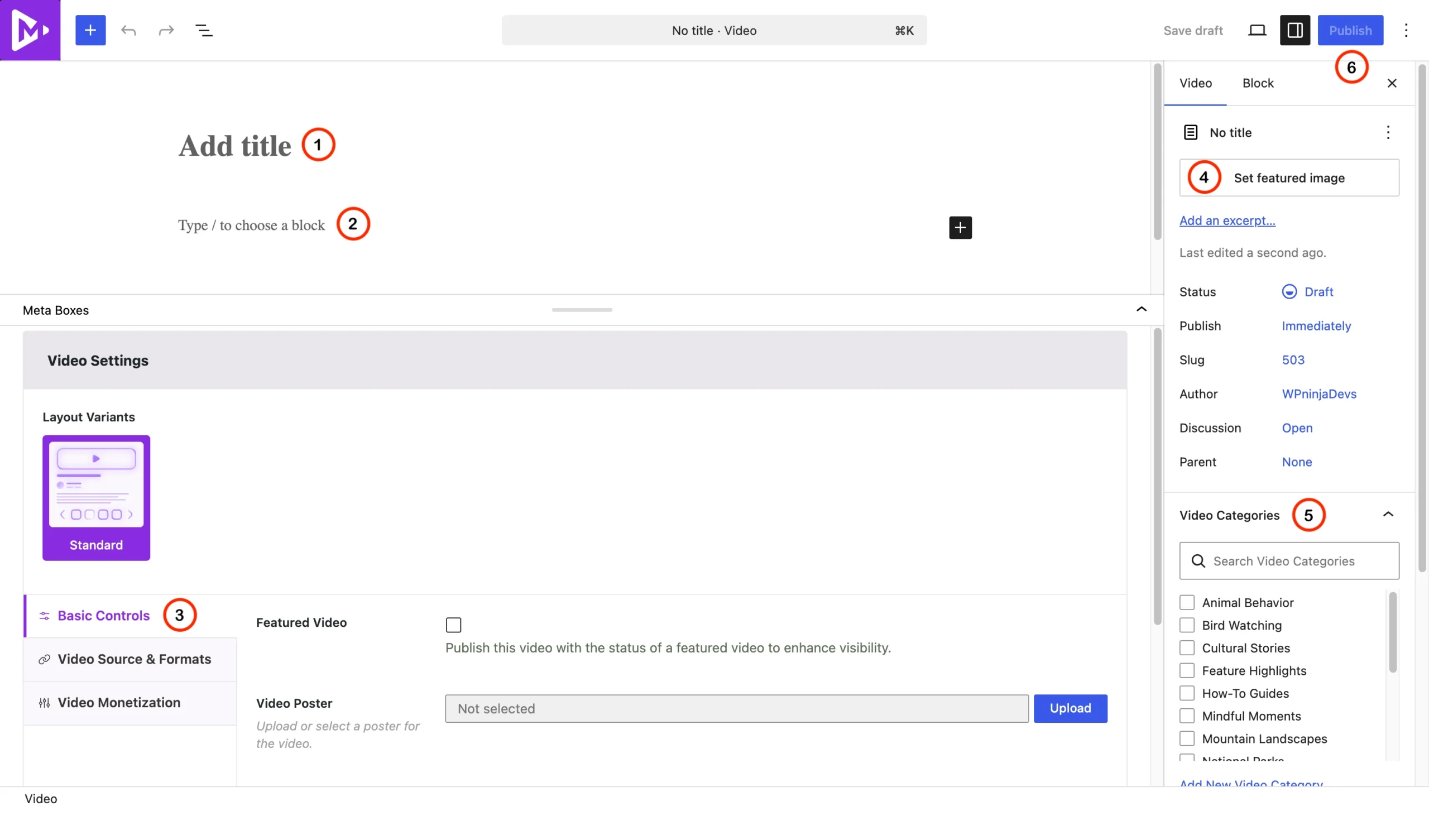
You’ll see a video editor with several sections:
Title — the video title that appears on your gallery cards and single video pages. Write something descriptive for SEO.
Description — the video description or excerpt. Displayed below the title on the gallery card (can be toggled off) and on the single video detail page.
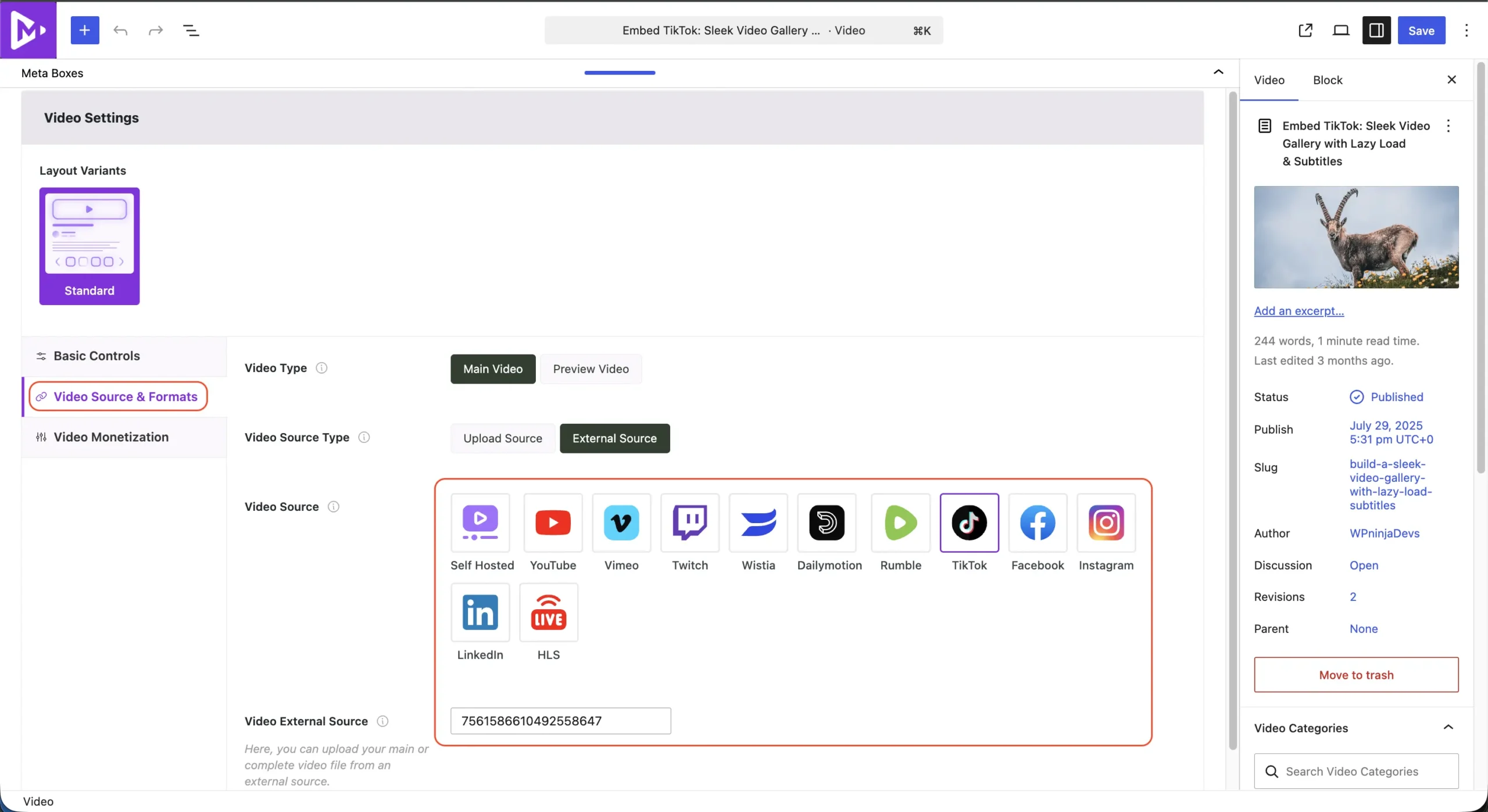
Video Settings — this is where you tell MediaHaven where your video lives. Click the source dropdown and choose from:
| Source Type | What It Is |
|---|---|
| YouTube | A single YouTube video (paste the video ID) Ex: GzWzo0AXmTg Just Video ID from YouTube URL – https://www.youtube.com/watch?v=GzWzo0AXmTg |
| Vimeo | A single Vimeo video ID from URL Ex: 1066526515 Just Video ID from TikTok URL – https://vimeo.com/1066526515 |
| TikTok | A TikTok video ID from URL Ex: 7561586610492558647 Just Video ID from TikTok full URL – https://www.tiktok.com/@microsoft/video/7561586610492558647 |
| A Facebook video ID from URL Ex: 8694106924030928 Full URL format – https://www.facebook.com/plugins/video.php?href=https://www.facebook.com/watch/?v=8694106924030928 | |
| An Instagram video URL Ex: DFvATvSAwTD Full URL format – https://www.instagram.com/p/DFvATvSAwTD/embed | |
| A LinkedIn video ID from URL Ex: 7310440559813238785 Just Video ID from LinkedIn full URL – https://www.linkedin.com/embed/feed/update/urn:li:ugcPost:7310440559813238785?compact=1 | |
| Twitch | A Twitch video ID from URL Ex: 2413168507 Full URL format – https://player.twitch.tv/?autoplay=false&parent=demo.mediahaven.io&video=2413168507 |
| Wistia | A Wistia video ID from URL Ex: eozcd9l624 Full URL format – https://fast.wistia.net/embed/iframe/eozcd9l624 |
| Dailymotion | A Dailymotion video ID from URL Ex: x9prt02 Full URL format – https://www.dailymotion.com/embed/video/x9prt02 |
| Rumble | A Rumble video ID from URL Ex: v6p098w Full URL format – https://rumble.com/embed/v6p098w |
| HLS | A self-hosted HLS M3U8 stream URL Ex: https://example.com/stream.m3u8 |
| Self-hosted | An uploaded MP4 or video file URL |
Thumbnail / Poster Image — upload a custom thumbnail. For YouTube videos, MediaHaven can pull the YouTube thumbnail automatically. For other sources, upload your own image. Thumbnails are lazy-loaded and optimized automatically.
Categories and Tags — assign your video to one or more categories and tags. This is important for organizing large libraries and enabling filtered browsing.
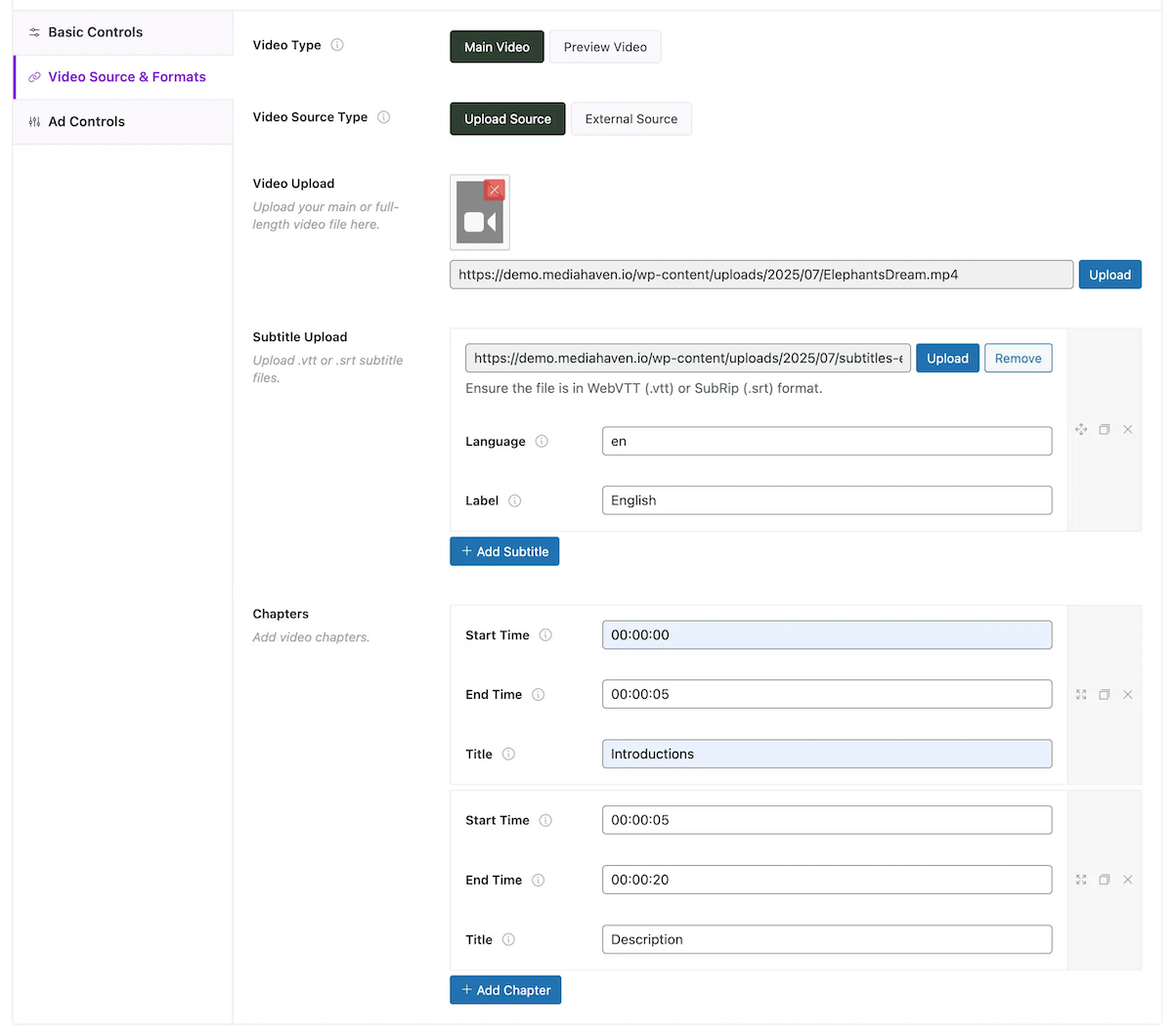
Subtitles — upload a VTT or SRT subtitle file if your video has captions. Assign a language label (e.g., “English”, “Bengali”). Multiple subtitle tracks per video are supported.
Publish — once you’ve filled in the details, click Publish in the top right.
Repeat for each video you want in your library. There’s no limit on the number of videos you can add.