

Not every video should be open to everyone. A premium course module, a members-only tutorial, or a teaser clip meant to convert visitors into logged-in users all need a way to say “some people can watch this, some can’t” — without building a separate membership plugin just to gate a video.
That’s exactly what Access Manager does. Introduced in MediaHaven Pro version 1.7.4, it lets you control who can watch a video at two levels — an entire video category at once, or a single video individually — with the single-video setting always taking priority when both are configured.
This guide walks through it from the ground up: what it is, how to set it up at both levels, how the priority rule actually behaves, and how to use it for real business scenarios like gated premium content, membership sites, and lead-generation funnels.
What Access Manager Actually Does
Access Manager is a MediaHaven Pro feature that restricts who can view the full video. For any video or video category, you can require:
- Anyone can watch — no restriction, the default and only option available without access control enabled
- Requires login — only logged-in WordPress users can watch the full video
- Guest — only visitors who are not logged in can watch the full video (the reverse of “Requires login”)
It’s configurable in two places:
- Category level — apply the same access rule to every video inside a Video Category, from MediaHaven Pro → Video Categories → [Edit a category]
- Single video level — apply a rule to one specific video, from the Access Manager tab inside that video’s edit screen
Both use the exact same three options (Anyone can watch / Requires login / Guest), but they don’t have equal weight — more on that in the priority section below.
Requirements Before You Start
- MediaHaven Pro — Access Manager is a Pro-only feature; it isn’t available in MediaHaven Lite
- Plugin version 1.7.4 or later — this is when Access Manager, along with category-based access control and the priority system, was introduced. Check your version under MediaHaven Pro → Settings, or Plugins → Installed Plugins, before proceeding
- Logged-in vs. guest distinctions rely on standard WordPress user accounts — no separate membership plugin is required for basic login-gating, though Access Manager can be combined with one if you need tiered membership levels
Part 1 (Beginner): Restrict a Single Video
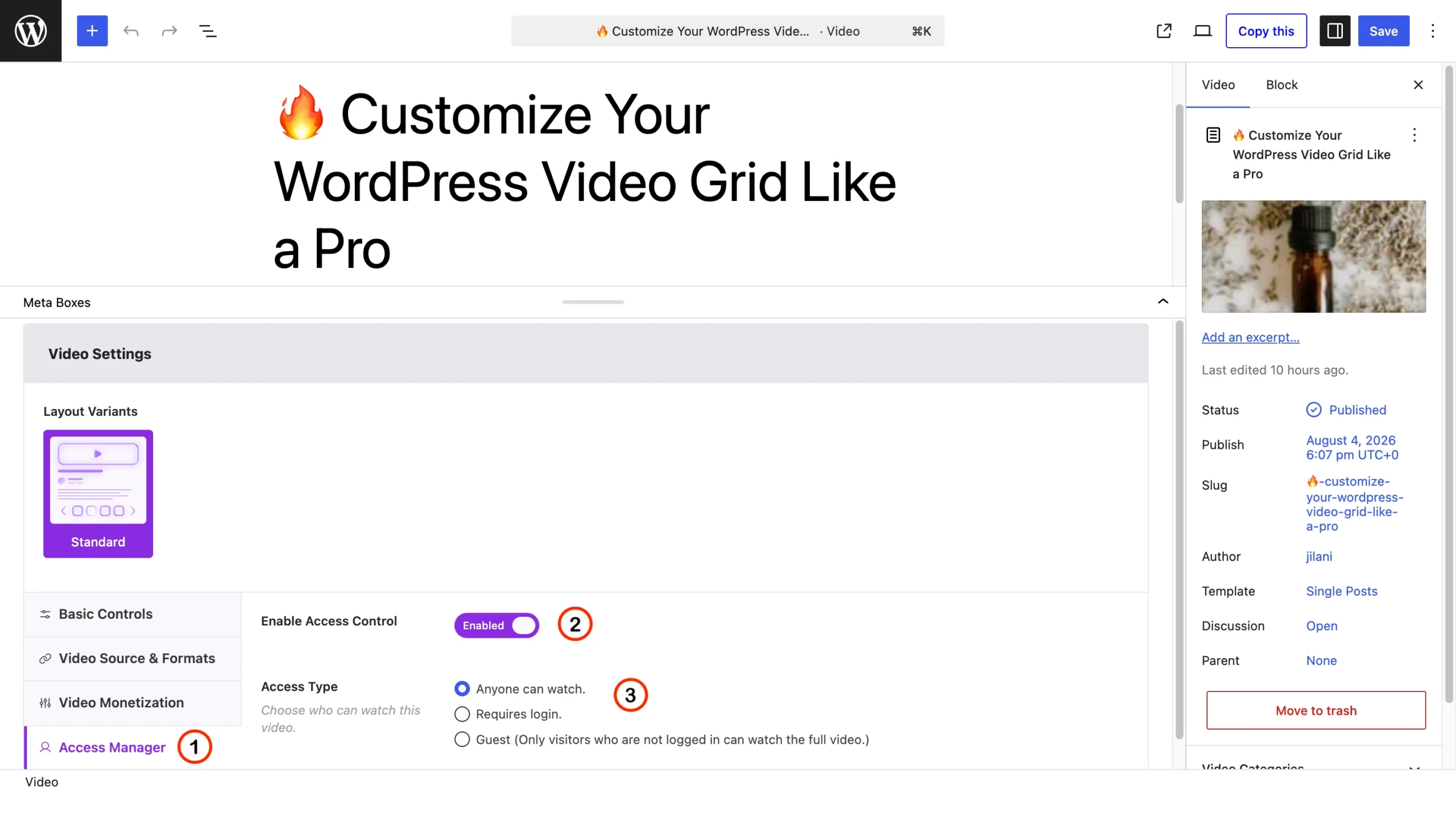
Use this when you want to gate one specific video — a bonus lesson, a premium demo, an exclusive interview — without affecting anything else in that video’s category.
Step-by-Step
- Go to MediaHaven Pro in your WordPress admin sidebar, then open the video you want to restrict (or create a new one).
- In the video editor, scroll to the Video Settings meta box.
- In the left-hand settings menu inside that box, click Access Manager. You’ll see it listed alongside Basic Controls, Video Source & Formats, and Video Monetization.
- Toggle Enable Access Control to Enabled.
- Under Access Type, choose one:
- Anyone can watch — no restriction (this is effectively the same as leaving access control disabled)
- Requires login — only logged-in visitors can watch the full video
- Guest — only visitors who are not logged in can watch the full video
- Click Save (or Update, if editing an existing published video).
That’s it — this single video now follows whatever rule you selected, regardless of what its category is set to.
When to Use Single-Video Access Control
- A one-off bonus video that should stay members-only even though the rest of its category is public
- A single teaser or trailer-style video you specifically want visible to guests only, to drive sign-ups
- Any exception you need to make to a category’s general rule, for just one video
Part 2: Restrict an Entire Video Category
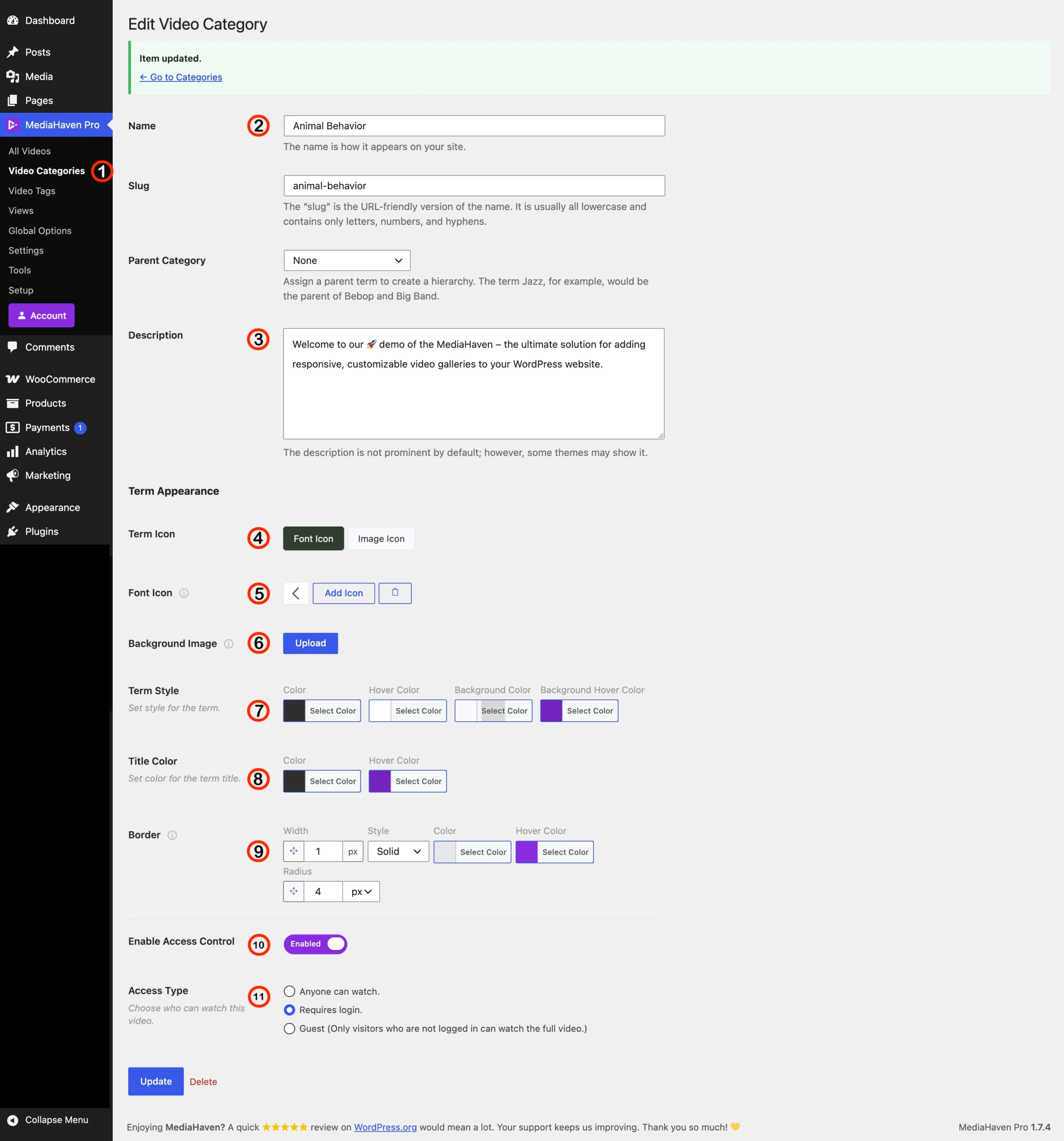
Use this when you want a whole group of videos — an entire course module, a “Premium” category, a members-only playlist — to follow the same access rule, without setting it on every video individually.
Step-by-Step
- Go to MediaHaven Pro → Video Categories in your WordPress admin sidebar.
- Click into an existing category to edit it (or create a new one).
- Fill in the standard term fields if needed: Name, Slug, Parent Category, and Description.
- Scroll past the Term Appearance section (icon, background image, colors, border styling — covered below) to Enable Access Control.
- Toggle it to Enabled.
- Under Access Type, choose:
- Anyone can watch
- Requires login
- Guest (only non-logged-in visitors can watch)
- Click Update.
Every video assigned to this category now follows this rule automatically — you don’t need to configure each video separately.
When to Use Category-Level Access Control
- An entire “Members Only” or “Premium” category that should be login-gated as a whole
- A course structured into categories by module, where an entire module should be restricted until a student enrolls
- A “Public Previews” category deliberately set to Guest-only, to show teaser content specifically to non-logged-in visitors as a conversion tool
Part 3: Understanding the Priority Rule
This is the part that trips people up if they set access control at both levels without realizing how they interact.
The rule: a single video’s own Access Manager setting always takes priority over its category’s Access Control setting.
In practice, this means:
| Category Setting | Single Video Setting | Result |
|---|---|---|
| Requires login | (not set / disabled) | Video follows the category rule — requires login |
| Requires login | Anyone can watch | Video is public — the single-video setting overrides the category |
| Anyone can watch | Requires login | Video requires login — the single-video setting overrides the category |
| Guest | Requires login | Video requires login — single-video setting wins |
| Requires login | Guest | Video is guest-only — single-video setting wins |
The practical takeaway: if you want a video to follow its category’s rule, leave Access Control disabled on that individual video. Only enable it at the video level when you specifically want to override the category.
A Worked Example
Say you have a category called “Cooking Masterclass,” set to Requires login, containing 12 videos. You want 11 of them gated behind login as intended, but the first video should be open to everyone as a free preview to drive sign-ups.
- Leave Access Control disabled on 11 of the videos — they inherit “Requires login” from the category.
- On the preview video specifically, go to its Access Manager tab, enable Access Control, and set it to Anyone can watch.
Now the category rule handles the bulk of your content, and the one exception is handled cleanly at the video level — without changing the category setting for everyone else.
Part 4: Restricted Content Display Options
When a visitor doesn’t meet the access requirement, MediaHaven doesn’t just show a blank error — version 1.7.4 added specific controls for what they see instead.
Trailer Videos and Featured Images for Restricted Content
You can configure a trailer video, video poster or a featured image to display in place of the full video for visitors who don’t have access, with a Pro badge/icon shown to indicate the content is restricted.
- Go to MediaHaven Pro in your WordPress admin sidebar, then open the video you want to restrict (or create a new one).
- In the video editor, scroll to the Video Settings meta box.
- In the left-hand settings menu inside that box, click Video Source & Formats. You’ll see Video Type Main Video, Preview Video and you should select Preview Video to show trailer. Now you can load preview or tailer video from Upload Source or External Source.
Real-World Use Cases
Membership and Course Sites
Set an entire module category to Requires login, then leave one intro lesson per module open (Anyone can watch, set at the video level) as a preview — a common structure for course platforms deciding what to show non-members.
Lead Generation and Email Capture
Set a “Free Resources” category to Guest, so the content is specifically positioned as a hook for visitors who haven’t logged in yet — once they create an account, they naturally move on to your Requires login content instead.
Premium Product Demos
For a WooCommerce store selling a paid digital product or course, gate the full in-depth demo video behind Requires login, while a shorter overview trailer (configured via the trailer video option) stays visible to convince a visitor to sign up in the first place.
Internal or Client-Only Content
Agencies managing client portals can set an entire category to Requires login, keeping deliverables, review videos, or internal training content restricted to logged-in team or client accounts.
Frequently Asked Questions
1. What’s the difference between “Requires login” and “Guest” access types? “Requires login” restricts the video to logged-in users only. “Guest” is the reverse — it restricts the video to visitors who are not logged in, hiding it from logged-in users.
2. If I set a category to “Requires login,” do I need to configure every video inside it separately? No — leave Access Control disabled on the individual videos, and they’ll automatically inherit the category’s setting. Only configure a video individually if you want it to behave differently from its category.
3. Which setting wins if a video and its category have conflicting access rules? The single video’s own Access Manager setting always takes priority over the category’s Access Control setting.
4. Is Access Manager available in MediaHaven Lite, or only Pro? Access Manager, including both single-video and category-level access control, is a MediaHaven Pro feature (introduced in version 1.7.4).
5. Can I show a preview clip instead of blocking the video entirely for restricted visitors? Yes — you can configure a trailer video or a featured image to display for visitors who don’t have access, along with a Pro badge indicating the content is restricted.
6. Does “Anyone can watch” mean the same thing as disabling Access Control? Functionally, yes — both result in the video being publicly viewable. “Anyone can watch” is the explicit setting to choose if Access Control is enabled but you still want the video open to everyone (for example, to intentionally override a restricted category).
7. Can I use Access Manager without a separate membership plugin? Yes — for basic logged-in vs. guest gating, Access Manager works directly with standard WordPress user accounts. If you need tiered membership levels (e.g., different access per subscription tier), you’d combine it with a dedicated membership plugin.
8. Does Access Control affect video discoverability in galleries and filters, or just playback? Access Manager controls whether a visitor can watch the full video. Check your specific gallery and filter display settings separately if you also want restricted videos hidden from listings entirely rather than just gated on playback.
9. What version of MediaHaven do I need for this feature? Access Manager, category-based access control, and the priority system were all introduced in version 1.7.4 (released August 4, 2026). Update your plugin if you’re on an earlier version and don’t see these options.
10. Can I apply different access rules to different categories on the same site? Yes — each Video Category has its own independent Access Control setting, so you can mix public, login-required, and guest-only categories across your site as needed.