

Are you looking to create an engaging, highly responsive video portal on your WordPress website? Providing a seamless user experience is critical for retaining visitors and boosting watch time.
This guide covers configuring the AJAX Live Filters & Video Card Builder, a powerful pro layout architecture built for the MediaHaven video gallery ecosystem. Whether you are a beginner embedding your first video grid or a developer tuning queries for high-volume video libraries, these layout features help you build high-performance video interfaces. See Live Demo
Before You Start
Make sure you have:
- WordPress installed
- MediaHaven activated
- At least a few videos ready: Add Your First Video and Configure External Video Sources
Interface Overview & Key Elements
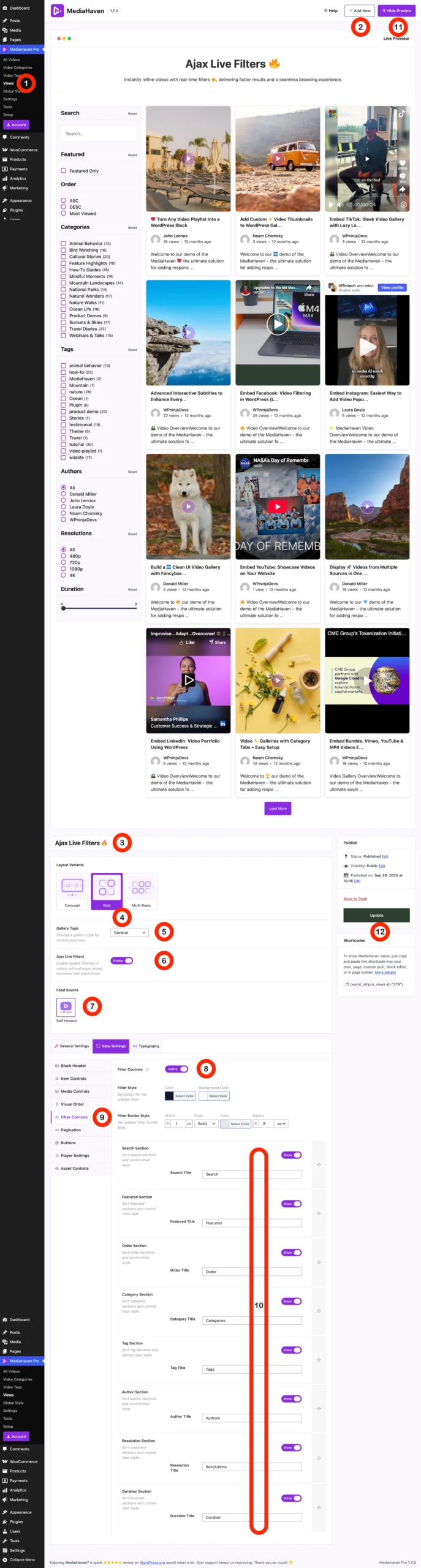
The MediaHaven builder features a live preview dashboard divided into a Visual Preview Canvas (Top) and an administrative Configuration Workspace (Bottom).
Below is a breakdown of the dynamic layout control interface:
| Marker | Feature Name | Functionality | User Level |
| ① | WordPress Admin Menu | Main sidebar navigation to control global video channels and system shortcodes. | Beginner |
| ② | Live Render Canvas | Real-time frontend simulator showing exact visual modifications instantly. | Beginner |
| ③ | Ajax Filter Module | Configuration zone dedicated to advanced search and taxonomy filters. | Beginner |
| ④ | Layout Configurations | Structural grid triggers to switch between responsive grid arrays. (Note: Only support Grid layout) | Beginner |
| ⑤ | Query Filter Action | Setting determining the live content behavior (Manual parameters vs Auto-fetch). | Beginner |
| ⑥ | Ajax Query Mode | Toggle switch enabling instant backend sorting without page loads. | Advanced |
| ⑦ | Filter Grid Settings | Visual workspace designed to position sidebar filter components relative to your media. | Advanced |
| ⑧ | Sorting Vectors | Order elements by publishing metrics (Ascending/Descending or date hooks). | Beginner |
| ⑨ | Inner Item Elements | Configuration suite handling title attributes, thumbnails, view counts, and tags. | Beginner |
| ⑩ | Drag-&-Drop Sidebar Filter | Dom tree manager to visually rearrange the internal card components. | Advanced |
| ⑪ | Sync Dynamic Data | Instantly syncs styling adjustments down to the rendering sandbox. | Beginner |
| ⑫ | Shortcode Deployer | Generates lightweight shortcodes to inject your gallery into any page or post. | Beginner |
For Beginners: Setting Up Your Video Gallery
1. Selecting Your Visual Layout Structure
To arrange your videos neatly, navigate to the Layout Variations section (④). Select the Grid View block icon to instantly structure your videos into fully responsive columns. You can use the Order Direction options (⑧) to establish whether your newest uploads or oldest content should display first.
2. Controlling Visible Meta Metadata
You do not have to crowd your video cards with too much data. Head over to the Video Card Inner Items menu (⑨) to control exactly what your users see:
- Toggle the switches ON for critical engagement drivers like Video Titles or Duration indicators.
- Toggle the switches OFF for internal clutter you want to hide from public sight, such as structural tags or long author profiles.
3. Deploying Your Custom Gallery
Once you are happy with the visual results on your frontend preview board, head to the right-side control dashboard (⑫). Click the save option, copy the auto-generated code snippet, and paste it directly into any classic editor block or Gutenberg layout on your site.
For Advanced Users: Customizations
1. Drag-&-Drop Card DOM Structural Reordering
The Video Card Builder Stack (⑩) functions as an interactive DOM structural customizer. Every single detail inside the video card acts as an independent component row:
- Positional Reordering: Click and drag the handle blocks on rows (such as Title Node, Categories, or Author Data) to dynamically restructure the vertical output stack on your template.
- Custom Inner Strings: Every individual card asset field contains open metadata inputs, allowing you to rewrite template parameters, change HTML headings, or establish custom CSS hooks for deep micro-styling.
2. High-Performance AJAX Filtering
MediaHaven relies on modern database calls to keep your site performing exceptionally well under high loads. To squeeze the absolute fastest response speeds out of massive libraries:
- Asynchronous Execution (
Ajax): Toggle option ⑥ to activate partial-page refreshes. When a user clicks a tax filter (such as video tags or authors), only the internal elements of your card container refresh. This completely bypasses standard page reloads, conserving browser memory and protecting your database. - Asset Loading & Caching Tuning: Combine these AJAX behaviors with local shortcode settings to make sure your API connections (like YouTube or custom HLS streams) cache correctly, keeping page speeds fast and improving your core vitals for search engine optimization.