

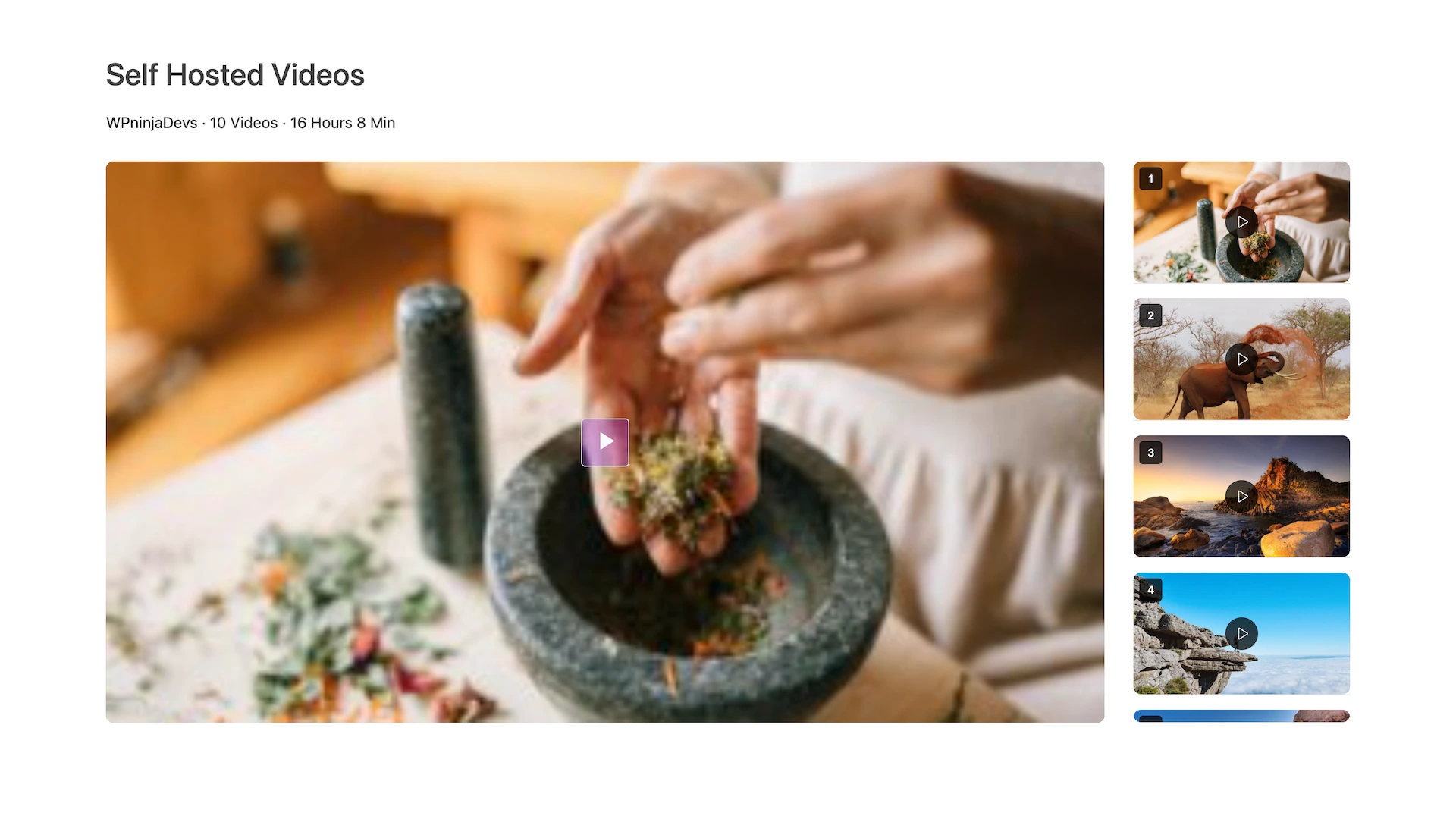
A Playlist gallery shows a track list alongside the video player — visitors click through episodes, lessons, or a video series without leaving the page. Building one takes two steps: create the Playlist (the list of videos), then create a View (the gallery that displays it).
See live demo – https://demo.mediahaven.io/video-playlists/
Requirements
- MediaHaven Pro (Playlists and Views live under the MediaHaven Pro menu)
- At least a few self-hosted videos already added under All Videos. Add Your First Video and Configure External Video Sources
Create the Playlist
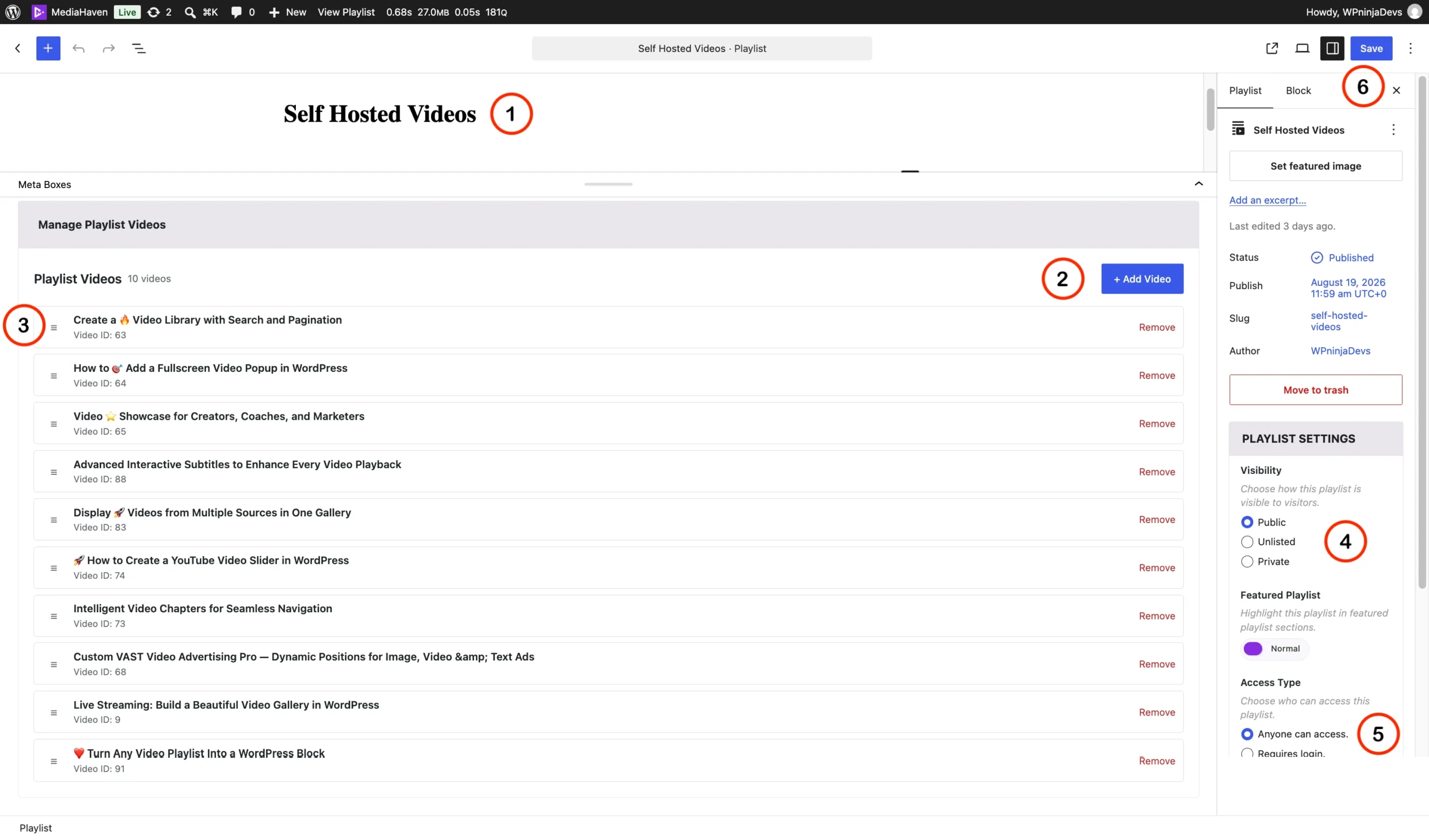
- Go to MediaHaven Pro → Playlists → Add New.
- Enter a title — e.g., “Self Hosted Videos”.
- In the Manage Playlist Videos box, click + Add Video and select the videos to include. Each added video shows its title, Video ID, and a Remove link — drag the ⠿ handle on the left to reorder.
- In the right sidebar, under Playlist Settings, set Visibility:
- Public — visible to all visitors
- Unlisted — accessible by direct link only
- Private — restricted
- Set Access Type:
- Anyone can access — no restriction
- Requires login — only logged-in users can access
- Optionally toggle Featured Playlist if your theme/setup highlights featured playlists elsewhere.
- Click Save (or Publish, if new).
Your playlist is now saved — but it isn’t visible anywhere on your site yet. That’s what the View does.
Create a View to Display the Playlist
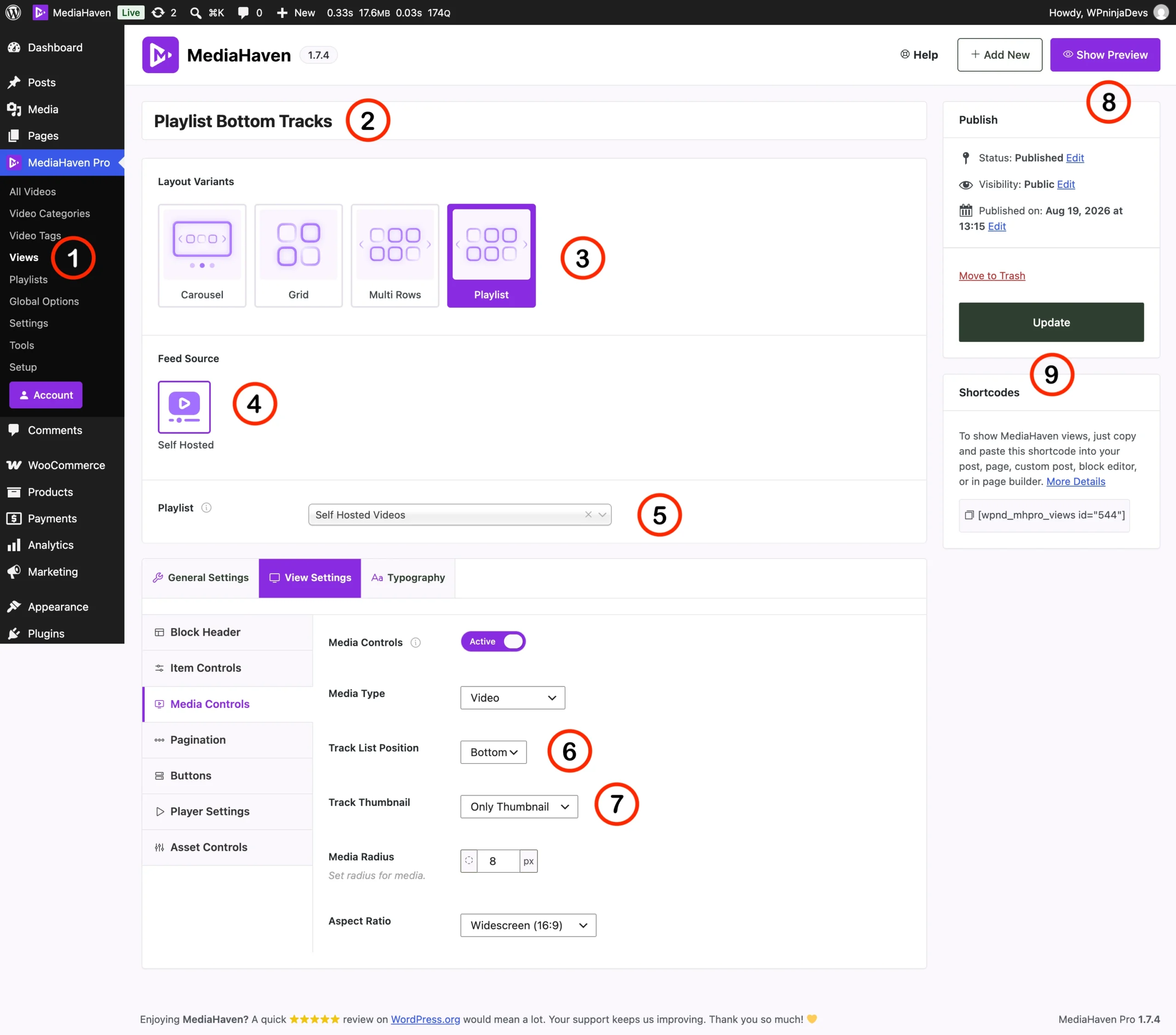
- Go to MediaHaven Pro → Views → Add New.
- Enter a title for the View — e.g., “Playlist Bottom Tracks”.
- Under Layout Variants, select Playlist.
- Under Feed Source, select Self Hosted.
- A new Playlist field appears — open the dropdown and select the specific playlist you built in Part 1 (e.g., “Self Hosted Videos”).
- Click the View Settings tab, then Media Controls in the left menu.
- Configure:
- Media Controls → Active
- Media Type →
Video - Track List Position →
Bottom(or another available position, if your version offers more) - Track Thumbnail →
Only Thumbnail - Media Radius → e.g.,
8px - Aspect Ratio → e.g.,
Widescreen (16:9)
- Click Update in the Publish box to save.
- In the Shortcodes box, copy the generated code — it looks like:
- Paste the shortcode into any page, post, or page builder text/shortcode block.
Your Playlist gallery is now live wherever you pasted the shortcode.
Quick Settings Reference
Playlist Settings (set on the Playlist itself, Part 1)
| Setting | Options |
|---|---|
| Visibility | Public / Unlisted / Private |
| Featured Playlist | On / Off |
| Access Type | Anyone can access / Requires login |
Media Controls (set on the View, Part 2)
| Setting | Purpose |
|---|---|
| Media Type | Display as Video |
| Track List Position | Where the video list sits relative to the player |
| Track Thumbnail | Show only a thumbnail per track in the list |
| Media Radius / Aspect Ratio | Player appearance |
FAQ
1. Do I need to create a Playlist before the View? Yes — the View’s Playlist dropdown only shows playlists that already exist, so create the Playlist first.
2. Can one Playlist be used in multiple Views? Yes — the same Playlist can be selected in as many Views as you want, each with different layout or styling.
3. What’s the difference between Visibility and Access Type on a Playlist? Visibility controls whether the playlist is Public, Unlisted (link-only), or Private. Access Type separately controls whether it requires a login, regardless of visibility.
4. Can I reorder videos in a playlist after adding them? Yes — drag the handle next to each video in the Manage Playlist Videos box to reorder.
5. Is the Playlist feature free or Pro? Playlists and Views are managed under the MediaHaven Pro menu.
6. Where do I find my shortcode after publishing? In the Shortcodes box on the right side of the View editor, once the View is published or updated.
7. Can I remove a video from a playlist without deleting the video itself? Yes — click Remove next to a video in the playlist; this only removes it from that playlist, not from your video library.