

Most WordPress sites handle video the same way: upload a file, paste a YouTube link, and hope for the best. That approach works for casual content, but it breaks down fast when your audience grows, your content library expands, or you start caring about buffering, quality drops, and pages that load slowly on mobile.
HLS streaming fixes all of that — and MediaHaven Lite makes it possible directly inside WordPress, with no code, no server engineering, and no additional plugins.
This is not just a technical tutorial. It’s a guide for creators, educators, agency owners, and e-commerce store operators who want to use HLS to improve their workflow, reduce viewer drop-off, and build a sturdier video presence — one that keeps people on your site instead of handing them off to YouTube.
What Is HLS and Why Does It Matter for Your Business?
HLS stands for HTTP Live Streaming. It’s a video delivery protocol developed by Apple that has become the industry standard for streaming video across the web. Netflix, YouTube, TikTok, and virtually every major streaming platform uses it under the hood.
Here’s the core mechanic: instead of delivering one large video file, HLS breaks your video into small segments — typically a few seconds each — and serves them via a plain .m3u8 playlist file. The player reads the playlist, fetches the segments in order, and plays them back as a continuous stream.
That architecture creates three major advantages for your business:
1. Adaptive bitrate streaming — viewers always get smooth playback. HLS can reference multiple quality levels (360p, 720p, 1080p) in the same playlist. When a viewer’s connection slows down, the player automatically switches to a lower quality to prevent buffering. When the connection improves, it bumps back up. The viewer sees no loading spinner; you lose no viewers to frustration.
2. CDN-friendly delivery — your content scales without you. Because HLS delivers small files over standard HTTP, it works seamlessly with content delivery networks (CDNs). Your video segments get cached at edge servers around the world, so a viewer in Japan gets the same smooth experience as one in New York — without touching your origin server.
3. No storage problem on WordPress. Traditional WordPress video hosting means uploading enormous MP4 files to your hosting server. That burns storage quota, slows your page load, and can destabilize shared hosting plans. With HLS, your .m3u8 file is tiny (it’s a plain text playlist). The actual media segments can live on a CDN, Bunny.net, Amazon S3, or any external host. WordPress just embeds the stream.
Who specifically benefits from HLS on WordPress?
- Online educators and course creators with large video libraries who need smooth playback across devices without paying for Wistia or Vimeo Pro
- Fitness and wellness brands delivering workout videos that must play without buffering on mobile connections
- News and media publishers running live coverage or replay content at scale
- Marketing agencies managing client video content across multiple sites
- E-commerce stores with product demo videos that need fast, reliable playback on product pages
What MediaHaven Lite Supports (Free vs. Pro)
Before diving into setup, here’s exactly what you get with HLS in MediaHaven Lite vs. the Pro version — sourced directly from the official WordPress.org plugin page and mediahaven.io/pricing:
| Feature | Free (Lite) | Pro |
|---|---|---|
| HLS / M3U8 live stream support | ✅ | ✅ |
| Self-hosted and external video URLs | ✅ | ✅ |
| Grid, Carousel, Multi-row Carousel layouts | ✅ | ✅ |
| Built-in lazy loading (video, image, iframe) | ✅ | ✅ |
| Schema.org SEO structured data | ✅ | ✅ |
| Video subtitles (WebVTT / SRT) | ✅ | ✅ |
| Keyboard playback shortcuts | ✅ | ✅ |
| Smart per-shortcode asset loading | ✅ | ✅ |
| Ajax view counter | ✅ | ✅ |
| AJAX like/dislike | ✅ | ✅ |
| Export / import (JSON / CSV) | ✅ | ✅ |
| Shortcode View Gutenberg block | ✅ | ✅ |
| VAST video ad monetization | ❌ | ✅ |
| Ajax Video Live Filter | ❌ | ✅ |
| Drag & Drop Video Card Sections | ❌ | ✅ |
| Video Chapters | ❌ | ✅ |
| Player Unlimited Styles | ❌ | ✅ |
| WebP image conversion | ❌ | ✅ |
| Indexed lookup table (high-volume filtering) | ❌ | ✅ |
HLS playback itself is free. You don’t need Pro to stream M3U8 content. The Pro tier adds monetization and advanced filtering on top.
Step 1: Get Your HLS Stream URL (Your M3U8 File)
Before touching WordPress, you need an HLS stream URL — a link ending in .m3u8. This is your entry point into the plugin.
Where to get an M3U8 URL:
Option A — CDN or streaming service (recommended for most users) If you use Bunny.net, Cloudflare Stream, AWS CloudFront, or any managed video hosting service, they generate the M3U8 URL for you automatically when you upload a video. Copy it from their dashboard.
Option B — Convert your MP4 with FFmpeg (for self-hosters) FFmpeg is a free, open-source tool that converts a standard MP4 into HLS-ready segments:
ffmpeg -i your-video.mp4 -codec: copy -start_number 0 -hls_time 10 -hls_list_size 0 -f hls output.m3u8This creates an output.m3u8 playlist and a set of .ts segment files. Upload the entire folder to your server or S3 bucket. The public URL of output.m3u8 is what you’ll paste into MediaHaven.
Option C — Live streaming software If you stream live events with OBS, Streamlabs, or a dedicated encoder, point your output to your streaming server. The server generates an M3U8 URL in real time. MediaHaven’s player reads live M3U8 feeds, not just on-demand files.
Critical requirement for iOS playback: Your M3U8 URL and all associated
.tssegment files must be served over HTTPS. iOS Safari natively supports HLS, but it will silently refuse to load any stream starting withhttp://. If your HLS stream won’t play on iPhones, this is almost always the cause.
CORS configuration: If your video segments are hosted on a different domain from your WordPress site, your server or CDN must return a
Access-Control-Allow-Originheader. Without it, the browser will block the segment requests. Most CDNs let you configure this in two clicks.
Step 2: Install MediaHaven Lite
- Log in to your WordPress admin dashboard
- Navigate to Plugins → Add New
- Search for MediaHaven
- Find “MediaHaven – Video Gallery & HLS Player for YouTube and TikTok” by WPninjaDevs
- Click Install Now → Activate
After activation, the plugin creates a MediaHaven Lite section in your admin sidebar and immediately launches the Setup Wizard.
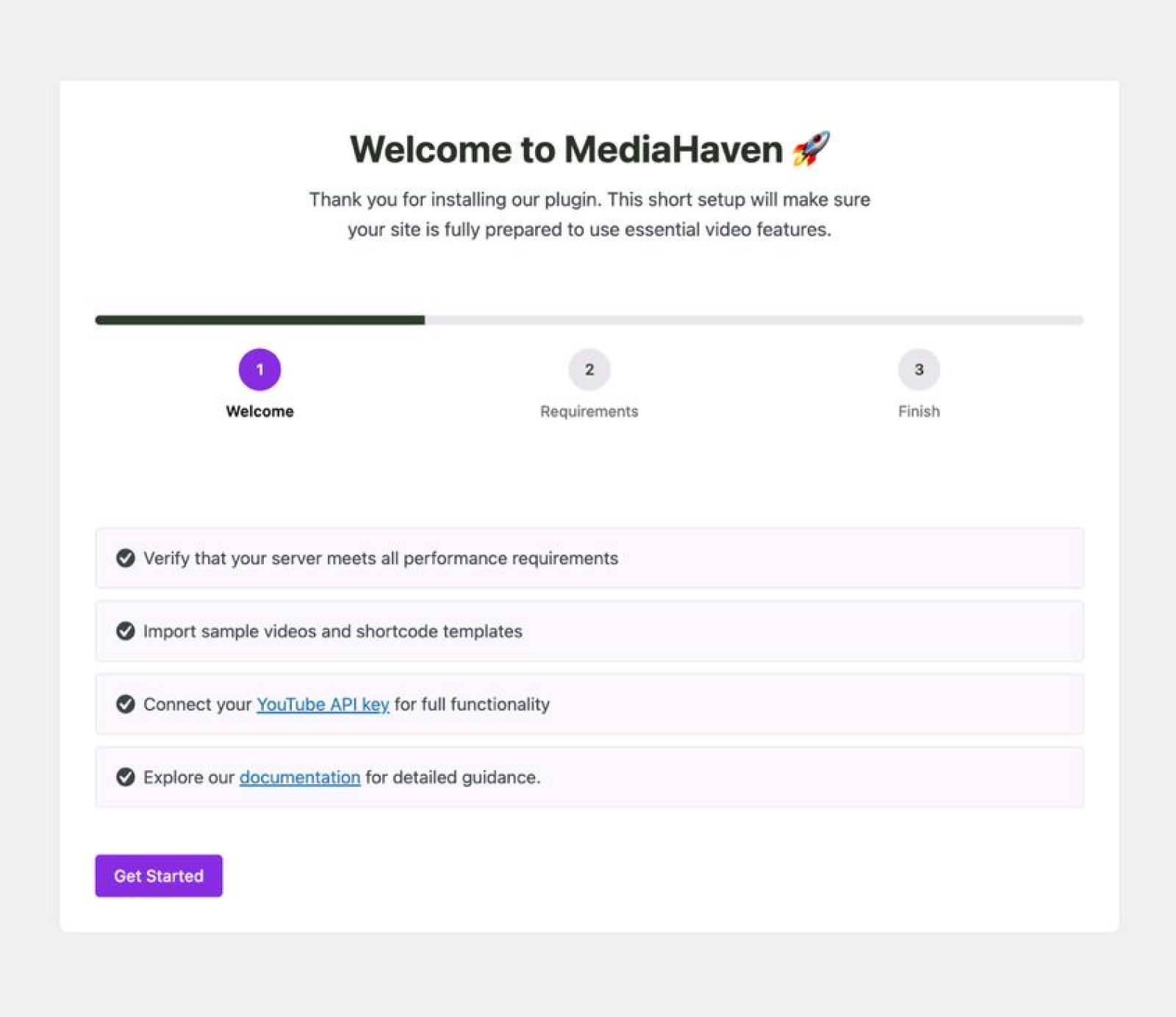
The wizard takes about two minutes and walks you through:
- Optional YouTube API key connection (not needed for HLS — skip it if you’re only setting up streaming video)
- Server and performance checks
- Sample shortcode templates so you see what the output looks like before publishing
You can revisit any settings at any time from MediaHaven Lite → Settings.
Step 3: Add Your HLS Video to the Plugin
Go to MediaHaven Lite in your sidebar. Look for Videos or the area where you add individual video posts (MediaHaven stores each video as a custom WordPress post with the mhpro_video post type).
Click Add New Video (or the equivalent in your installed version).
Fill in these fields:
Basic Info:
- Title — the video name (shows as the card title in the gallery and on the single video page)
- Description — a plain-text summary of the video content
Video Source:
- Source Type — select HLS / M3U8 or Self-Hosted / External URL (the label may vary depending on your plugin version)
- Video URL — paste your complete
.m3u8URL here
Poster Image:
- Upload a custom thumbnail from your WordPress media library. For HLS streams, WordPress can’t auto-generate a preview frame, so adding a poster image is important — it’s what visitors see before they click play, and it’s what MediaHaven uses as the thumbnail in your gallery grid.
Subtitles (optional, free feature):
- If you have a
.vttor.srtsubtitle file, upload it here. Subtitles improve accessibility, increase watch time, and help Google understand your video content for SEO.
Categories and Tags:
- Assign the video to relevant categories and tags. These power the filtering and navigation in your gallery and on single video pages.
Click Publish (or Update if editing an existing video).
Learn more about Bunny, the most affordable option for video storage.
Bunny Storage Setup Guide
Step 4: Create a Gallery Shortcode (View)
Each gallery in MediaHaven is built using the Views system — think of each View as a gallery configuration that you can drop anywhere on your site.
Go to MediaHaven Lite → Views → Add New.
Configure your View:
Layout:
- Grid — responsive multi-column grid, best for video libraries with 6+ videos
- Carousel — horizontal scrolling carousel, great for featured content sections
- Multi-row Carousel — stacked carousel format, useful for compact feature sections
Source:
- Set the source to show your videos. For self-hosted or HLS content, the plugin pulls from your MediaHaven video library by default.
Columns: The plugin supports independent column counts for five breakpoints (extra-small, small, medium, large, extra-large) — added in version 1.6.4. Set these to control exactly how the grid flows on every screen size without writing a line of CSS.
Display controls: Toggle on or off:
- Author name and avatar
- View count (auto-updates via Ajax)
- Like/dislike buttons
- Publish date
- Categories and tags
- Description excerpt
Pagination: Choose between standard pagination or an Ajax Load More button. Load More is usually better for user experience — visitors can browse more content without a page reload.
After configuring, click Save. The plugin generates your shortcode at the top of the editor — something like:
[wpnd_mhpro_view* id="1"]Copy this shortcode.
Step 5: Embed the Gallery in Any Page or Post
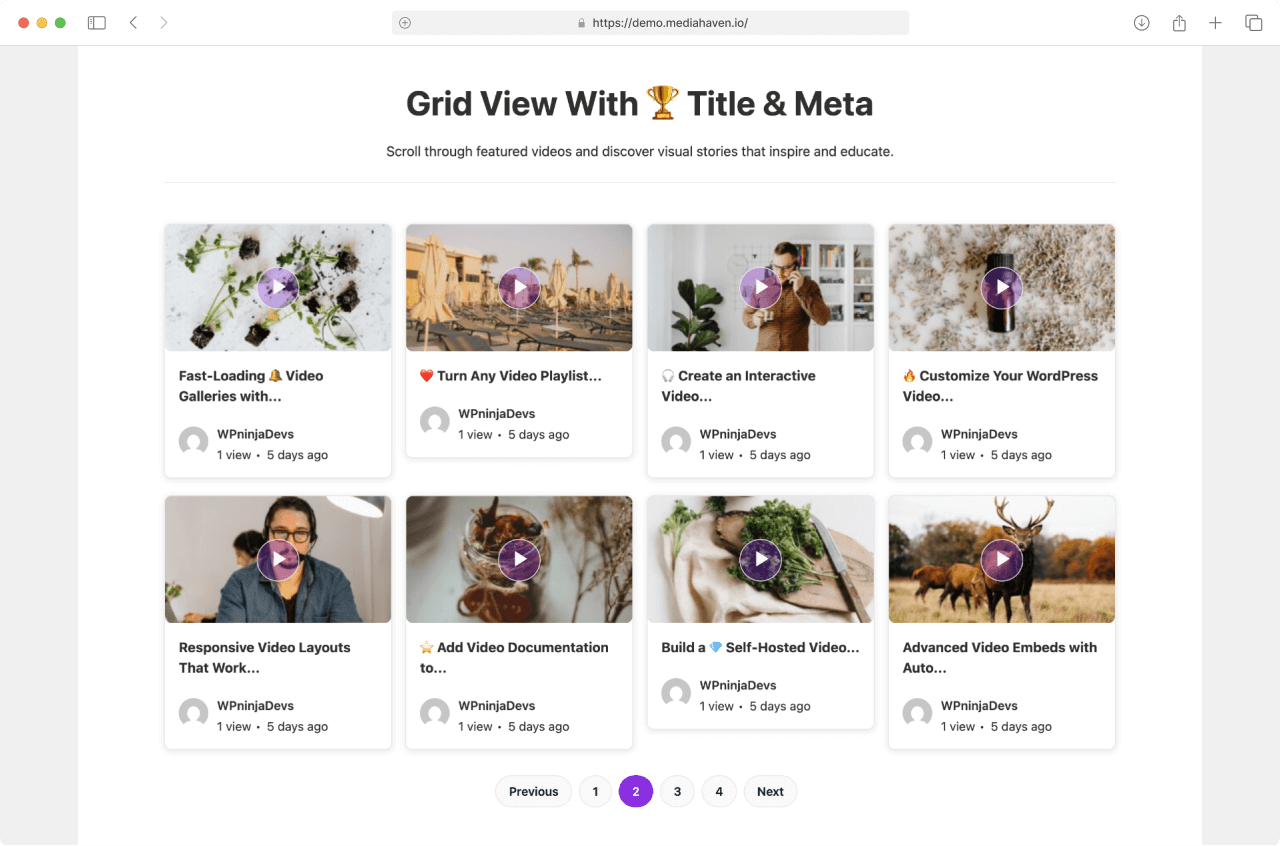
In the Gutenberg block editor:
- Click + to add a new block
- Search for MediaHaven — select the Shortcode View block
- From the dropdown inside the block, choose your saved gallery by name
- The gallery renders as a live preview right inside the editor — you see exactly what will appear on the front end before publishing
Using the standard Shortcode block:
- Add a Shortcode block
- Paste your
[wpnd_mhpro_view* id="1"]shortcode
In any page builder (Elementor, WPBakery, Divi, Beaver Builder): Add a shortcode or text module, paste the shortcode, and save. MediaHaven works with all major builders via shortcode.
Single video player for landing pages: If you want to embed a single HLS stream without a gallery — ideal for landing pages, hero sections, or product demo pages — the plugin supports a standalone single video player via its single video page. Navigate to your published video post and copy its URL, or use the single page shortcode option in the Views builder. See the demo here.
Step 6: Verify Performance and SEO
Lazy loading is on by default. Your HLS video iframes and thumbnails load only when they enter the user’s viewport. This keeps page load times fast regardless of how many videos are on the page.
Smart asset loading means MediaHaven’s CSS and JavaScript load only on pages that contain a shortcode. Pages without video galleries carry zero plugin overhead — protecting your Core Web Vitals sitewide.
Schema.org VideoObject markup is generated automatically for every video in your gallery. This is the structured data Google uses to show video rich results — the clickable video thumbnail that appears directly in search results. You get this in the free version without configuring anything.
How to verify: After publishing, go to search.google.com/test/rich-results and paste your page URL. Under Video, confirm the VideoObject markup is being detected. If it is, your videos are eligible for rich results.
Business Workflow: How This Changes Your Day-to-Day
Here’s what a realistic publishing workflow looks like after this setup is complete:
Before MediaHaven HLS: Record video → compress → upload to YouTube → wait for processing → embed in WordPress → manually update thumbnail → rebuild embed if URL changes
After MediaHaven HLS: Record video → upload to CDN → copy M3U8 URL → add to MediaHaven → publish. Done. The gallery updates automatically. The stream is adaptive. The SEO markup is live. No YouTube dependency.
For a course creator running a 50-video library, this workflow difference is significant — roughly 40–60% less time per video publish once the system is in place.
Troubleshooting Reference
| Problem | Likely cause | Fix |
|---|---|---|
| HLS video won’t play on iPhone | Stream served over HTTP | Switch to HTTPS on your server/CDN |
| Video plays on desktop but not on some browsers | Browser lacks native HLS support | MediaHaven’s player handles this natively — confirm you’re using a MediaHaven view, not a raw embed |
| Thumbnail doesn’t appear in gallery | No poster image set | Upload a poster image in the video post |
| CORS error in browser console | CDN not returning CORS headers | Enable Access-Control-Allow-Origin: * on your CDN or hosting |
| Gallery shortcode shows as plain text | Plugin deactivated | Check Plugins → Installed Plugins — confirm MediaHaven Lite shows as Active |
Frequently Asked Questions
How do I set up HLS streaming on WordPress with MediaHaven?
MediaHaven makes HLS streaming easy by letting you add an HLS (M3U8) video, create a gallery View, and embed it anywhere using a Gutenberg block or shortcode. The plugin manages responsive playback, adaptive streaming compatibility, SEO-friendly video pages, and gallery layouts without requiring coding.
Does MediaHaven support HLS (M3U8) streaming in the free version?
Yes. MediaHaven Lite includes native support for HLS (M3U8) streaming at no cost. You can publish adaptive streaming videos, build responsive galleries, add subtitles, enable lazy loading, and benefit from automatic VideoObject schema without upgrading to Pro.
How does Bunny Stream work with MediaHaven for HLS videos?
Bunny Stream automatically encodes uploaded videos into HLS and provides a playback URL when push the video into Bunny Stream, publish your video, and the plugin transforms it into a professional video experience with responsive playback, galleries, subtitles, Gutenberg integration, and WooCommerce compatibility.
Why should I use MediaHaven instead of embedding an HLS URL manually?
MediaHaven delivers much more than basic HLS playback. It combines adaptive streaming support with video galleries, responsive layouts, lazy loading, SEO schema, subtitles, Gutenberg blocks, shortcodes, and centralized video management, making it a complete WordPress video platform instead of a simple player.
Can I create responsive HLS video galleries with MediaHaven?
Yes. MediaHaven lets you organize HLS videos into responsive Grid, Carousel, and Multi-row Carousel layouts directly from the WordPress dashboard. You can manage entire video libraries while delivering a consistent viewing experience across desktops, tablets, and mobile devices.
Does MediaHaven improve the SEO of HLS videos?
Yes. MediaHaven automatically generates Schema.org VideoObject structured data for every published video, helping search engines understand your content and increasing eligibility for video-rich search results. Combined with organized galleries and clean video pages, it creates a strong SEO foundation for video-driven websites.
Can I add subtitles to HLS videos with MediaHaven?
Yes. MediaHaven supports WebVTT and SRT subtitle files for HLS videos, making your content more accessible and easier to follow. Captions improve the viewing experience for global audiences while helping educational websites, businesses, and creators deliver more inclusive video content.
Does MediaHaven work with Gutenberg and popular page builders?
Absolutely. MediaHaven includes a dedicated Gutenberg block for inserting video galleries and also generates shortcodes for classic editors and popular page builders. This flexibility lets you publish HLS videos anywhere on your WordPress website without custom development.
Can I use HLS streaming for WooCommerce product videos?
Yes. MediaHaven lets you display HLS videos on WooCommerce product pages, making it easy to showcase product demonstrations, tutorials, and promotional content. Smooth adaptive playback helps create a more engaging shopping experience while keeping visitors on your website.
How does MediaHaven keep HLS video pages fast?
MediaHaven improves performance with built-in lazy loading and smart asset loading, ensuring scripts and styles are loaded only on pages that contain video content. This helps maintain excellent Core Web Vitals while delivering smooth HLS playback across your entire WordPress website.
Is MediaHaven suitable for large HLS video libraries?
Yes. MediaHaven is designed to scale from small collections to extensive video libraries. Its gallery Views, category organization, AJAX-powered features, responsive layouts, and advanced Pro capabilities make it an excellent solution for creators, educators, agencies, and growing businesses.
Why choose MediaHaven for HLS streaming on WordPress?
MediaHaven combines native HLS support, responsive galleries, SEO optimization, Gutenberg integration, WooCommerce compatibility, subtitle support, lazy loading, and powerful video management in one plugin. Instead of combining multiple plugins, you get a unified, high-performance platform built specifically for professional WordPress video publishing.
Next Steps
Once your HLS gallery is live, the natural next upgrade is monetization. MediaHaven Pro ($79/year for a single site) adds VAST video ad support — pre-roll, mid-roll, and post-roll ads that run directly inside your HLS player. Combined with HLS adaptive streaming, this is the same stack used by professional video publishers, available on a WordPress site.
- Install free: wordpress.org/plugins/mediahaven-lite
- View live HLS demo: View Demo
- Upgrade to Pro: MediaHaven Pricing — 14-day money-back guarantee
- Support
Leave a Reply