


You’ve been uploading consistently to YouTube. Your channel is growing. But every time you want that content on your WordPress site, you’re doing it the hard way — copying links one by one, embedding individual videos, updating pages manually every time you publish something new.
There’s a better system. And it takes about 15 minutes to set up.
MediaHaven Lite lets you connect your YouTube channel or playlist directly to a WordPress gallery. From that point on, every new video you upload to YouTube appears automatically on your site — in a responsive, SEO-ready, branded grid or carousel layout — with no updates on your end.
This guide walks through the full setup, explains the business case for keeping YouTube content on your own site, and shows you how to get the most value out of the free features MediaHaven includes out of the box.
Why Your YouTube Content Belongs on Your Website
Most site owners treat YouTube and WordPress as two separate ecosystems. That’s a costly mistake — not in money, but in lost traffic, lost audience data, and lost SEO opportunity.
YouTube keeps your traffic. When someone watches your video on YouTube, that watch session belongs to YouTube. Related video suggestions pull them to competitors. Your subscribers stay on the platform, not on your domain.
YouTube owns your audience relationship. An algorithm change, a content strike, or a policy update can zero out your reach overnight. An email list or a site audience you’ve built is yours.
Google indexes your YouTube videos separately from your site. If someone searches a term your video covers and finds it via YouTube, you didn’t get the traffic — YouTube did. But if that same video is embedded on your WordPress page with proper VideoObject schema markup, your page competes for that same search query.
Embedding your YouTube content on WordPress lets you:
- Keep visitors on your domain longer, improving dwell time and SEO signals
- Collect email leads from visitors who would otherwise bounce to YouTube
- Serve ads and CTAs inside your player (with MediaHaven Pro)
- Build category and tag navigation around your video library
- Control the branding, layout, and viewing experience
None of this requires replacing YouTube. Your videos still live there, still get YouTube traffic. You’re just also surfacing them on your own platform — automatically.
What You Get with MediaHaven Lite’s YouTube Feed (Free)
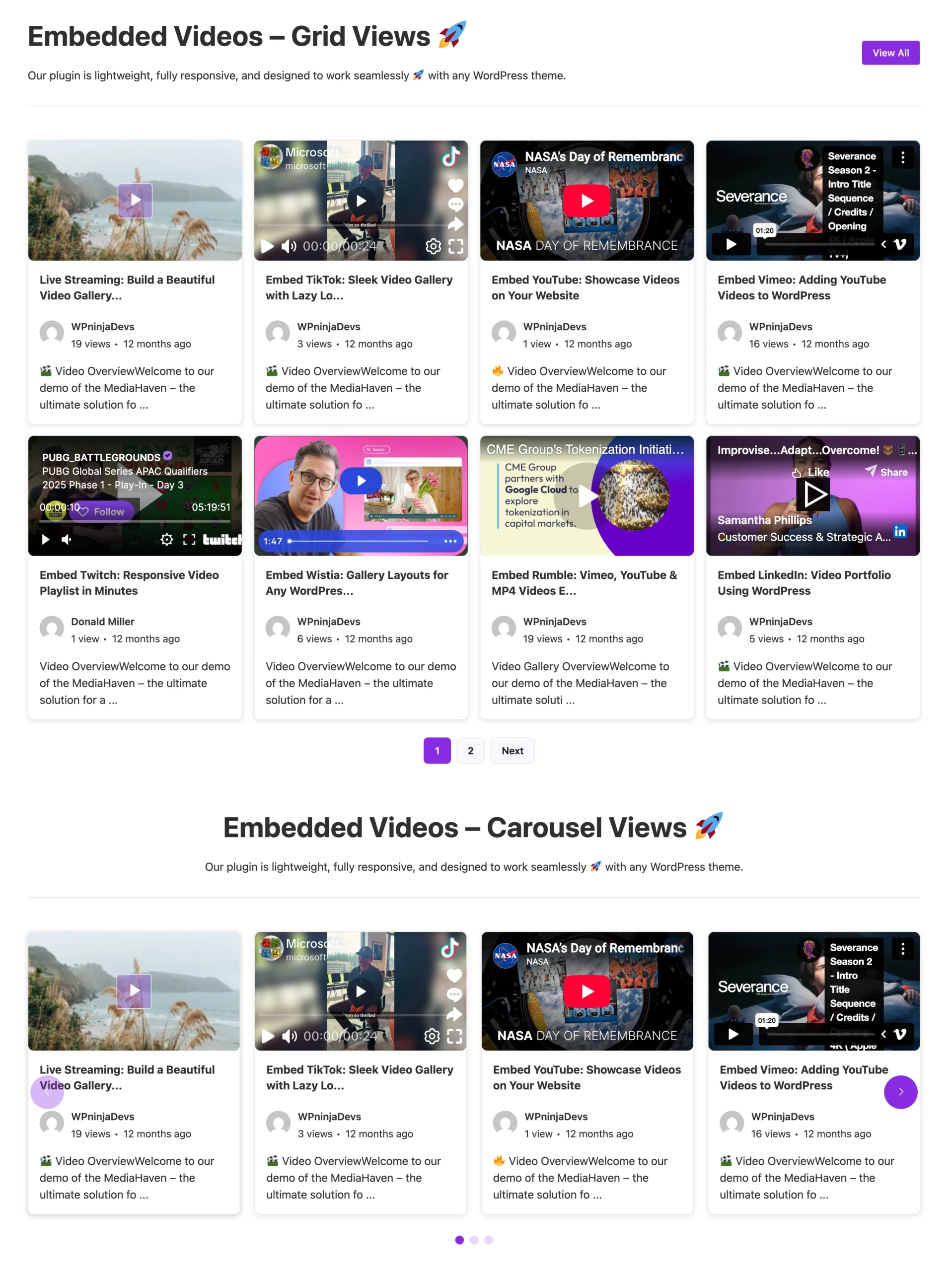
These features are confirmed free in the MediaHaven Lite plugin, verified against the official WordPress.org plugin page and the mediahaven.io/pricing comparison table:
- YouTube channel feeds — pull all videos from a channel automatically into a gallery
- YouTube playlist galleries — display any playlist as a responsive grid, carousel, or multi-row carousel
- Individual YouTube video embeds — mix standalone videos with channel feed content
- Real-time view and like counts — displayed on each video card, synced automatically
- Smart caching — API data is stored locally to prevent quota exhaustion and speed up load times
- Multiple YouTube API key rotation — add multiple API keys; the plugin rotates them automatically to avoid daily quota limits on high-traffic sites
- Channel ID auto-generation — paste a YouTube channel handle URL and the plugin resolves the Channel ID for you
- Ajax Load More button — visitors browse more videos without page reloads
- Grid, Carousel, and Multi-row Carousel layouts — all three layout types are free
- Schema.org VideoObject markup — automatic structured data for SEO and video rich results
- Lazy loading thumbnails — only loads images as they scroll into view
- Ajax view counter and like/dislike buttons — built-in engagement features
- Export/import (JSON/CSV) — transfer gallery configurations between sites
The only YouTube-related features that require Pro are the Ajax Video Live Filter (real-time filtering by category, tag, duration, etc.) and the Drag & Drop Video Card Sections.
Before You Start: Get Your YouTube API Key
MediaHaven uses the YouTube Data API v3 to pull your channel or playlist content. This is a free Google API — you just need to create a key.
Step-by-step:
- Go to console.cloud.google.com
- Click Select a project at the top → create a new project (name it anything — e.g., “My YouTube Gallery”)
- In the left sidebar, go to APIs & Services → Library
- Search for YouTube Data API v3
- Click the result, then click Enable
- Go to APIs & Services → Credentials
- Click + Create Credentials → API key
- Copy the generated API key
API quota: The YouTube Data API has a free daily quota of 10,000 units. MediaHaven’s smart caching stores API responses locally, so each page load doesn’t hit the API — only the initial data fetch and periodic cache refreshes count against your quota. For most sites, the free quota is more than sufficient. If you run a high-traffic site pulling data from multiple channels, MediaHaven lets you add multiple API keys that rotate automatically — solving the quota problem entirely.
Step 1: Install MediaHaven Lite
- In your WordPress admin, go to Plugins → Add New
- Search MediaHaven
- Find “MediaHaven – Video Gallery & HLS Player for YouTube and TikTok” by WPninjaDevs
- Click Install Now → Activate
After activation, a MediaHaven Lite menu appears in your admin sidebar.
The plugin immediately opens a Setup Wizard. This is where you’ll connect your YouTube API key.
Step 2: Connect Your YouTube API Key in the Setup Wizard
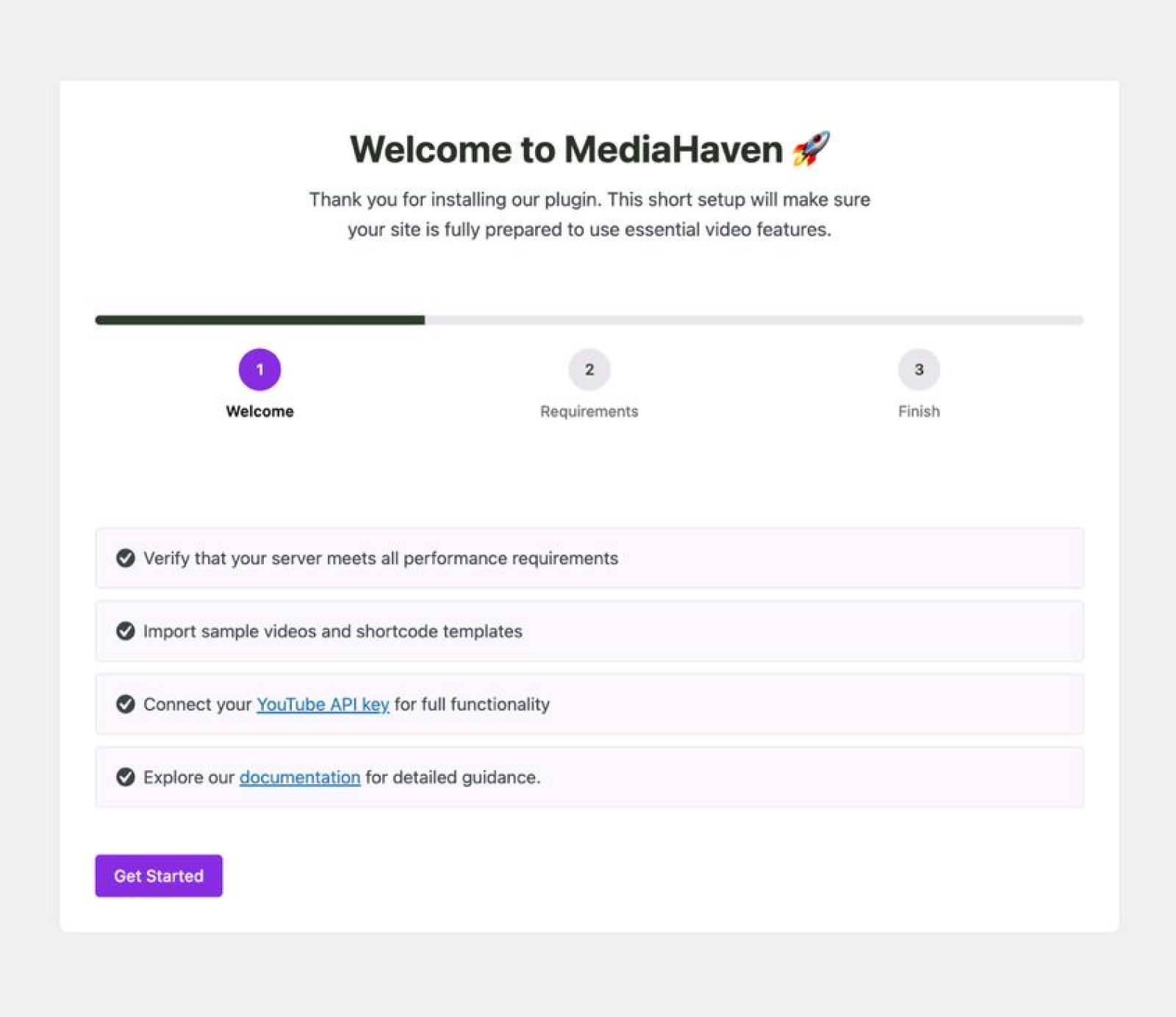
The Setup Wizard runs automatically on first activation. In the API connection step:
- Paste your YouTube Data API v3 key into the YouTube API Key field
- Click Save / Continue
The wizard confirms the connection and shows you sample video data if the key works correctly.
If you skip this step in the wizard, you can add the API key later at MediaHaven Lite → Settings → API Settings → YouTube API Key.
Multiple API keys: If you plan to power multiple YouTube channel feeds or expect significant traffic, add 2–3 API keys in the settings. The plugin rotates between them automatically to distribute quota usage and prevent throttling.
Step 3: Add Your YouTube Channel or Playlist as a Video Source
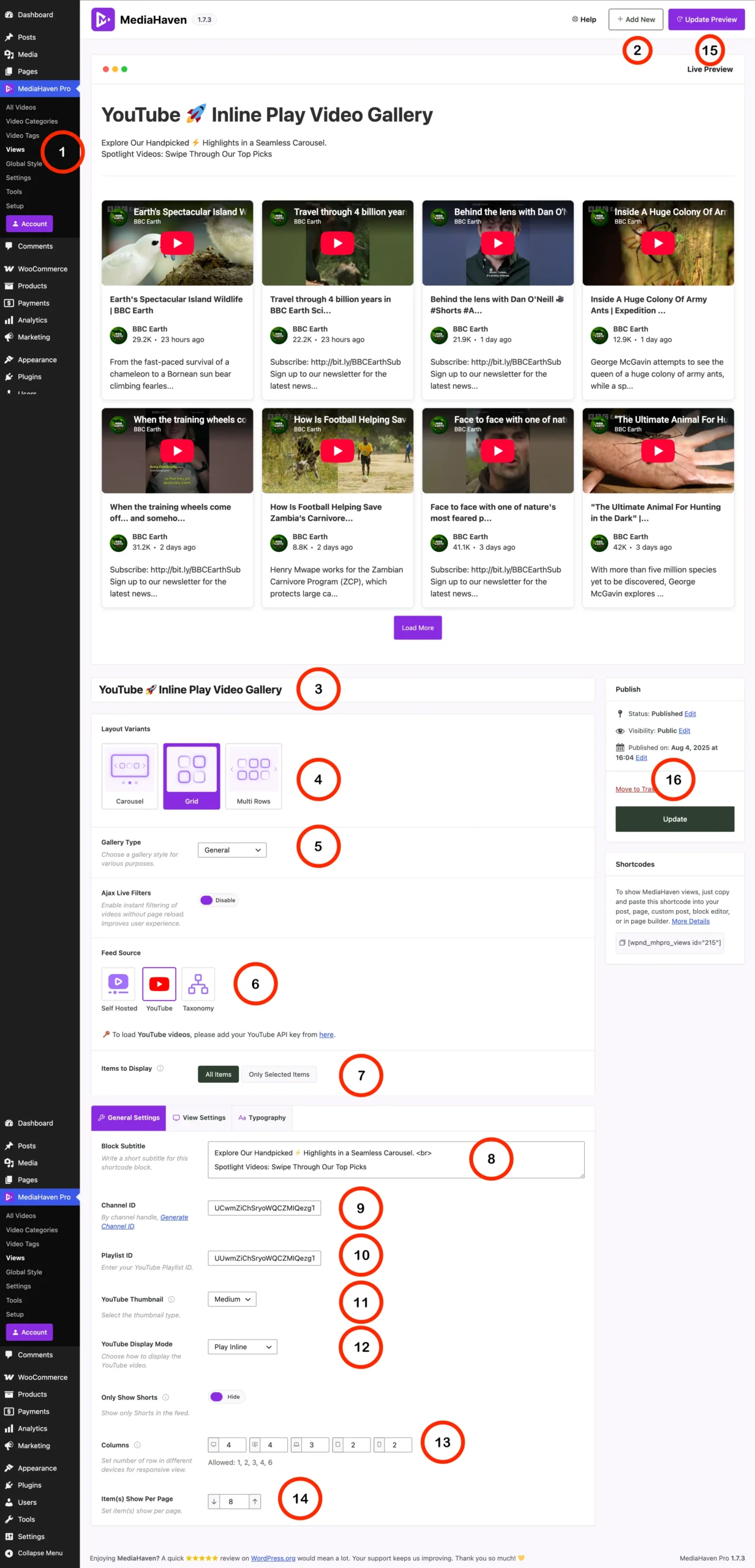
YouTube Feed Setup Documentation
Now create your first YouTube-powered gallery. Go to MediaHaven Lite → Views → Add New.
The “View” is your gallery configuration — layout, source, style, and behavior all defined in one place.
For a YouTube Channel Feed:
In the Source section of the View editor:
- Set Source Type to YouTube Feeds (or YouTube Channel)
- In the Channel URL / Channel ID field, paste either:
- Your full channel URL (e.g.,
https://www.youtube.com/@YourChannelHandle) — the plugin auto-resolves the Channel ID - Or your Channel ID directly (starts with
UC...)
- Your full channel URL (e.g.,
- Set Number of Videos — how many videos to show in the initial load
- Enable Load More button if you want visitors to browse beyond the initial set via Ajax
For a YouTube Playlist:
- Set Source Type to YouTube Playlist
- Paste the playlist URL or the Playlist ID
- Set the number of videos to display
Mixing sources:
You can create separate Views for different channels, playlists, or video collections, and embed multiple galleries on the same page — each with its own layout and style.
Step 4: Choose Your Layout and Configure Display Options
Layout options (all free):
| Layout | Best for |
|---|---|
| Grid | Video libraries with 6+ videos, tutorial archives, full channel feeds |
| Carousel | Featured video sections, homepage showcases, smaller curated sets |
| Multi-row Carousel | Compact multi-row browsing, mobile-optimized sections |
Responsive columns: Set independent column counts for extra-small (phones), small (large phones), medium (tablets), large (laptops), and extra-large (desktop) screens — all without writing CSS.
Display controls — toggle on or off per gallery:
- Video title
- Description excerpt
- Author name and avatar
- View count (auto-updating via Ajax)
- Like/dislike count
- Publish date
- Categories and tags
- Video poster/thumbnail
Shortcode header: You can add a custom heading above the gallery using the header controls in the View editor — useful for labeling sections like “Latest Videos” or “Featured Tutorials.”
Pagination: Choose between page-by-page navigation or the Ajax Load More button. Load More keeps visitors on the page and creates a smoother browsing experience than pagination.
After configuring everything, click Save. The plugin generates your gallery shortcode:
[wpnd_mhpro_view* id="1"]Step 5: Preview Live and Embed Anywhere
Before publishing, you can preview your gallery live inside the editor. MediaHaven includes a Shortcode Live Preview feature — changes to layout, columns, and display options reflect in real time so you see exactly how the gallery will look before it goes live.
To embed the gallery:
Gutenberg block editor:
- Add a new block → search MediaHaven → select Shortcode View
- From the block’s dropdown, pick your gallery by name
- Live preview renders inside the editor
Standard Shortcode block: Paste [wpnd_mhpro_view* id="1"] into a Shortcode block.
Any page builder (Elementor, Divi, WPBakery, Beaver Builder): Add a shortcode or text module, paste the shortcode. Done.
Click Publish or Update and visit your page. Your YouTube channel gallery is live.
Step 6: What Happens Automatically From Here
Once set up, the gallery manages itself. Here’s what runs without any action from you:
New videos appear automatically. MediaHaven periodically refreshes its cached YouTube API data. When you upload a new video to YouTube, it appears in your WordPress gallery on the next cache refresh. You never update a WordPress page manually.
View counts stay current. The Ajax view counter updates every time someone plays a video in your gallery. These counts display on each video card.
Thumbnails are optimized. MediaHaven includes built-in image compression. Thumbnails served in your gallery are compressed automatically — reducing payload without losing visual quality.
Schema.org markup is output on every page. Every video in your gallery gets VideoObject structured data, including the video title, description, thumbnail URL, and upload date. Google can index this and serve your pages as video rich results in search — giving your site a direct traffic benefit from content you’re already producing.
SEO Impact: Why This Is Worth More Than You Think
Here’s the concrete SEO benefit of embedding your YouTube content on WordPress versus letting it live only on YouTube:
When a video exists only on YouTube, searches for that topic surface the YouTube page — not your site. You get zero traffic from that search.
When the same video is also embedded on your WordPress page with MediaHaven’s automatic VideoObject schema markup, Google indexes your page for the same topic. Now you have two chances to rank — your YouTube page and your WordPress page — for the same keyword.
For a creator publishing weekly, that compounds quickly. A 50-video library, all properly marked up with VideoObject schema, can drive meaningful long-tail search traffic to your domain over time.
Practical Use Cases by Business Type
Content creator / YouTuber Embed your full channel on your homepage or a dedicated Videos page. Every new upload shows up automatically. Your site stays current with no manual work.
Online educator / course creator Create separate gallery Views for different course topics (e.g., “Beginner Lessons,” “Advanced Tutorials”). Embed each on its relevant category page. Visitors browse your course content on your domain — you can gate or capture leads without YouTube interference.
Marketing agency Build client video galleries from their YouTube channels. Use the export/import JSON feature to replicate gallery configurations across client sites quickly. The multiple API key rotation feature handles high-traffic client deployments without quota issues.
E-commerce store Pull product demo videos, unboxing videos, or review videos from your brand’s YouTube channel into relevant product category pages or a dedicated Video Reviews page.
Fitness or wellness brand Create a workout video library organized by category (strength, cardio, yoga). Visitors filter by type — with Pro’s Ajax Live Filter, this becomes a genuinely useful content discovery tool.
Common Questions
Do I need Pro for YouTube channel feeds? No. YouTube channel feeds, playlist galleries, individual video embeds, and all three layout types are free in MediaHaven Lite.
What if my YouTube channel has hundreds of videos? The plugin handles large libraries. Use pagination or Load More to control how many videos load initially. The smart caching system and multiple API key rotation prevent quota issues at scale.
Can I show videos from multiple YouTube channels in one gallery? Yes. Create separate Views for each channel and embed them on the same page, or on different pages.
Can I combine YouTube feed videos with self-hosted or HLS videos? Each View is configured for a specific source. You can place multiple Views on the same page — one for YouTube, one for self-hosted — creating a unified appearance with different sources.
Will my gallery break if YouTube changes their API? MediaHaven is actively maintained by WPninjaDevs (the team has 10+ years of WordPress development experience). The plugin’s changelog shows regular updates — the most recent as of April 2026 is version 1.6.5, released March 15, 2026.
Frequently Asked Questions
How do I embed a YouTube feed in WordPress without coding?
MediaHaven lets you embed YouTube feeds without writing code. Simply connect your YouTube API key, choose your channel or playlist as the source, create a gallery View, and embed it anywhere using a Gutenberg block or shortcode. New videos can appear automatically as your channel grows.
Can MediaHaven automatically display new YouTube videos on my website?
Yes. MediaHaven can automatically synchronize your YouTube channel or playlist with your WordPress gallery. Once configured, newly published videos are fetched automatically, keeping your website fresh without manually updating pages or embedding new videos.
Why should I use MediaHaven instead of embedding YouTube videos one by one?
MediaHaven eliminates the need to manually embed every YouTube video. Instead, it creates responsive galleries that automatically organize your channel or playlist while adding SEO-friendly video pages, multiple layouts, lazy loading, and centralized video management from a single dashboard.
Does MediaHaven support YouTube channels and playlists?
Yes. MediaHaven supports individual YouTube videos, entire channels, and playlists. You can display them as responsive Grid, Carousel, or Multi-row Carousel galleries, making it easy to showcase educational content, tutorials, podcasts, or product videos professionally.
How does MediaHaven handle YouTube API limits?
MediaHaven uses intelligent caching to reduce unnecessary API requests. Instead of contacting the YouTube API on every page load, the plugin stores video data locally and refreshes it automatically, improving performance while helping prevent API quota exhaustion on busy websites.
Can I customize the layout of my YouTube video gallery?
Yes. MediaHaven lets you choose from responsive Grid, Carousel, and Multi-row Carousel layouts while controlling columns, thumbnails, metadata, pagination, and other display options. This flexibility helps you create galleries that match your website’s design and branding.
Does MediaHaven improve the SEO of YouTube galleries?
Yes. MediaHaven automatically generates Schema.org VideoObject structured data and creates organized video galleries that help search engines better understand your content. Combined with optimized page structures, this improves your chances of earning video-rich search results and attracting more organic traffic.
Can I mix YouTube videos with other video sources?
Yes. MediaHaven supports YouTube alongside Vimeo, HLS streams, self-hosted videos, TikTok, Facebook, Instagram, LinkedIn, Twitch, Wistia, Dailymotion, and Rumble. You can manage multiple video platforms from one plugin while presenting a consistent gallery experience to visitors.
Does MediaHaven work with Gutenberg and page builders?
Absolutely. MediaHaven includes dedicated Gutenberg blocks with live gallery previews and also provides shortcodes compatible with Elementor, Divi, Beaver Builder, WPBakery, and other popular page builders. You can embed YouTube galleries anywhere without custom development.
Can I create multiple YouTube galleries on the same website?
Yes. MediaHaven’s View Builder lets you create unlimited YouTube galleries using different channels, playlists, layouts, and display settings. This makes it easy to organize videos by topic, brand, department, or campaign while managing everything from one centralized dashboard.
Will MediaHaven slow down my WordPress website?
No. MediaHaven is designed with performance in mind, using smart asset loading, lazy loading, and intelligent caching to keep YouTube galleries fast. Plugin assets load only on pages that contain MediaHaven content, helping maintain excellent Core Web Vitals and a smooth browsing experience.
Why choose MediaHaven for YouTube galleries on WordPress?
MediaHaven combines automatic YouTube feeds, responsive gallery layouts, smart caching, VideoObject schema, Gutenberg integration, WooCommerce compatibility, and support for multiple video platforms in one plugin. Instead of relying on separate gallery and embed tools, you get a scalable video platform built specifically for modern WordPress websites.
Get Started
- Install free: Download From WordPress Plugin Directory
- View live YouTube feed demo: YouTube Feeds Demo
- Upgrade to Pro for live filters and VAST ads: mediahaven.io/pricing — $79/year, 1 site, 14-day guarantee
- Support
Leave a Reply