


If you search for “WooCommerce product video plugin” in 2026, you find dozens of options. Most do one thing: embed a YouTube or Vimeo link on a product page. A few handle the native gallery. Almost none combine gallery integration, shoppable overlays, multiple video sources, adaptive streaming, and VAST monetization in a single plugin.
This guide reviews the most capable WooCommerce product video plugins available in May 2026, based on verified features and actual product pages — and shows you why MediaHaven is the only option that handles the full video commerce stack from a single install.
What a WooCommerce Product Video Plugin Actually Needs to Do in 2026
Before comparing plugins, define the requirements. A product video on a WooCommerce store in 2026 must:
- Display in the native product gallery — not just below the description
- Support multiple video sources — YouTube, Vimeo, self-hosted, HLS, and CDN
- Work on mobile — 70–75% of WooCommerce traffic is mobile (GoDAM, March 2026)
- Not destroy page speed — video must load lazily, not block the critical render path
- Ideally support shoppable overlays — clickable Add to Cart inside the video
- Generate SEO schema — VideoObject markup for Google rich results
Plugins that only embed a YouTube video below the Add to Cart button satisfy none of these requirements meaningfully.
MediaHaven: The Full-Stack WooCommerce Video Plugin
- Plugin: MediaHaven – Video Gallery, HLS Player & WooCommerce Product Videos
- Version: 1.7.3 (verified May 2026)
- WordPress.org slug: mediahaven-lite
- Free version: Yes — full video gallery system
- Pro price: From $79/year (1 site) — 14-day money-back guarantee
- WooCommerce features: Free & Pro
What MediaHaven Does for WooCommerce (Confirmed from v1.7.3 Plugin Page)
Free features (work anywhere on your site):
- Video galleries: Grid, Carousel, Multi-row Carousel layouts
- 10+ video sources: YouTube, Vimeo, TikTok, Twitch, Wistia, Dailymotion, Rumble, Facebook, Instagram, LinkedIn, HLS, self-hosted
- Schema.org VideoObject markup — automatic, no SEO plugin needed
- Built-in lazy loading — images, video, and iframes
- Smart per-shortcode asset loading — zero overhead on non-gallery pages
- Ajax view counter and like/dislike — free
- Bunny Stream CDN integration — free (automatic HLS conversion)
- Export/import (JSON/CSV)
- Setup Wizard with server checks
- Shortcode View Gutenberg block with live preview
Features (WooCommerce-specific):
| Pro Feature | What it does |
|---|---|
| WooCommerce Product Gallery Videos | Replace or extend the native product image gallery with videos |
| Video Tab on Product Page (Free) | Add a dedicated “Product Videos” tab to WooCommerce tabs |
| WooCommerce Hook Positions | Display galleries before/after summary, after Add to Cart, after meta |
| Replace Featured Image with Video | Video becomes the primary product gallery media |
| Autoplay on Gallery Selection | Video plays when clicked in the thumbnail row |
| Shoppable Video Overlays | Product cards, quantity, variations, Add to Cart inside the video |
| VAST Ad Monetization | Pre-roll, mid-roll, post-roll ads on product videos |
| 9 Ad Position Zones | Full ad layout control |
| Ajax Video Live Filter | Real-time filter across video libraries |
| Video Chapters | Clickable chapter markers for long demos |
| Drag & Drop Card Builder | Custom layout without code |
| WebP Thumbnail Conversion | Faster product page loads |
| Bunny Stream (Free) | One-click affordable Bunny Stream integration with automatic HLS conversion, adaptive streaming, and secure signed URL delivery to help protect premium video content |
| Bunny Storage (Pro) | Offload ALL media — images, audio, documents, video — to Bunny CDN |
WooCommerce compatibility: WooCommerce, SureCart, FluentCart (confirmed on mediahaven.io homepage)
Live demos:
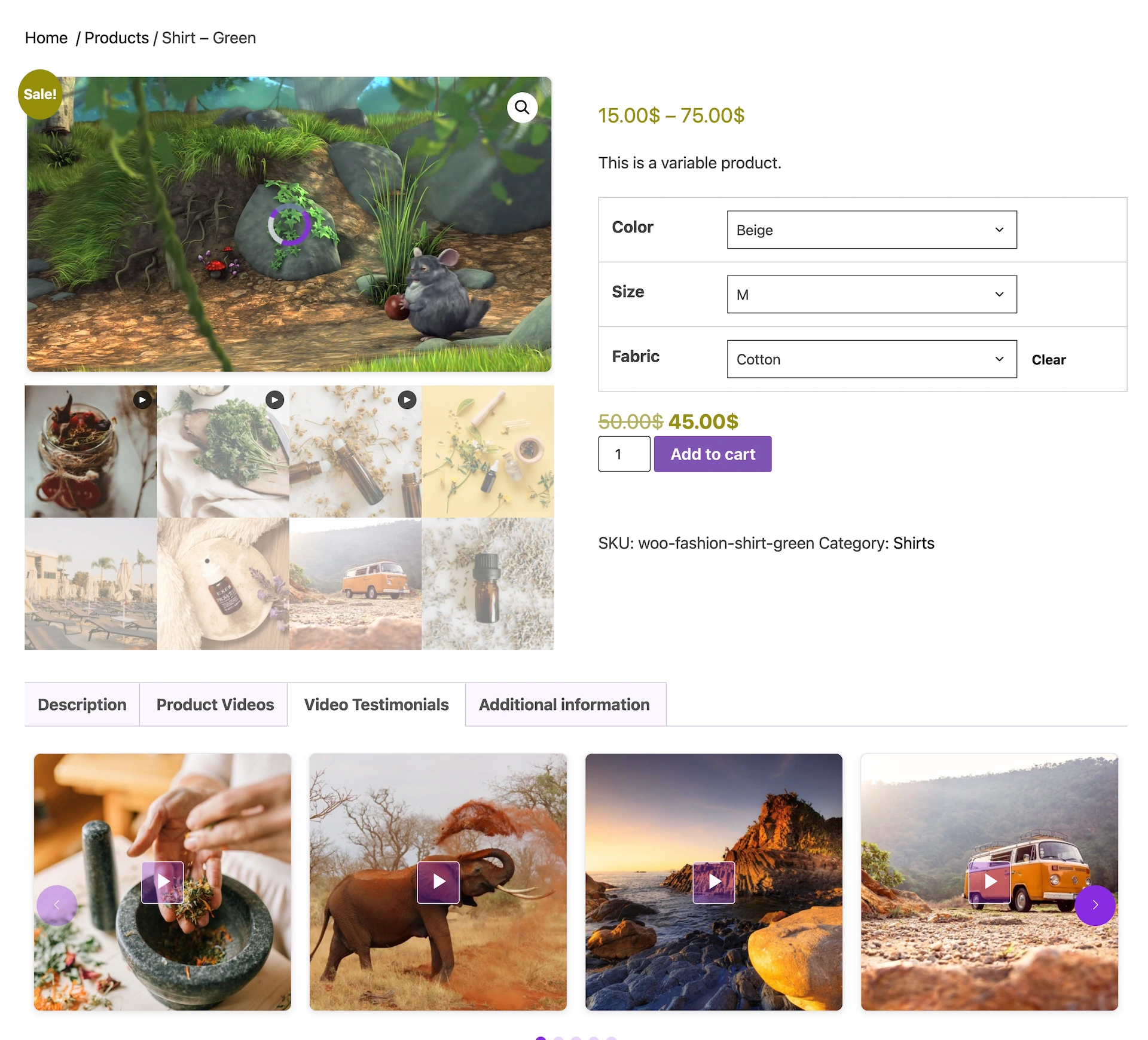
- Product gallery: demo.mediahaven.io/product/shirt-green/
- Shoppable video: demo.mediahaven.io/shoppable-video-for-ecommerce/
Competitor Comparison: What Other Plugins Offer
| Feature | MediaHaven Pro | WooCommerce Product Video (official) | YITH WooCommerce Product Video | Video Gallery – YouTube Gallery |
|---|---|---|---|---|
| Native gallery replacement | ✅ | ✅ | ✅ | ❌ |
| Self-hosted video support | ✅ (all formats) | ✅ (MP4 only) | ✅ | Limited |
| YouTube and Vimeo | ✅ | ✅ | ✅ | ✅ |
| HLS / Adaptive streaming | ✅ (Bunny Stream, native) | ❌ | ❌ | ❌ |
| Bunny Stream CDN | ✅ (free + Pro) | ❌ | ❌ | ❌ |
| TikTok / Instagram / LinkedIn | ✅ | ❌ | ❌ | Limited |
| Shoppable video (Add to Cart in video) | ✅ Pro | ❌ | ❌ | ❌ |
| VAST ad monetization | ✅ Pro | ❌ | ❌ | ❌ |
| Schema.org VideoObject | ✅ Free (automatic) | ❌ | ❌ | Limited |
| Video Tab on product page | ✅ Free | ❌ | ❌ | ❌ |
| WooCommerce Hook positions | ✅ Pro | Limited | Limited | ❌ |
| Ajax Live Filter | ✅ Pro | ❌ | ❌ | ❌ |
| Video gallery (non-product pages) | ✅ (primary feature) | ❌ | ❌ | ✅ |
| Lazy loading | ✅ Free | Limited | ✅ | ✅ |
| Mobile responsive | ✅ | ✅ | ✅ | ✅ |
| Smart asset loading | ✅ Free | ❌ | ❌ | ❌ |
| Free version available | ✅ (full gallery) | ✅ (limited) | ✅ (limited) | ✅ |
| Pro price | $79/year | $79/year | $89.99/year | Various |
The key difference: MediaHaven is the only plugin in this category that combines native WooCommerce gallery replacement, shoppable video overlays, VAST monetization, HLS adaptive streaming, Bunny CDN, and a full video gallery system for the rest of your site — all from one license.
Who Should Use MediaHaven for WooCommerce
Use MediaHaven if:
- You sell physical or digital products and want video in the native WooCommerce gallery
- You want shoppable video — Add to Cart directly from inside a product demo video
- You need multiple video sources (YouTube, Vimeo, self-hosted, HLS) across different products
- Page speed matters and you need lazy loading, CDN delivery, and smart asset loading
- You also need a video gallery system for the rest of your site (not just product pages)
- You want SEO schema.org VideoObject markup without a separate SEO plugin
Consider alternatives if:
- You only need YouTube embeds below the product description (use the free WooCommerce YouTube embed in this case — no plugin needed)
- You need video linked to specific product variations (check WooCommerce Additional Variation Images Gallery for that specific use case)
Pricing: Free vs Pro at a Glance
| Tier | Price | WooCommerce gallery | Shoppable video | VAST ads | All sources |
|---|---|---|---|---|---|
| MediaHaven Lite (Free) | $0 | ❌ | ❌ | ❌ | ✅ (gallery pages) |
| MediaHaven Pro — 1 site | $79/year | ✅ | ✅ | ✅ | ✅ |
| MediaHaven Pro — 5 sites | $159/year | ✅ | ✅ | ✅ | ✅ |
| MediaHaven Pro — 10 sites | $249/year | ✅ | ✅ | ✅ | ✅ |
All Pro plans: 14-day money-back guarantee · 1 year of updates and support · Secure payment via Freemius
The Business Case for Upgrading to Pro
Scenario: A WooCommerce store with 20,000 monthly product page visitors and $65 average order value.
At a 2.9% baseline CVR (no video): → 580 orders × $65 = $37,700/month
At a 4.8% CVR (with product gallery video, WebFX 2026 benchmark): → 960 orders × $65 = $62,400/month
Monthly revenue increase: +$24,700 MediaHaven Pro annual cost: $79 Return on investment: approximately 3,700x annually
That is not a theoretical number — it is the documented average uplift from adding video to product pages, applied to a mid-traffic WooCommerce store.
- Install free: wordpress.org/plugins/mediahaven-lite
- See WooCommerce demo: demo.mediahaven.io/product/shirt-green/
- Upgrade to Pro: mediahaven.io/pricing — $79/year · 14-day money-back guarantee
How to Add Product Videos in WooCommerce Without Coding
You don’t need a developer, a page builder, or custom PHP to add product videos to your WooCommerce store. MediaHaven Pro handles everything through a visual admin interface — no code at any stage.
This guide is for WooCommerce store owners who want to add product videos quickly and confidently without hiring anyone or writing a single line of code.
Why No-Code Video Setup Matters for WooCommerce Owners
Most WooCommerce documentation for adding product videos assumes you’ll edit template files, use woocommerce_before_single_product action hooks in functions.php, or know your way around PHP. That’s a significant barrier for the majority of store owners who run their business — not their hosting environment.
MediaHaven Pro eliminates this barrier entirely. Every configuration step happens in the WordPress admin:
- Create videos via the MediaHaven video editor
- Build gallery Views using the visual shortcode builder
- Assign videos to products in the product editor
- Choose display positions via dropdowns (no hook knowledge required)
- Preview changes live before publishing
The result is a full WooCommerce product video setup that a non-technical store owner can complete in 20–30 minutes on their first product.
No-Code Setup: Step by Step
Step 1: Install MediaHaven (2 minutes)
- Plugins → Add New Plugin → Search “MediaHaven”
- Install “MediaHaven – Video Gallery, HLS Player & WooCommerce Product Videos” by WPninjaDevs
- Click Activate
- Complete the Setup Wizard (guided, takes under 2 minutes)
- Purchase Pro at mediahaven.io/pricing, install the Pro zip via Upload Plugin, and activate your license key in Settings → License
No server access needed. No FTP. No code editor.
Step 2: Add a Few Videos to Video Library (3 minutes)
Go to MediaHaven → All Videos → Add New Video.
Documentation – Add Your First Video and Configure External Video Sources
Step 3: Create a Gallery View (3 minutes)
Go to MediaHaven → Views → Add New.
Think of a View as a display template. Configure:
- Layout: Grid (for product pages, 1 column works best)
- Source: Filter to show only your product’s videos
- Display options: Toggle off anything you don’t want to show (author, date, etc.) using simple on/off switches
Click Save. Copy the shortcode shown at the top of the saved View.
Documentation – How to Create a Professional Video Gallery in WordPress with MediaHaven
Step 3: Preview and Publish
Before publishing to the live store, use MediaHaven’s Shortcode Live Preview in the Views editor to see exactly how the gallery renders. Make any adjustments — column count, display fields, layout — and see them update in real time.
When satisfied, click Update on the product. Go to the live product URL and confirm the video appears correctly on both desktop and mobile.
Step 4: Add Your Product Video (5 minutes per video)
Title: The name of the product (e.g., “Blouse”)
- Go to your WordPress admin dashboard.
- Navigate to Products > All Products and click on the product you want to edit (e.g., Blouse).
Assign the Video Gallery
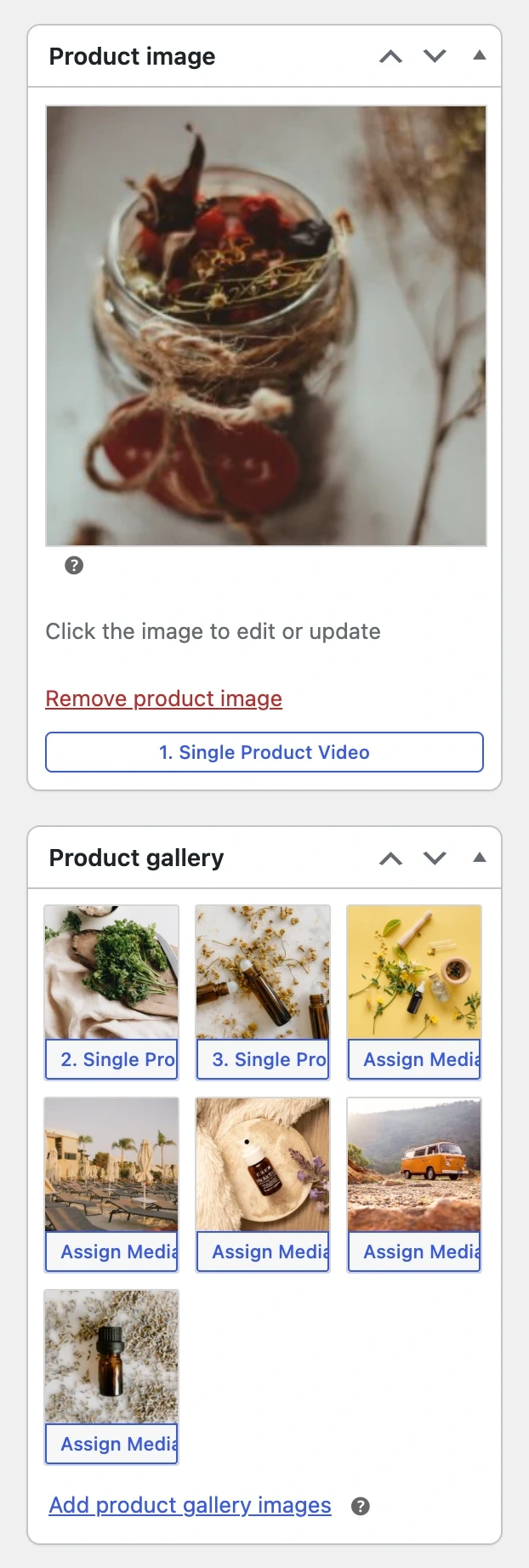
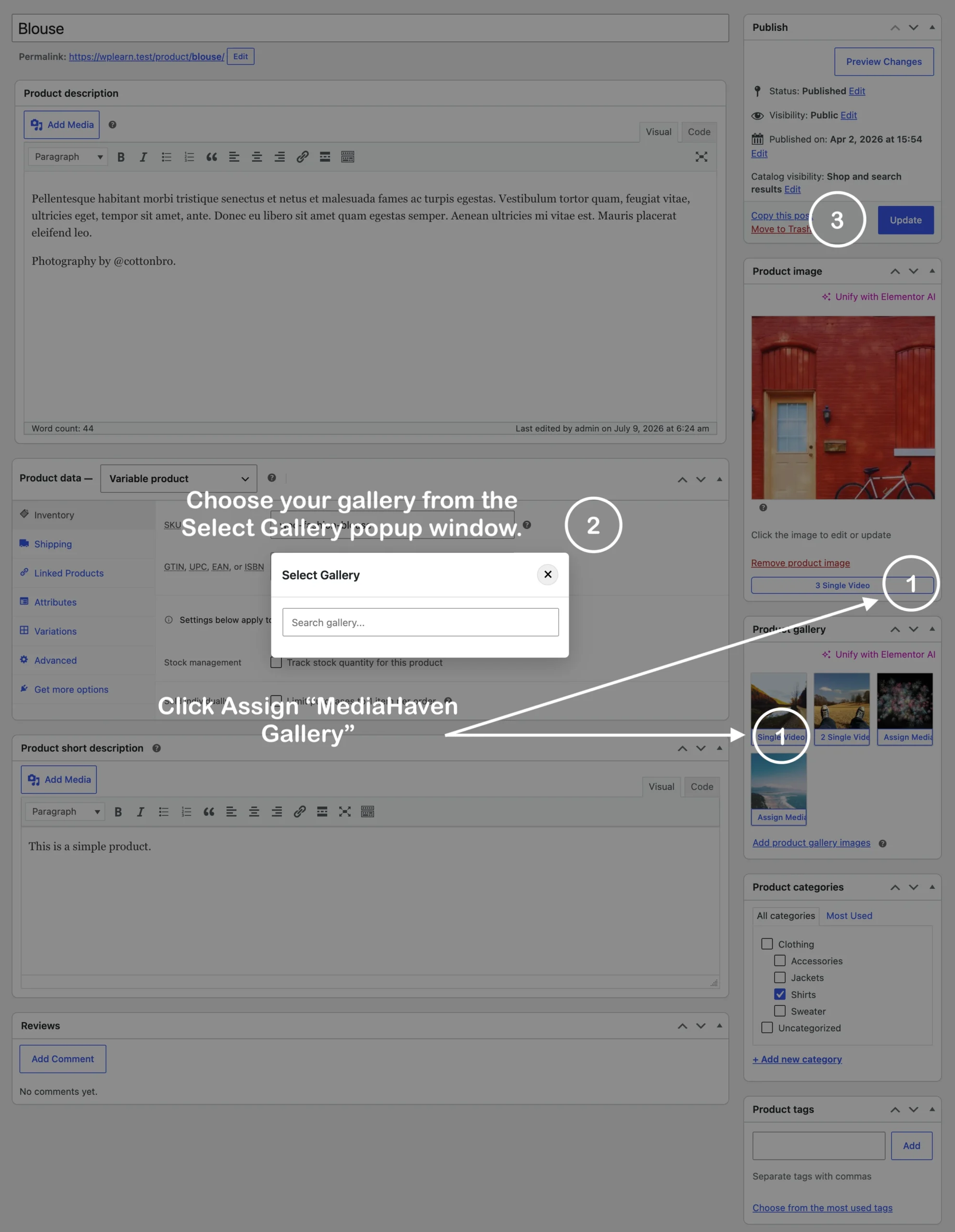
Locate the Media Panels: Look for the Product image or Product gallery meta boxes on the right side of your screen.
Launch the Selector: Click the Assign MediaHaven Gallery button located directly inside these image boxes.
Select Your Gallery: In the Select Gallery popup window that appears, use the search bar or list to choose the specific video layout you want to display for this product.
Here is the documentation How to Create a WooCommerce Product Video Gallery (Replacing Default Images)
Using Bunny Stream for your product videos (recommended): If you have a Bunny.net account (free to create), connect it in MediaHaven → Settings → Storage & CDN. Then upload your video and click Sync — MediaHaven automatically converts it to adaptive HLS streaming on Bunny’s global CDN. No technical setup. No encoding software. Just click Sync.
The Five WooCommerce Display Positions (No Code Required)
MediaHaven Pro gives you five positioning options — all set via dropdown, no hook knowledge needed:
| Display Position | What it looks like | Best for |
|---|---|---|
| Replace Product Gallery Image | Video appears in the native WooCommerce gallery as the first (or only) item | Fashion, apparel, physical products |
| Video Tab | A new tab (“Product Videos”) appears alongside “Description” and “Additional Information” | Stores with multiple video types: demo + testimonials + tutorials |
| Before Product Summary | Video gallery appears above the product title and price | Landing-page-style products with strong video pitches |
| After Product Summary | Video gallery appears below the description | Supporting videos, installation guides, feature deep-dives |
| After Add to Cart | Video gallery appears below the Add to Cart button | Customer testimonials, comparison videos, confidence-building content |
Common Questions from Non-Technical Store Owners
Will adding a video slow down my product pages? No — MediaHaven uses built-in lazy loading (video thumbnails only load when visible) and smart per-shortcode asset loading (plugin scripts only load on pages with a gallery). With Bunny Stream, your server never delivers the video file at all — Bunny’s CDN handles it.
Will it work with my WooCommerce theme? MediaHaven Pro uses “theme-compatible WooCommerce gallery integration” (confirmed from the v1.7.3 WP.org page). It integrates with the native WooCommerce gallery system, so any theme that supports standard WooCommerce product galleries will work correctly.
Can I use a YouTube video as the product gallery video? Yes. Create YouTube Feed gallery and assign it to your product, and it plays in the gallery.
Can I add videos to multiple products? Yes — create a separate MediaHaven video and View for each product (or reuse the same View across products with similar content). There is no limit on the number of products or videos.
What happens to my existing product images? They remain in the product gallery — MediaHaven’s gallery video appears alongside them, not instead of them (unless you specifically choose “Replace Featured Image” mode).
- Install free: wordpress.org/plugins/mediahaven-lite
- View no-code WooCommerce demo: demo.mediahaven.io/product/shirt-green/
- Get Pro access: mediahaven.io/pricing — $79/year · 14-day money-back guarantee
How to Display Videos on WooCommerce Product Pages
WooCommerce product pages have a specific anatomy. The gallery is top-left. The product summary, price, and Add to Cart are top-right. The tabs (Description, Additional Information, Reviews) run below. Related products fill the bottom.
Where you place your product video determines whether shoppers see it. A video buried at the bottom of a product page is largely invisible. A video in the gallery, or above the product summary, is seen by virtually every visitor who lands on the page.
MediaHaven Pro gives you precise control over exactly where videos appear on WooCommerce product pages — five distinct display positions, each serving a different sales purpose.
The 5 Ways to Display Video on WooCommerce Product Pages with MediaHaven Pro
Display Position 1: Inside the WooCommerce Product Image Gallery
What it does: Your video appears directly inside the native WooCommerce product gallery — the main image area at the top left of the product page. The video thumbnail appears in the image row below the main view, alongside your product images. When a shopper clicks the video thumbnail, the video plays in the main gallery area.
Best for: Fashion, apparel, home goods, beauty products — anything where seeing the product in motion is the primary purchase driver.
Setup: In the product editor MediaHaven panel → Display Mode: Replace Product Gallery Image → select your MediaHaven View → save.
Autoplay option: When a shopper clicks the video thumbnail in the gallery row, the video can autoplay immediately (configurable in MediaHaven Pro settings).
Live demo: demo.mediahaven.io/product/shirt-green/ — see the gallery integration live on a WooCommerce product page.
Display Position 2: As a Dedicated Product Video Tab
What it does: Adds a new tab to the WooCommerce product tabs row alongside “Description,” “Additional Information,” and “Reviews.” You name the tab (e.g., “Product Videos,” “See It In Action,” “Video Reviews,” “Installation Guide”).
Best for: Stores with multiple video types for each product — a demo video, a customer testimonial, and an installation guide can each live in the same tab or in separate tabs.
Setup: MediaHaven Pro allows you to add multiple video tabs per product. Create a different MediaHaven View for each tab (Demo Videos, Video Testimonials) and assign each to a separate tab with its own custom label.
Live demo: demo.mediahaven.io/product/shirt-green/ — the “Product Videos” and “Video Testimonials” tabs are live examples of this display mode.
Display Position 3: Before the Product Summary
What it does: A full-width video gallery appears above the product title, price, and Add to Cart button — spanning the full page width, below the breadcrumbs.
Best for: High-consideration products where video is the primary sales tool. Software demos, complex equipment, medical devices, fitness programs — anything where understanding is the prerequisite for purchasing.
Setup: MediaHaven Pro panel on the product editor → Display Mode: WooCommerce Hook → Before Product Summary → select View → save.
Display Position 4: After the Product Summary
What it does: A video gallery appears below the product description and before the product tabs.
Best for: Supporting content that enhances the written description — “see the installation process,” “watch this in a real kitchen,” “here’s the fabric under studio light.” This position works for content that supplements the primary product information rather than leading with it.
Setup: MediaHaven Pro panel → Display Mode: WooCommerce Hook → After Product Summary → select View → save.
Display Position 5: After the Add to Cart Button
What it does: A video gallery appears directly below the Add to Cart button and before the product meta (SKU, categories, tags).
Best for: Customer testimonials, social proof videos, “other customers who bought this” case studies. This is the confidence-at-the-cliff-edge position — the buyer is at the moment of decision and a 30-second testimonial is what pushes them across.
Setup: MediaHaven Pro panel → Display Mode: WooCommerce Hook → After Add to Cart → select View → save.
Combining Multiple Display Positions on One Product
MediaHaven Pro supports multiple video displays on the same product page simultaneously. A high-converting product page setup:
- Gallery position: Product demo video (the hero, above the fold, in the gallery)
- After Add to Cart: Customer testimonial video (social proof at the decision moment)
- Video Tab: Full tutorial video (for buyers who want the deep-dive before purchasing)
This three-layer video architecture mirrors what top-performing ecommerce brands use — demo to attract, testimonial to convince, tutorial to convert the last holdouts.
The Shoppable Video Layer: Add to Cart Inside the Video (Pro)
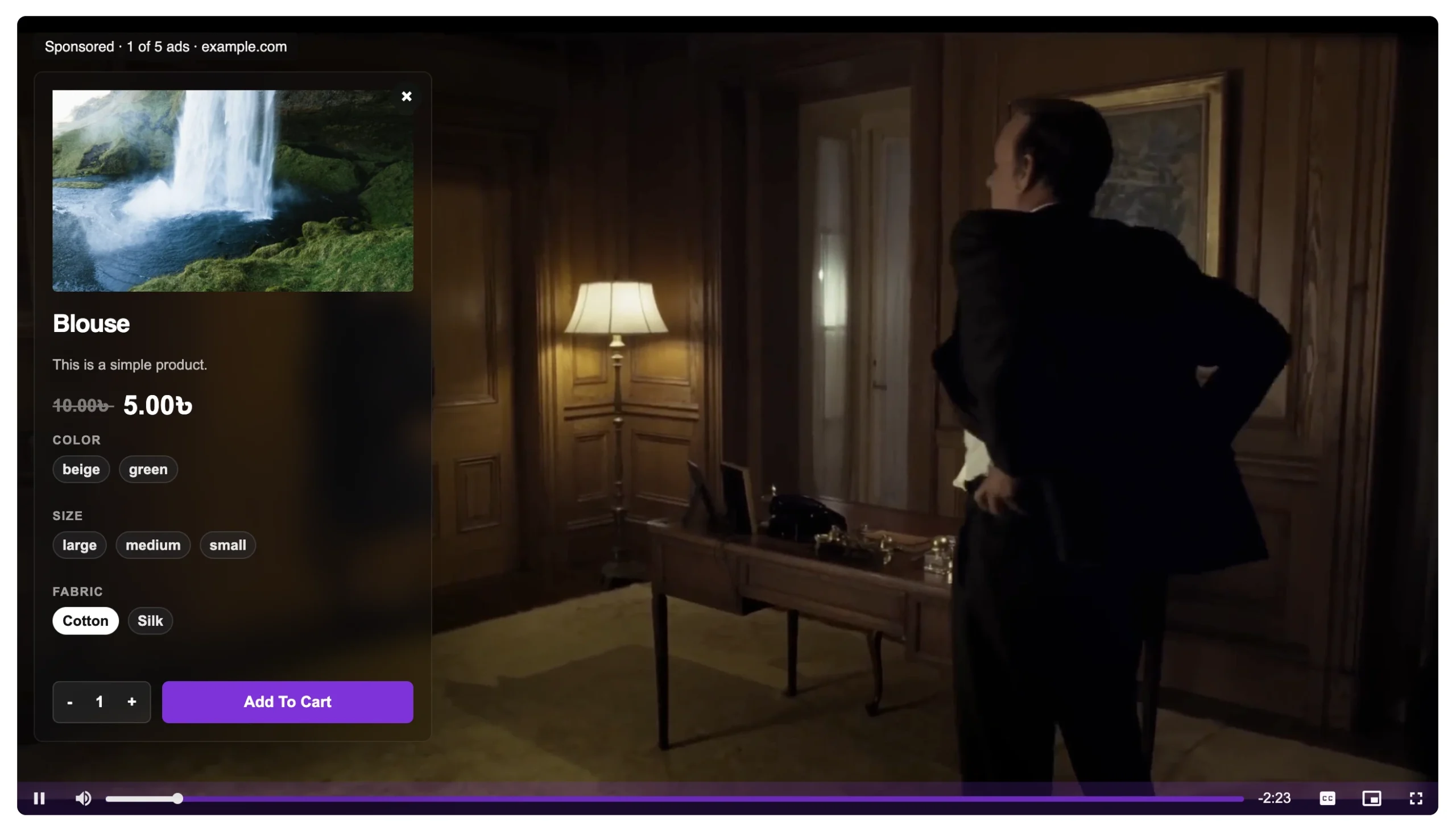
Beyond displaying videos on product pages, MediaHaven Pro transforms product videos into interactive shoppable experiences.
From the v1.7.3 WP.org plugin page: “Interactive Shoppable Videos — Add clickable product cards, live pricing, quantity selectors, variations, coupons, and Add to Cart buttons directly inside self-hosted product videos.”
How it works: In the MediaHaven Video Monetization panel for a specific video, you configure overlay elements that appear at precise timestamps during the video:
- Product card overlays: Show a WooCommerce product card (image, name, price) at the moment in the video when that product is featured
- Variation selector: Let viewers choose size/color inside the video
- Quantity selector: Add quantity controls without leaving the video
- Add to Cart button: Click and add — the product goes straight to cart
- Coupon codes: Flash a time-limited discount code inside the video at the right moment
- Promotional banners: Announce sales, limited availability, or bundle deals
Live demo: demo.mediahaven.io/shoppable-video-for-ecommerce/ — three shoppable video formats: vertical 9:16, social feed 4:5, and vertical with content.
Important note (from v1.7.3 WP.org page): Shoppable video overlays and VAST ads work with self-hosted, HLS, and Bunny Stream videos. YouTube, TikTok, and other embedded platform videos use their own player and ad systems and cannot have MediaHaven overlays added.
Conversion impact: Shoppable videos convert at 10–30% above standard product page rates, with top implementations reaching 2–3x higher conversions compared to static pages (Debuggersstudio.com, May 2026). Some 2026 benchmarks show conversion rates rising from ~3% to 9–17% in optimized shoppable video funnels.
Video Display Performance: Keeping Product Pages Fast
Adding video to product pages only helps conversions if the page still loads fast. MediaHaven handles performance automatically:
Built-in lazy loading — video thumbnails and embeds only load when they scroll into the viewport. A product page with a video gallery in the tabs loads almost as fast as one without, because the video content doesn’t render until the shopper scrolls to it.
Smart asset loading — MediaHaven’s CSS and JavaScript load only on pages that contain a shortcode. Your shop page, category pages, and blog posts carry zero MediaHaven overhead.
Bunny Stream CDN — if your product videos are hosted on Bunny Stream (free with your Bunny.net account), your origin server serves nothing. All video delivery goes through Bunny’s CDN — zero impact on your hosting bandwidth or response times.
WebP thumbnails (Pro) — video poster images displayed in the WooCommerce gallery and video tabs are automatically converted to WebP format. WebP images are 30–50% smaller than JPEG at equivalent quality, directly improving page load speed and Largest Contentful Paint (LCP) scores.
- Install free: wordpress.org/plugins/mediahaven-lite
- Live WooCommerce product page demo: demo.mediahaven.io/product/shirt-green/
- Live shoppable video demo: demo.mediahaven.io/shoppable-video-for-ecommerce/
- Upgrade to Pro: mediahaven.io/pricing — $79/year · 14-day money-back guarantee · No credit card required for free version
Replace WooCommerce Product Images with Videos
Static product images have a fundamental limitation: they cannot show movement, texture, scale, sound, or usage in context. A single well-produced product demo video communicates in 30 seconds what no combination of images can match — and buyers know it.
WooCommerce’s default product gallery has no native way to display a video in the image slot. The gallery is built for images. If you want a video where the featured image sits — in the main view area, swappable like a gallery image — you need a plugin that integrates at the gallery level.
MediaHaven Pro replaces the WooCommerce product image gallery with video. Your product demo, unboxing clip, or customer testimonial takes the primary position. Existing product images remain in the thumbnail row. The buying experience becomes video-first without any layout changes to your theme.
What “Replacing Product Gallery Images with Video” Actually Means
When we say MediaHaven Pro replaces the product gallery image with video, this is what changes on the product page:
Before MediaHaven Pro: The featured product image occupies the main gallery view area. Shoppers see a static image. They can click thumbnail images in the gallery row to swap the main view.
After MediaHaven Pro (Replace Mode): Your product video occupies the main gallery view area. Shoppers see a video thumbnail that they click to play. The video plays in the main gallery area — the same position the featured image previously occupied. Your existing product images shift to the right in the gallery thumbnail row and remain fully accessible.
The visual result: A product page where the first thing a shopper sees is not an image — it is a video ready to play. This is the same layout used by luxury brands, premium ecommerce stores, and direct-to-consumer brands that have moved to video-first product pages.
When to Replace Images with Video (and When Not To)
Replace with video when:
- Your product benefits most from seeing it in motion — apparel on a real person walking, furniture in a real room, a tool being used for its intended purpose
- You have a high-quality product demo (60–90 seconds minimum quality)
- Your product is frequently returned because of expectation mismatch — video reduces returns by 35% on average (SellersCommerce 2026)
- You sell high-consideration items ($100+) where the buying decision is emotionally complex
- You want to capture attention before a shopper can click away
Keep images as primary when:
- Your video quality is not high enough to be a positive first impression (a low-quality video damages conversion — 89% of consumers say video quality impacts their trust in a brand, Rocketium, May 2026)
- Your product is simple enough that images communicate everything relevant instantly
- You’re still testing video content and not yet ready to commit to video-first placement
Use the Tab or Hook positions as an intermediate step: If you’re uncertain about replacing the gallery image, start with a Video Tab or the “After Add to Cart” position. These get video in front of buyers without making it the first thing they see. Once you see the conversion data, you can promote video to the gallery position with confidence.
Step-by-Step: Replace WooCommerce Product Gallery Image with Video
Step 1: Install MediaHaven and Activate Pro
Install MediaHaven Lite from wordpress.org/plugins/mediahaven-lite. Activate. Complete the Setup Wizard.
Purchase MediaHaven Pro from mediahaven.io/pricing. Install and activate the Pro plugin. Enter your license key in MediaHaven Lite → Settings → License.
Step 2: Host Your Product Video
Choose where your video lives:
Option A — Bunny Stream (recommended for most stores):
- Create a free Bunny.net account
- In MediaHaven → Settings → Storage & CDN, connect your Bunny Stream library
- Upload your product video
- Click Sync — MediaHaven converts it to secure adaptive HLS and pushes it to Bunny’s global CDN automatically
- Your server handles zero video delivery
Option B — Self-hosted: Upload your video to your server or CDN. Copy the direct video URL.
Option C — YouTube or Vimeo: Use the YouTube or Vimeo URL directly. Note: shoppable overlays only work with self-hosted, HLS, and Bunny Stream videos.
Step 3: Create the Video in MediaHaven
Go to MediaHaven → All Videos -> Add New Video.
- Title: Descriptive product video name
- Source: Select your video source and paste URL or select from Bunny Stream library
- Poster Image: Upload a high-quality product thumbnail — this is what appears in the WooCommerce gallery before play
- Subtitles: Upload
.vttor.srtif your video has narration
Click Publish.
Step 4: Create a Gallery View
Go to MediaHaven Lite → Views → Add New.
For a product gallery video:
- Layout: Grid, 1 column
- Source: Filter to your product video
- Display: Title off, description off, date off — show only the video
- Save and copy the shortcode
Step 5: Configure the WooCommerce Product
Go to Products → Edit Product.
Find the MediaHaven Pro panel (appears in the product editor sidebar or below content area). Configure:
- WooCommerce Integration → Enable
- Display Mode → Replace Product Gallery Image
- Select Video or View → choose your product’s video or View
- Autoplay on Gallery Selection → Enable (video plays when the thumbnail is clicked in the gallery row)
- Click Update
Step 6: Test the Product Page
Visit your product URL. Confirm:
- Video thumbnail appears in the featured gallery position (top-left)
- Video thumbnail also appears in the gallery thumbnail row
- Existing product images remain accessible in the thumbnail row
- Clicking the video thumbnail plays the video in the main gallery area
- Video is fully responsive on mobile (test at 390px width)
- Autoplay fires correctly when the gallery item is selected
- Schema.org VideoObject is detected in Rich Results Test
Shoppable Video: The Next Step After Replacing Gallery Images
Once your product video replaces the gallery image, the next upgrade is making that video shoppable — adding interactive Add to Cart overlays that appear at precise moments during playback.
From the official mediahaven.io description: “The Video Monetization panel lets you embed interactive, fully shoppable product overlays directly inside your videos — so shoppers can discover their color, size, and fabric preference, then add to cart without ever leaving the screen.”
What shoppable overlays look like in practice (from the live demo at demo.mediahaven.io/shoppable-video-for-ecommerce/):
- Vertical shoppable video (9:16): Full-screen product video with a product card overlay showing name, price, variation selector, quantity, and Add to Cart button
- Social feed shopping (4:5): Horizontal video card with product details embedded — mirrors the TikTok Shop and Instagram Shopping formats that are driving billions in direct social commerce
- Vertical with content (9:16): Video alongside product description, variations, and purchase controls in a split layout
Setup for shoppable overlays (Pro): In the MediaHaven video editor, navigate to the Video Monetization panel. Add overlay elements at specific timestamps:
- Select overlay type: Product card, promotional banner, or link button
- Set timestamp: When (in seconds) the overlay appears during the video
- Configure the product card: Select a WooCommerce product, choose whether to show variations and quantity selector
- Set display duration and animation style
- Save — the overlay is live on your product video
The Business Impact: Video-First Product Pages by Category
Apparel and fashion: Video shows fit, movement, and fabric texture — the three things that drive returns when they don’t match expectations. A 30-second clip of your shirt being worn at normal walking pace communicates what 10 product images cannot. Result: higher conversion, lower return rate. Given that apparel return rates run 20–30% in ecommerce, a 35% reduction (the documented average from product video, SellersCommerce 2026) is a significant margin improvement.
Home goods and furniture: Scale context is the critical purchase driver. A dining table that looks “large” in an isolated image may be too small for the buyer’s kitchen. A 45-second video filmed in a real dining room with real people seated around the table eliminates the scale uncertainty that causes most furniture returns.
Beauty and skincare: Application process videos — showing the product texture, how it applies, and the immediate post-application result — answer the three biggest pre-purchase questions simultaneously: texture, application, and effect. Conversion rates for beauty products with demo videos consistently outperform image-only pages.
Software and digital products: A screen recording walkthrough showing your product being installed, configured, and used is the single most persuasive content type for software purchases. Buyers cannot “touch” software before buying. A 90-second demo that shows the product working solves this.
Electronics and tech: Size, button feel, screen quality, and build materials are all invisible in images. A 60-second handling video — showing the device being held, the screen in sunlight, the buttons being pressed — converts at a materially higher rate than any image configuration.
Quick Conversion: Results You Can Realistically Expect
Based on verified 2026 data from Rocketium (May 2026), WebFX, GoDAM (March 2026), and SellersCommerce (December 2025):
| Metric | Image-only gallery | Video-first gallery |
|---|---|---|
| Conversion rate | ~2.9% average | ~4.8% average (+65%) |
| Add to cart rate | Baseline | +144% for video viewers (Invesp) |
| Return rate | Baseline | −35% with product video |
| Trust score | Images only | 85% of consumers buy after video (GoDAM) |
| Time on page | Lower | Higher (video holds attention) |
| SEO visibility | Image results | VideoObject rich results eligible |
For a store doing $30,000/month:
- Adding video to gallery → +65% CVR uplift → +$19,500/month from same traffic
- Annual revenue increase: +$234,000
- MediaHaven Pro annual cost: $79
Frequently Asked Questions
What is the best WooCommerce product video plugin?
The best WooCommerce product video plugin depends on your goals. If you only need basic video embeds, a lightweight solution may be enough. If you want product gallery videos, responsive layouts, HLS streaming, VideoObject schema, WooCommerce integration, and video monetization, MediaHaven offers a more complete all-in-one platform.
Is there a free WooCommerce product video plugin?
Yes. MediaHaven Lite is available for free and includes WooCommerce product videos, responsive galleries, secure HLS streaming with Bunny Stream integration, YouTube and TikTok feeds, VideoObject schema, Ajax Load More, view counters, and other essential features. Advanced commerce features are available in the Pro version.
What extra features does MediaHaven Pro include?
MediaHaven Pro expands on the free version with Interactive Shoppable Video, VAST advertising, Ajax Live Filter, advanced gallery layouts, drag-and-drop builders, multi-language subtitles, Bunny Storage integration, and extensive customization options for professional WooCommerce websites.
Can I add videos directly to the WooCommerce product gallery?
Yes. MediaHaven lets you display videos inside the native WooCommerce product gallery, either alongside product images or as the primary gallery media. It supports self-hosted videos, Bunny Stream, HLS, YouTube, Vimeo, and many other popular video sources.
Which video sources does MediaHaven support?
MediaHaven supports self-hosted videos, Bunny Stream, HLS (M3U8), YouTube, Vimeo, TikTok, Facebook, Instagram, LinkedIn, Twitch, Wistia, Dailymotion, Rumble, and external video URLs. You can manage multiple video platforms from a single WordPress dashboard while maintaining a consistent user experience.
Can I create shoppable videos for WooCommerce?
Yes. MediaHaven Pro includes Interactive Shoppable Video for supported videos, allowing you to display clickable product cards, promotional overlays, pricing, variation selectors, quantity controls, coupons, and customizable Add to Cart buttons directly inside the video player.
Does MediaHaven improve SEO for product videos?
Yes. MediaHaven automatically generates Schema.org VideoObject structured data to help search engines understand your video content. Combined with responsive galleries and optimized page structures, this improves your videos’ eligibility for Google video-rich results and organic search visibility.
Will MediaHaven slow down my WooCommerce store?
No. MediaHaven is built with performance in mind, using Smart Asset Loading, lazy loading, optimized database queries, and lightweight frontend assets. Plugin resources load only where they’re needed, helping maintain fast page speeds even on larger WooCommerce websites.
Can I stream WooCommerce product videos with HLS?
Yes. MediaHaven supports existing HLS (.m3u8) streams and integrates with Bunny Stream for automatic adaptive HLS streaming. This delivers smoother playback across different devices and connection speeds while providing a more professional viewing experience.
Does MediaHaven work with Gutenberg and page builders?
Absolutely. MediaHaven includes native Gutenberg blocks and shortcode support for Elementor, Divi, Beaver Builder, WPBakery, and other popular WordPress page builders. You can add product videos and responsive galleries anywhere without writing custom code.
Can I monetize WooCommerce product videos?
Yes. MediaHaven Pro supports VAST advertising with pre-roll, mid-roll, and post-roll placements for compatible videos. You can combine video monetization with Interactive Shoppable Video to generate advertising revenue while promoting your WooCommerce products from the same player.
Why choose MediaHaven for WooCommerce product videos?
MediaHaven combines WooCommerce product gallery videos, Interactive Shoppable Video, HLS streaming, VideoObject schema, VAST advertising, responsive galleries, multiple video source support, Gutenberg integration, and performance optimization in one plugin. Instead of installing several specialized plugins, you get a unified WordPress video platform built to improve engagement, increase conversions, and scale with your business.
- Install free: wordpress.org/plugins/mediahaven-lite
- Live product gallery demo: demo.mediahaven.io/product/shirt-green/
- Live shoppable video demo: demo.mediahaven.io/shoppable-video-for-ecommerce/
- Upgrade to Pro: mediahaven.io/pricing — $79/year · 14-day money-back guarantee
- Plugin documentation: mediahaven.io/docs/
- Support: assist.wpninjadevs@gmail.com
Leave a Reply