

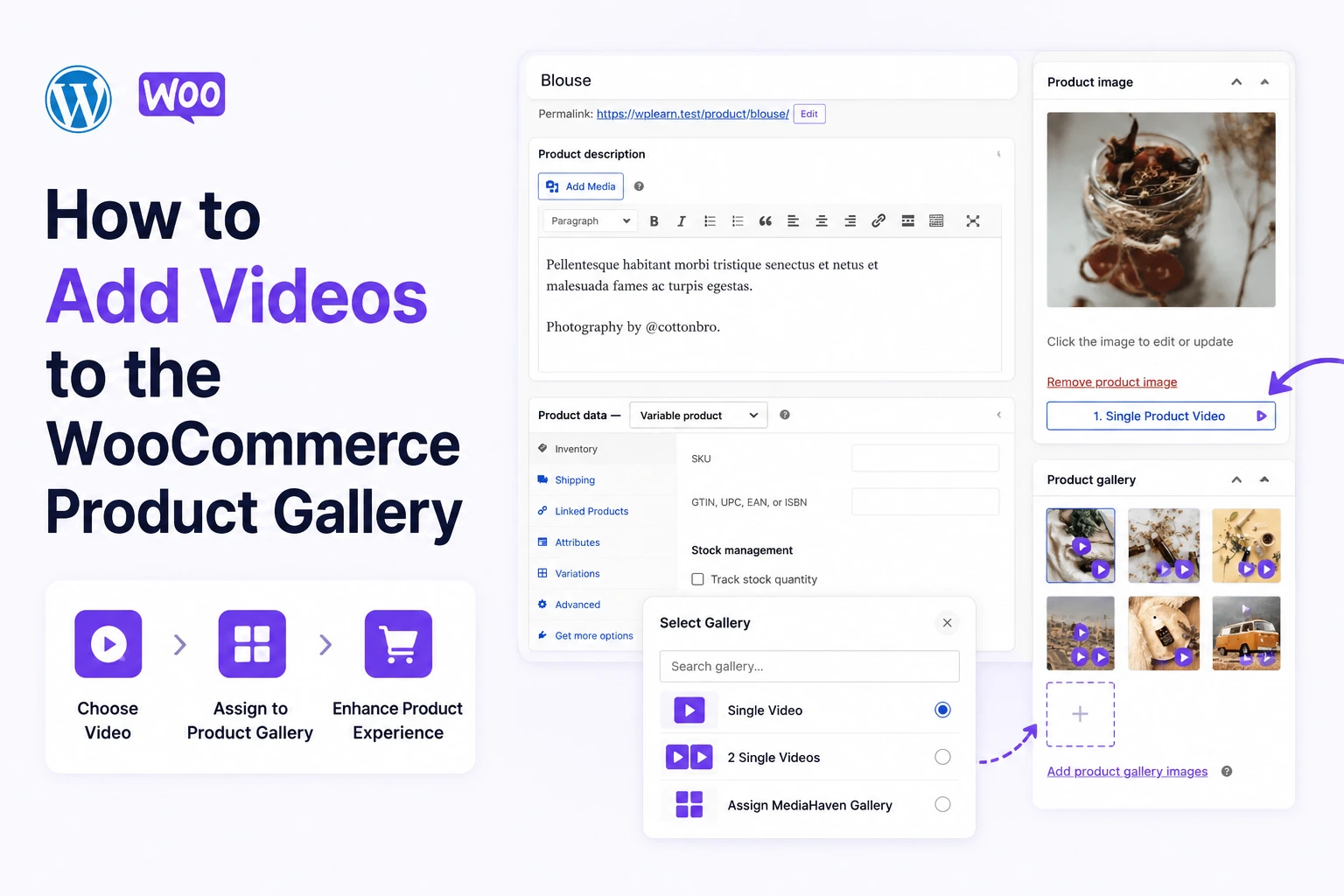
WooCommerce’s default product gallery is built for images. You get a featured image, a thumbnail row, and a zoom feature. That’s it. There’s no native way to add a product demo video, an unboxing clip, a customer testimonial, or a styling guide video directly inside the product image gallery where shoppers actually look.
That limitation costs real money. Product pages with video achieve a 65% higher average conversion rate than those without (Rocketium, May 2026). Shoppers who watch a product video are up to 144% more likely to add the item to their cart (Invesp). And 85% of consumers have been convinced to buy a product after watching a video (GoDAM, April 2026).
The fix is MediaHaven Pro — the only WooCommerce video plugin that lets you replace or extend the native product image gallery with videos from any source: self-hosted, YouTube, Vimeo, HLS, Bunny Stream, and more. No coding. No page builder required. Fully theme-compatible.
This guide gives you the complete step-by-step process to add videos to your WooCommerce product gallery and turn every product page into a higher-converting sales channel.
Why Adding Videos to the WooCommerce Gallery (Not Just Below It) Matters
Most guides tell you to embed a YouTube video below the product description. That placement gets overlooked. The product gallery — the image carousel at the top left of every WooCommerce product page — is where 100% of shoppers look first. It’s where purchase decisions begin.
Placing your product video inside the gallery means:
- Shoppers see it immediately — no scrolling required
- It plays in context — alongside product images, the size/color selector, and the Add to Cart button
- It replaces the anxiety gap — the uncertainty between “this looks good in photos” and “will this work for me?”
- It matches how TikTok Shop and Instagram Shopping work — video-first, buy-without-leaving
MediaHaven Pro slots directly into the native WooCommerce gallery. Your existing theme, your existing layout, your existing checkout flow — all unchanged. You just add video.
What MediaHaven Supports for WooCommerce Product Gallery Videos
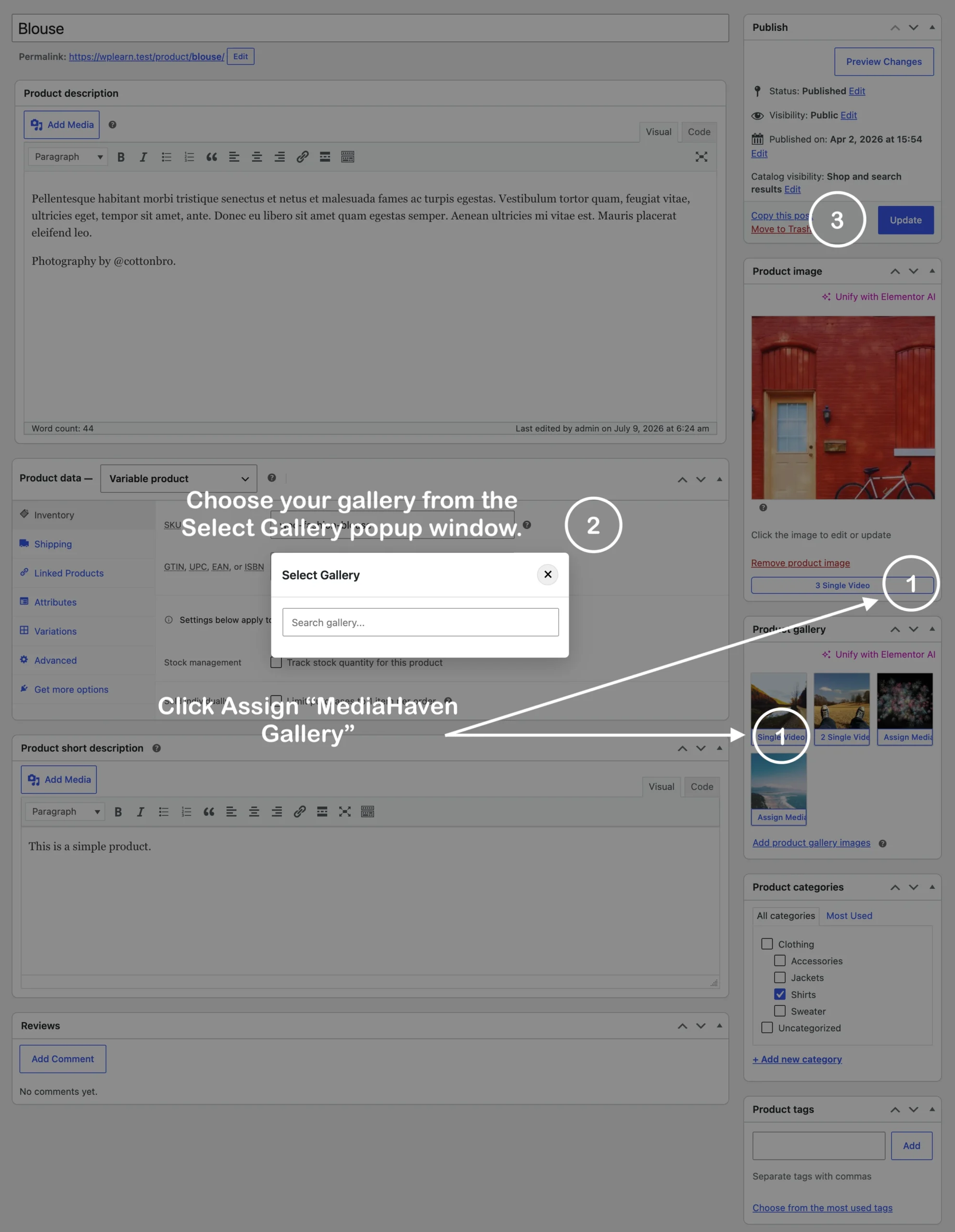
All features below are confirmed from the official WordPress.org plugin listing for MediaHaven v1.7.3 (verified May 2026):
WooCommerce Product Gallery Videos (Pro):
- 🛍️ Replace featured product images with videos
- 🖼️ Display videos alongside existing product gallery images
- 🎬 Support for self-hosted, YouTube, Vimeo, HLS, Bunny Stream, and more
- ⚡ Theme-compatible WooCommerce gallery integration
- ▶️ Autoplay videos when selected in the gallery
- 📱 Fully responsive and mobile-friendly
- 🛒 Interactive shoppable video overlays (add-to-cart directly from inside the video)
Video sources supported in the gallery: Self-hosted MP4, WebM, MOV, MKV, AVI, HLS (M3U8), Bunny Stream CDN, YouTube, and Vimeo.
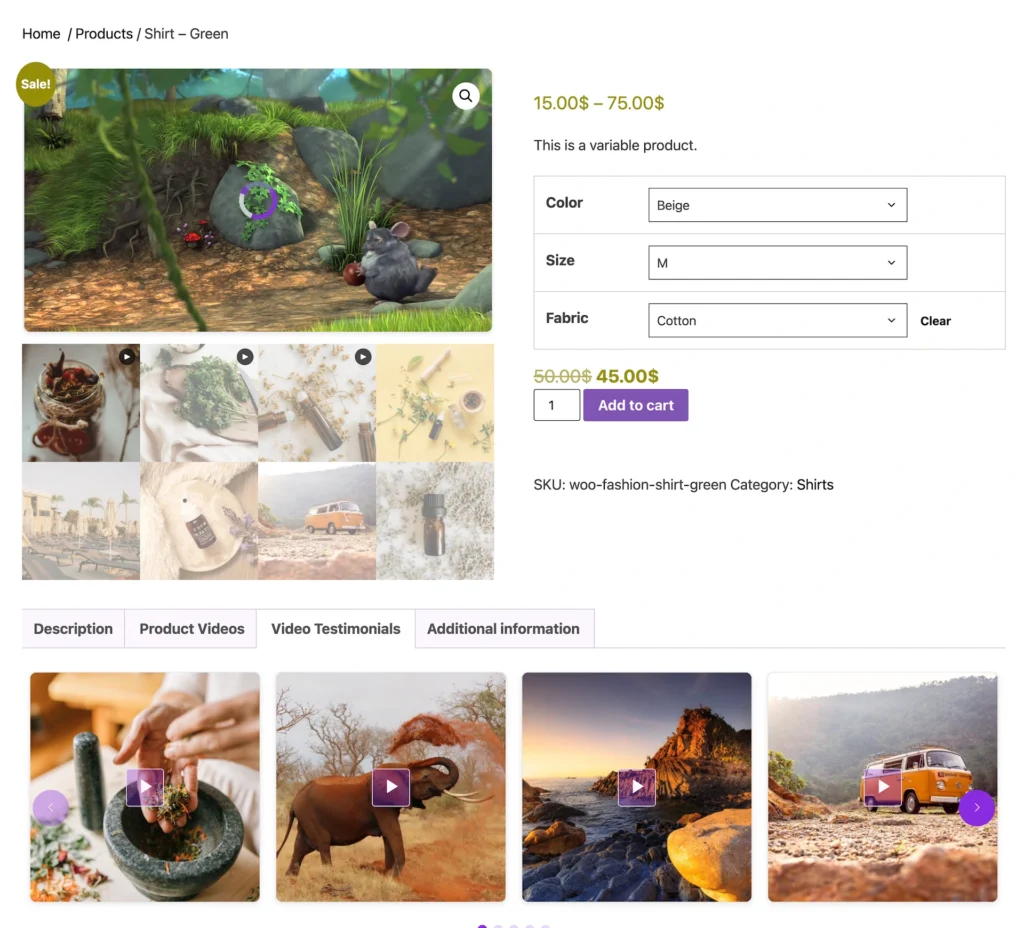
Live WooCommerce demo: demo.mediahaven.io/product/shirt-green/ The live demo shows MediaHaven’s WooCommerce integration in action — including the “Product Videos” and “Video Testimonials” tabs alongside the standard product gallery.
Step 1: Install MediaHaven and Activate Pro
Install the free plugin first:
- Go to WordPress admin → Plugins → Add New Plugin
- Search “MediaHaven”
- Install “MediaHaven – Video Gallery, HLS Player & WooCommerce Product Videos” by WPninjaDevs
- Click Activate
The plugin appears as “MediaHaven Lite” in your admin sidebar. A Setup Wizard launches automatically — complete it in under 2 minutes. It checks your server compatibility, provides sample shortcodes, and optionally connects your YouTube API key.
Activate Pro: Purchase your Pro license at mediahaven.io/pricing (from $79/year, 14-day money-back guarantee). Download the Pro plugin from your account, install it via Plugins → Add New → Upload Plugin, and enter your license key in MediaHaven Lite → Settings → License.
WooCommerce Product Gallery Videos is a Pro feature. The free version handles video galleries anywhere else on your site — category pages, custom video pages, the homepage — but the native WooCommerce product gallery replacement requires Pro.
Step 2: Create a Video in MediaHaven
Before you can assign a video to a product, you create it in MediaHaven’s video library.
Go to MediaHaven Lite → Add New (or look for the “Videos” section in the sidebar).
Fill in the following:
Title — use a descriptive, keyword-relevant name. This appears in the gallery and on single video pages. Example: “Green Cotton Shirt — Fit and Fabric Demo.”
Video Source — choose the source that matches where your video lives:
| Source | When to use |
|---|---|
| Self-hosted (MP4/WebM/MOV) | Video files on your server or CDN |
| HLS / M3U8 | Adaptive streaming via your own encoder or CDN |
| Bunny Stream | One-click CDN delivery with automatic HLS conversion (free feature with Bunny Stream account) |
| YouTube | Link from your YouTube channel |
| Vimeo | Link from your Vimeo account |
Video URL / File — paste the direct URL or upload the file.
Poster Image — upload a custom thumbnail. This is what shoppers see before clicking play in the gallery. Choose a frame that shows the product clearly at its best. This image also populates the VideoObject schema.org thumbnailUrl property for SEO.
Description — a brief description of what the video shows. Write this naturally: “See how the green cotton shirt fits across sizes S through XXL. Fabric shown in natural light. Features the relaxed collar detail and double-stitched hem.”
Video Subtitles — upload a .vtt or .srt subtitle file if your video has narration. WooCommerce buyers often browse on mobile with sound off — captions ensure they still get your message.
Click Publish.
Step 3: Create a Gallery View for the Product
A “View” is MediaHaven’s term for a gallery configuration — layout, source, display settings. For WooCommerce product gallery use, you’ll create a View for each product (or a shared View if multiple products show the same video).

Go to MediaHaven Lite → Views → Add New.
Configuration for a WooCommerce product gallery view:
- Layout: Grid (single column — product pages show one featured video at a time)
- Source: Your MediaHaven video library, filtered to the specific product’s video(s)
- Display: Toggle off author, publish date, like/dislike (keep the product gallery card clean)
- Poster/Thumbnail: On — shows the thumbnail you uploaded
- Responsive columns: 1 column on all device sizes for product gallery use
Shortcode Live Preview: MediaHaven’s live preview shows your gallery exactly as it will appear before you publish. No save-and-check loop.
Click Save. MediaHaven generates your shortcode:
Step 4: Add the Video to the WooCommerce Product
This is where you connect MediaHaven to your WooCommerce product. MediaHaven Pro provides two distinct integration options:
Option A: Replace the Product Gallery Image with a Video
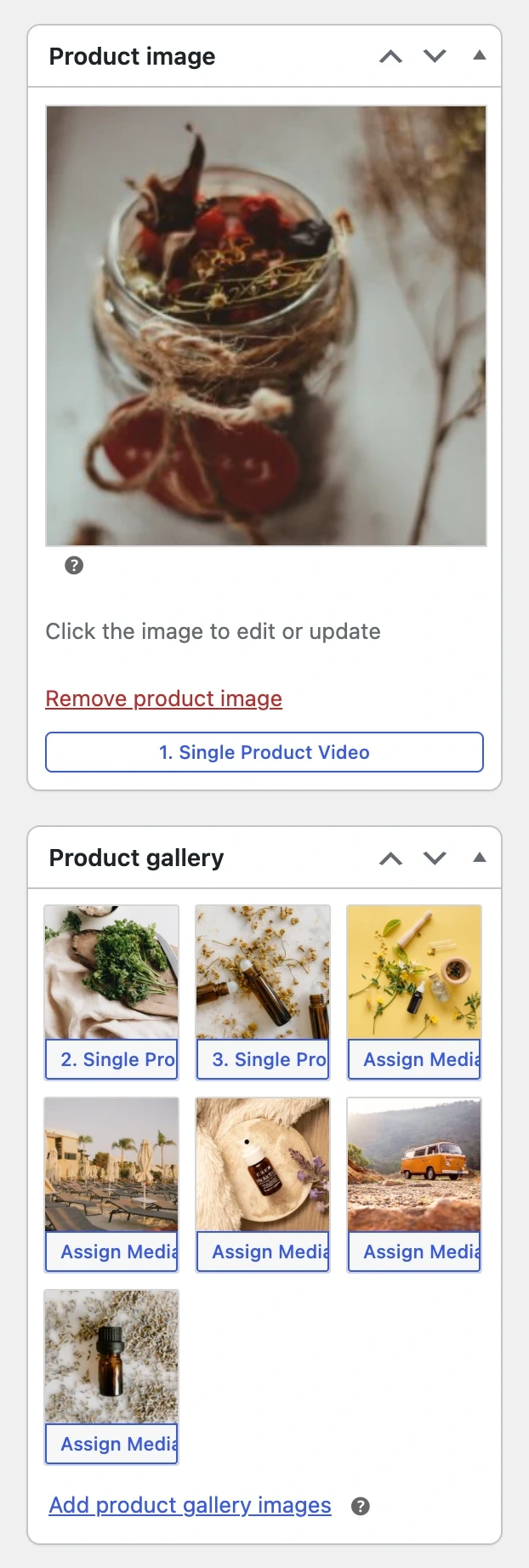
Go to Products → Edit Product for your target product.
In the MediaHaven Pro panel on the product editor page, you’ll find the WooCommerce Product Gallery Video settings. Here:
- Select Display Mode → Replace Product Gallery Image
- Select the MediaHaven video (or View) you created for this product
- Choose Autoplay when selected: Yes (recommended — when a shopper clicks the video thumbnail in the gallery row, the video starts playing immediately)
- Save the product
The video now appears as the first item in the WooCommerce product image gallery — in the featured position, visible immediately when a shopper lands on the page. Your existing product images remain in the gallery row below, just shifted one position to the right.
Option B: Display Videos in a Tab on the Product Page
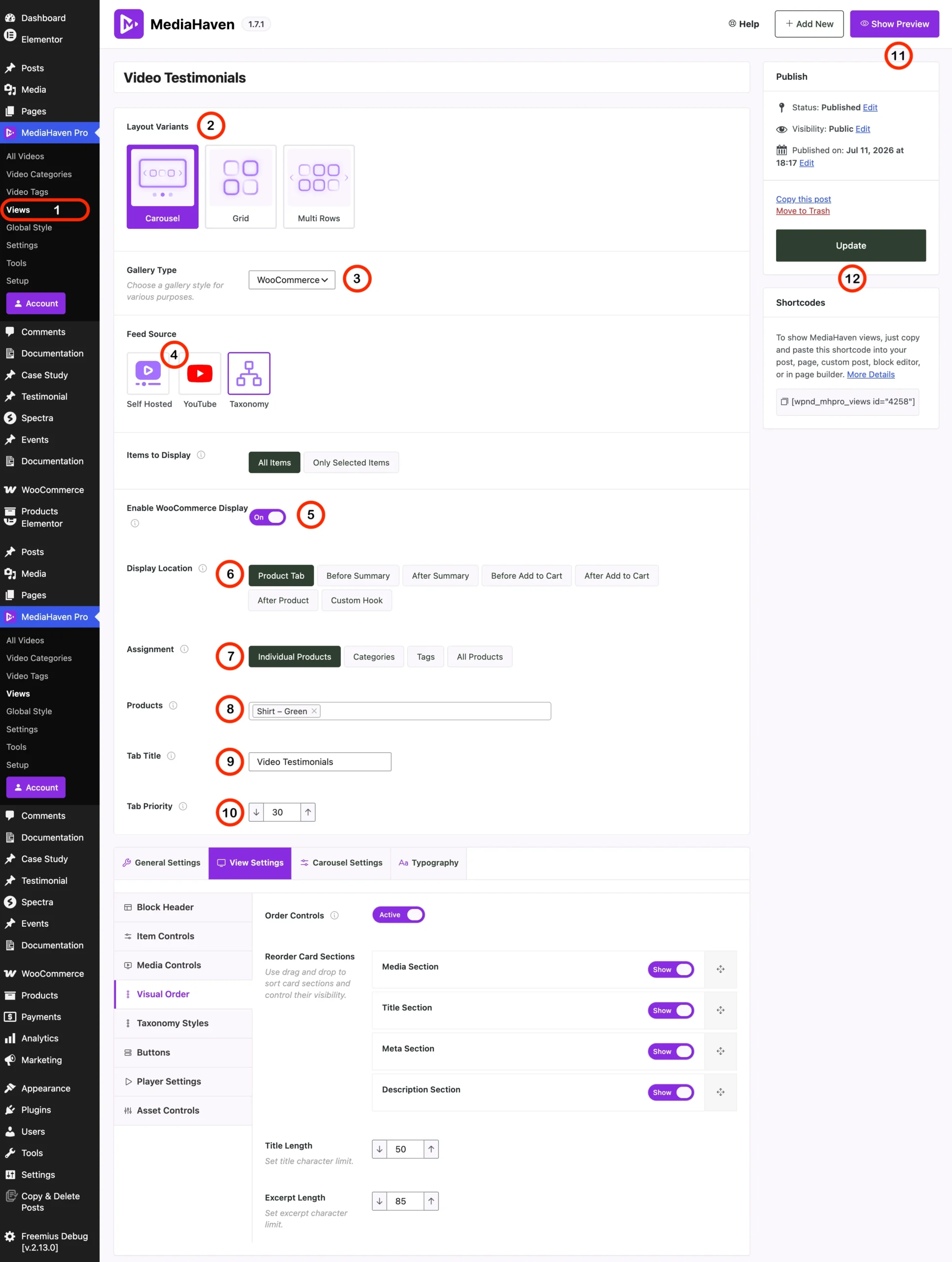
Go to Products → Edit Product. In the MediaHaven Pro panel:
- Select Display Mode → Video Tab
- Enter your preferred tab label (e.g., “Product Videos,” “See It In Action,” “Video Reviews”)
- Select the MediaHaven View (shortcode) to display inside the tab
- Set the tab position (before or after “Description,” “Additional Information”)
- Save the product
This adds a dedicated video tab to the standard WooCommerce product tabs row — visible in the live demo at demo.mediahaven.io/product/shirt-green/ as “Product Videos” and “Video Testimonials” tabs.
Option C: Display the Gallery Before or After the Product Summary
MediaHaven Pro supports displaying a video gallery at specific positions on the product page using WooCommerce hooks. In the MediaHaven panel on the product editor:
- Select Display Mode → WooCommerce Hook Position
- Choose your hook:
- Before product summary
- After product summary
- After Add to Cart button
- After product meta
- Save
This places the video gallery at the hook position you specify — for example, after the Add to Cart button, where a “See it in action” video serves as a final confidence push before checkout.
Step 5: Verify the Integration
Visit the product page on the front end. Confirm:
- Video appears in the correct position (gallery, tab, or hook position)
- Thumbnail displays correctly before play
- Video plays when the thumbnail is clicked in the gallery row
- Autoplay fires when the video gallery item is selected (if enabled)
- The video is fully responsive — test at 375px mobile width
- Existing product images are still accessible in the gallery
Validate SEO schema: Go to search.google.com/test/rich-results and paste your product page URL. Confirm VideoObject structured data is detected. MediaHaven generates this automatically — every video gets schema.org markup for name, description, thumbnailUrl, uploadDate, and embedUrl.
The Video Types That Convert Best in the WooCommerce Gallery
For fashion and apparel: On-model walkthrough showing movement, drape, fabric texture, and sizing context. 30–60 seconds. Natural light. Show the product being worn at normal human speed — not just posed.
For electronics and tech: Feature demonstration showing the device operating — screen visibility, button responsiveness, physical dimensions relative to a hand. 60–90 seconds. Include the “does it actually work” moments.
For home goods and furniture: Room context video showing the product in a real environment with scale references. “This sofa is 2.1 meters wide, shown here in a 4-meter living room.” 45–75 seconds.
For beauty and skincare: Before-and-after application showing the product being used and the result. 30–45 seconds. Authentic is more persuasive than polished.
For digital products (themes, plugins, software): Screen recording walkthrough showing the product in use. 60–120 seconds. Narrated. Show the install → configure → result sequence.
For all categories: Customer testimonial video (3–6 real customers, 8–15 seconds each, auto-edited into a 60-90 second compilation). This format consistently outperforms brand-produced demos in trust signals.
Bunny Stream: The Fastest Way to Host Product Videos (Free Feature)
If you’re adding product videos and worried about server load, page speed, or storage costs — MediaHaven’s Bunny Stream integration solves all three.
From the WP.org listing (v1.7.3): “One-click affordable Bunny Stream integration with automatic HLS conversion, adaptive streaming, and secure signed URL delivery.”
How it works:
- Create a free Bunny.net account and set up a Stream Library
- In MediaHaven → Settings → Storage & CDN, connect your Bunny Stream credentials
- Upload your product video to MediaHaven
- Click Sync — the video is automatically converted to secure adaptive HLS format on Bunny’s global CDN
- Your WordPress server never serves a single byte of video — all delivery is handled by Bunny’s CDN
Business benefit: Product videos load at CDN speed globally. Zero impact on your hosting plan’s bandwidth. Adaptive bitrate means no buffering even on mobile connections. Secure signed URLs prevent hotlinking and unauthorized access to your product videos.
Business Impact: What Changes When Your Gallery Has Video
| Metric | Before video in gallery | After video in gallery |
|---|---|---|
| Conversion rate | ~2.9% (WebFX baseline) | ~4.8% (+65%, WebFX 2026) |
| Cart add rate | Baseline | +144% for video viewers (Invesp) |
| Return rate | Baseline | −35% for products with video (SellersCommerce 2026) |
| Dwell time | Lower | Higher — video increases time-on-page |
| Buyer trust | Images only | 85% of consumers buy after watching (GoDAM 2026) |
| Google visibility | Image-based results | VideoObject rich results eligible |
Revenue calculation for a typical WooCommerce store:
- 15,000 monthly product page visitors
- $79 average order value
- Baseline CVR: 2.9% → 435 orders → $34,365/month
- With video in gallery: 4.8% CVR → 720 orders → $56,880/month
- Monthly revenue lift: +$22,515 from the same traffic
Frequently Asked Questions
How do I add videos to the WooCommerce product gallery?
MediaHaven makes it easy to add videos directly to your WooCommerce product gallery. Simply create or import your video, assign it to a product, and publish. Your videos appear alongside product images, giving customers a richer shopping experience without requiring any custom code.
Can I add both self-hosted and YouTube videos to WooCommerce products?
Yes. MediaHaven supports self-hosted videos, YouTube, Vimeo, Bunny Stream, HLS (M3U8), TikTok, Facebook, Instagram, LinkedIn, Twitch, Wistia, Dailymotion, Rumble, and external video URLs. This flexibility lets you choose the hosting solution that best fits your WooCommerce store.
Will product videos replace my WooCommerce product images?
No. MediaHaven integrates videos directly into the WooCommerce product gallery, allowing customers to browse both images and videos together. This gives shoppers multiple ways to explore your products before making a purchase.
Can I display videos for WooCommerce product variations?
Yes. MediaHaven Pro supports assigning videos to WooCommerce product variations, making it easy to showcase different colors, sizes, or styles with their own product demonstrations. This helps customers better understand each variation before purchasing.
Can I add interactive products inside my product videos?
Yes. MediaHaven Pro includes Interactive Shoppable Video, allowing you to display clickable WooCommerce product overlays inside supported videos. You can customize CTA buttons, choose when overlays appear, and guide shoppers directly to product pages or purchasing actions.
Does MediaHaven improve SEO for WooCommerce product videos?
Yes. MediaHaven automatically generates Schema.org VideoObject structured data for published videos, helping search engines better understand your content. Combined with SEO-friendly video pages, this can improve your chances of appearing in Google Video search and rich results.
Will product videos slow down my WooCommerce store?
No. MediaHaven is built for performance with Smart Asset Loading, lazy loading, and optimized video delivery. Plugin assets load only on pages where they’re needed, helping maintain fast page speeds while providing a smooth viewing experience.
Can I stream WooCommerce product videos using HLS?
Yes. MediaHaven supports HLS (.m3u8) playback and integrates with Bunny Stream for adaptive streaming. This provides smoother playback across different devices and network speeds while supporting secure video delivery for your WooCommerce store.
Does MediaHaven work with Gutenberg and page builders?
Absolutely. MediaHaven includes native Gutenberg blocks and shortcode support for Elementor, Divi, Beaver Builder, WPBakery, and other popular WordPress page builders. You can embed WooCommerce product videos and galleries anywhere without writing code.
Can I monetize WooCommerce product videos?
Yes. MediaHaven Pro supports VAST advertising, allowing you to display pre-roll, mid-roll, and post-roll video ads on compatible videos. You can also combine VAST ads with WooCommerce product overlays to create multiple revenue opportunities from your video content.
Is MediaHaven suitable for large WooCommerce stores?
Absolutely. MediaHaven is designed to scale with your business. It combines responsive video galleries, support for multiple video sources, Ajax filtering, HLS streaming, WooCommerce integration, and performance-focused architecture, making it well suited for stores with large product catalogs and growing traffic.
Why choose MediaHaven for WooCommerce product videos?
MediaHaven brings together WooCommerce product galleries, multiple video source support, HLS streaming, Interactive Shoppable Video, VideoObject schema, Gutenberg integration, VAST advertising, and performance optimization in one plugin. Instead of installing separate tools for playback, SEO, monetization, and product videos, you get a unified WordPress video platform built to increase engagement and conversions.
Quick-Start Checklist
- MediaHaven Lite installed (free from wordpress.org/plugins/mediahaven-lite)
- Product video created in MediaHaven Lite → Videos
- Poster image uploaded for each video
- Gallery View created in MediaHaven Lite → Views
- WooCommerce Product Gallery Video settings configured on each product
- Display mode selected: gallery replacement, video tab, or hook position
- Product page tested on desktop and mobile
- Rich Results Test validated at search.google.com/test/rich-results
- View live WooCommerce demo: demo.mediahaven.io/product/shirt-green/
- View shoppable video demo: demo.mediahaven.io/shoppable-video-for-ecommerce/
- Upgrade to Pro: mediahaven.io/pricing — from $79/year · 14-day money-back guarantee
- Support: assist.wpninjadevs@gmail.com
Leave a Reply