

Your portfolio is your most powerful business development tool. 78% of creative professionals who maintain portfolios report higher client acquisition rates than those without them (Adobe 2026 Creative Professionals Survey, cited by InfluenceFlow, January 2026). Over 60% of portfolio visitors use mobile devices (InfluenceFlow, 2026).
Those two data points define the exact requirement for a video portfolio in 2026: it must convert, and it must perform on every screen.
A responsive video portfolio on WordPress built with MediaHaven Lite meets both requirements without requiring a developer, a monthly SaaS subscription, or a platform that owns your audience relationship. Your videos live on your domain, your portfolio ranks in Google through automatic VideoObject schema, and your gallery adapts perfectly from 4K desktop to mobile — all from a free plugin.
This guide covers the complete build: the business case, the architecture decisions, the step-by-step setup, and the advanced features that turn a portfolio from a passive showcase into an active client acquisition system.
Why Your Video Portfolio Needs to Live on WordPress (Not Just YouTube)
The three most common portfolio mistakes for video professionals, filmmakers, motion designers, and creative agencies — and what they cost:
Mistake 1: Using only YouTube as the portfolio YouTube owns the viewer relationship. Every suggested video after yours is a competitor. Algorithm changes reduce your visibility with no warning. You build equity in Google’s platform, not your own domain. Your portfolio is not indexed in Google under your own URL.
Mistake 2: Embedding YouTube videos on a WordPress page without a gallery system You get a page with a few embedded iframes, no filtering, no schema markup, no lazy loading, and a maintenance problem every time a video URL changes. Each embedded YouTube video loads Google’s third-party scripts on your page — GDPR exposure and Core Web Vitals degradation.
Mistake 3: Using a SaaS portfolio platform (Behance, Squarespace, Cargo) Zero SEO equity builds on your domain. Monthly subscription fees compound indefinitely. No VideoObject schema automation. No VAST monetization. The platform terms can change at any time.
The WordPress + MediaHaven approach:
- Every portfolio video generates automatic VideoObject schema → eligible for Google video rich results
- All video sources (YouTube, Vimeo, self-hosted, HLS, TikTok, Instagram) in one responsive gallery
- Lazy loading, image compression, and smart asset loading protect page speed
- You own the domain, the audience, and the SEO equity
- Free to start, upgrade to Pro for filtering, chapters, and monetization
- Compatible with every major page builder: Elementor, Divi, WPBakery, Beaver Builder, Gutenberg
Planning Your Portfolio Architecture
Before building, answer three questions that determine which MediaHaven features you activate:
Question 1: Who is your primary visitor?
| Visitor type | What they need from your portfolio |
|---|---|
| Agency art directors | Quality evidence fast — fullscreen player, clean layout, no clutter |
| Brand marketers | Work organized by category (brand film, product video, social content) |
| Startups evaluating cost | Approachability + clear service scope + pricing context |
| Google searchers | VideoObject rich results in search, keyword-relevant titles |
| Direct referrals | Specific examples matching what their contact described |
Question 2: How many videos do you have?
| Library size | Recommended architecture |
|---|---|
| Under 20 videos | Single Gallery View (Grid or Carousel), no filtering |
| 20–100 videos | Category Gallery Views + Term Grid navigation |
| 100+ videos | Ajax Live Filter (Pro) + Indexed lookup table (Pro) |
Question 3: What action do you want visitors to take?
| Goal | Feature to activate |
|---|---|
| Book a call or send a brief | Header Right Button (Pro) — CTA button in gallery header |
| Browse by category | Term Grid navigation (free) |
| Contact about a specific project | Single video page with contact form below |
| Generate passive revenue from portfolio traffic | VAST monetization (Pro) |
Your answers define exactly which MediaHaven layout, features, and views to build. Build what your specific visitor’s decision path requires — not everything at once.
Step 1: Install MediaHaven Lite
- Go to WordPress admin → Plugins → Add New
- Search MediaHaven
- Install and activate “MediaHaven – Video Gallery & HLS Player for YouTube and TikTok” by WPninjaDevs
- Complete the Setup Wizard — 2 minutes, includes server checks, sample templates, and optional YouTube API key connection
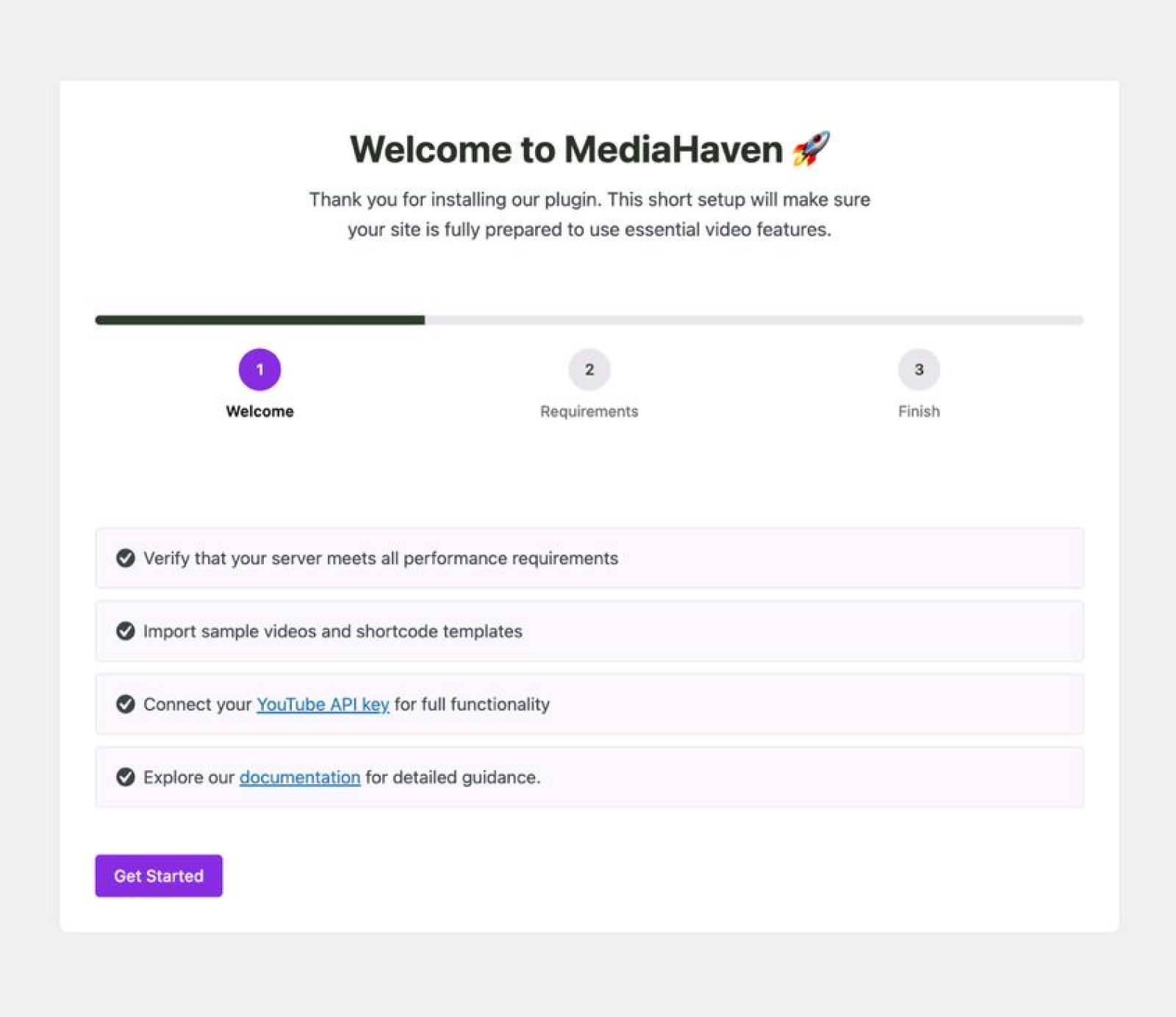
After activation:
- MediaHaven Lite menu appears in the admin sidebar
- Videos section — where you add individual portfolio pieces
- Views section — where you build gallery configurations
- Settings — global style controls, API keys, performance settings
Step 2: Add Your Portfolio Videos
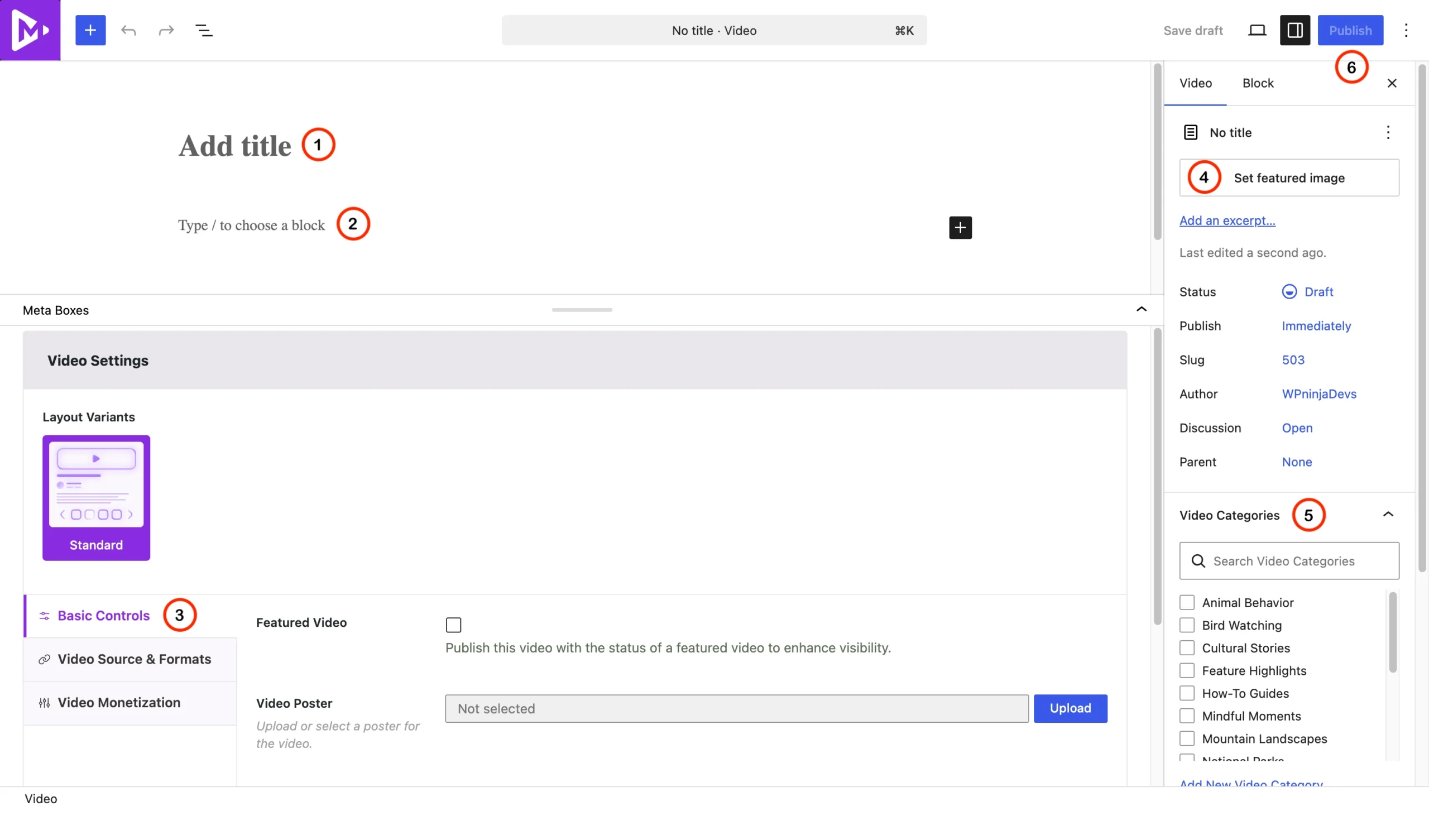
Go to MediaHaven Lite → Add New Video.
For each portfolio piece:
Source Type — Match Your Hosting Strategy
YouTube embed: For work published on your YouTube channel — paste the YouTube video URL. The view count auto-syncs.
Vimeo embed: For film-quality work on Vimeo — paste the Vimeo URL. Particularly useful for work protected by Vimeo’s privacy controls.
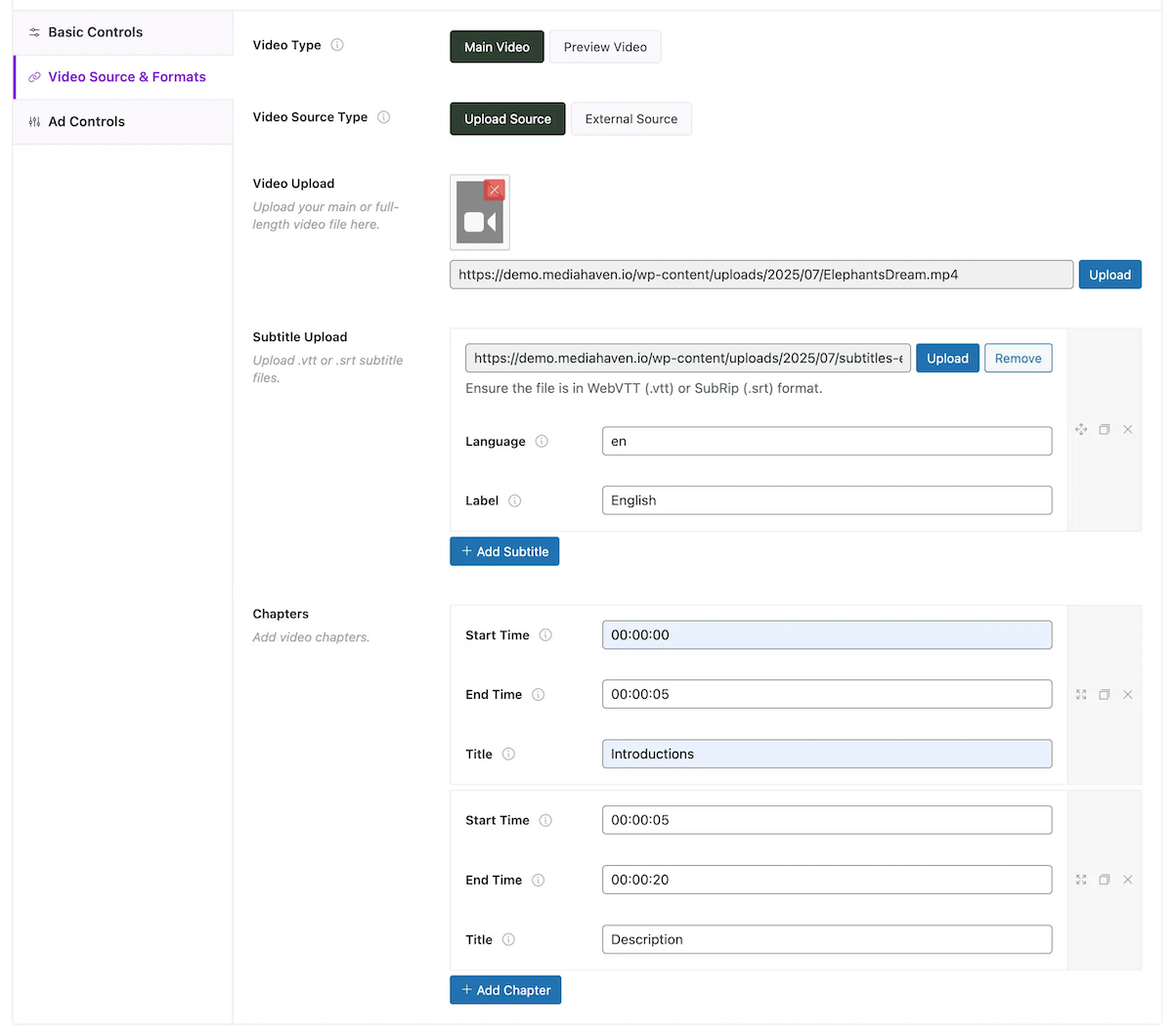
Self-hosted MP4: Paste the direct .mp4 URL. Use for work that must stay off public platforms (under NDA or awaiting client release). Host on your CDN or server.
HLS stream (M3U8): For reel or feature-length portfolio pieces, HLS adaptive streaming automatically selects the appropriate video quality for each viewer’s connection. A client viewing your reel on a 4G mobile connection sees the same smooth playback as one on a gigabit fiber connection.
TikTok, Instagram, LinkedIn, Twitch, Facebook: For work natively on social platforms. Embed directly — the video plays inside your MediaHaven gallery. Useful for UGC-style commercial work, social campaign deliverables, or brand content you created that lives on client social channels.
You can mix sources in the same gallery. A portfolio showing YouTube commercial reels, Vimeo award-winning films, self-hosted client demos, and Instagram social campaign clips can all live in one organized, branded gallery. This is confirmed from the mediahaven.io homepage: “12 video sources in one gallery — all in a single responsive gallery.”
Poster Image (Critical for Portfolio)
Upload a high-quality custom thumbnail from your WordPress media library. For portfolio work, your poster image is your first impression — it is what potential clients see before clicking play, what appears in your gallery grid, and what Google uses as the thumbnailUrl in your VideoObject schema.
Poster image best practices for portfolio:
- Use a hero frame that represents the quality of the work, not just any frame
- For branded commercial work: use the most recognizable brand visual
- For narrative or film work: use a cinematically strong frame
- For motion graphics: use the most visually complex or beautiful moment
- For social content: use the hook frame — the image that made you stop scrolling
Title and Description — Double as SEO Copy
The title and description you write in MediaHaven populate:
- The gallery card (visible to visitors browsing your portfolio)
- The single video page (shown alongside the full-screen player)
- The VideoObject schema.org output (used by Google for rich results indexing)
Title format for portfolio SEO: [Project Type] for [Client/Industry] — [Format/Platform]
Examples:
- “Brand Film for Outdoor Apparel Brand — 90 Second TVC”
- “Product Demo Video — SaaS Dashboard Walkthrough”
- “Wedding Highlight Reel — Destination Ceremony, Italy 2025”
- “Motion Graphics Package — B2B Software Explainer”
This title structure is immediately clear to both potential clients (who can assess relevance instantly) and to Google (which can match it to “brand film agency,” “product demo video company,” and similar queries).
Description — 100–250 words per video: Write what the project was, who the client was (if public), your creative approach, production details, and any measurable outcomes (views, campaign results). This copy does three jobs: (1) convinces potential clients you understand their brief, (2) gives Google context for keyword matching, and (3) populates the VideoObject schema.
Video Chapters (Pro) — For Reel Videos and Long-Form Work
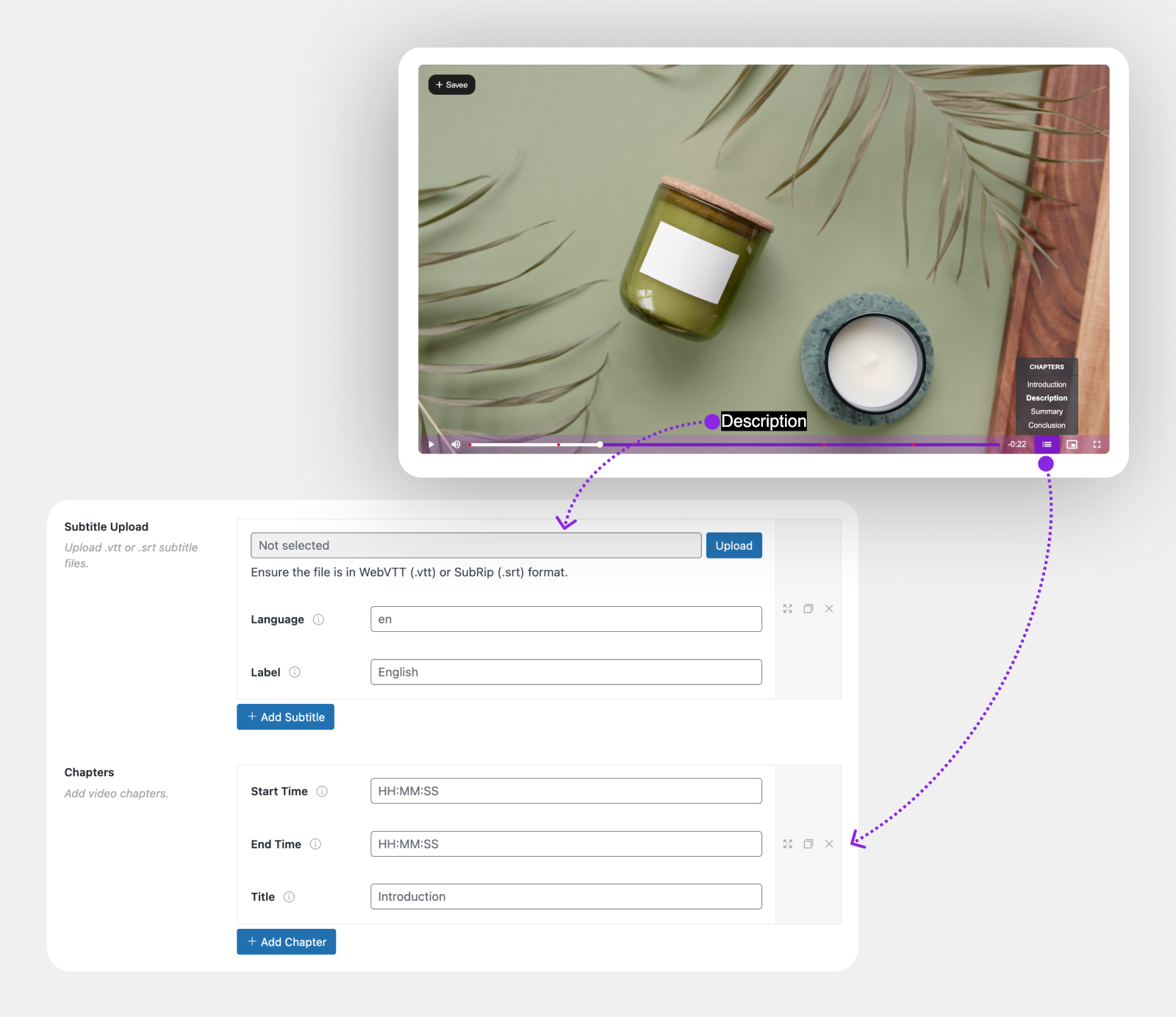
For portfolio reels longer than 90 seconds, add chapters so potential clients can jump to the type of work they want to evaluate:
0:00— Intro / Overview0:20— Commercial work0:55— Brand film1:30— Social content2:05— Motion graphics2:45— Documentary
Chapters output Clip schema via MediaHaven Pro, enabling Google Key Moments — clickable timestamps that appear directly in search results when your portfolio reel ranks for relevant queries.
Categories and Tags — Power Your Navigation
Categories (organize by service type):
- Brand Films
- Product Demos
- Event Highlights
- Social Content
- Motion Graphics
- Documentary
- Wedding / Events
Tags (detailed descriptors): Client names (if public), visual style (Cinematic, Minimal, Bold), platform (YouTube, Instagram, LinkedIn), techniques (Drone Footage, Animation, Interview Style, B-Roll), or industry (Automotive, Fashion, Technology, Food).
MediaHaven’s Term Grid and Term Carousel navigation — built from these categories and tags — become your portfolio’s navigation system. Visitors browse by the type of work they need, not by chronological upload order.
Click Publish.
Step 3: Build Your Gallery Views
Every gallery in MediaHaven is configured as a View — a named gallery configuration with its own layout, source, display settings, and shortcode. Create multiple Views for different purposes.
View 1: Featured Work Hero (Homepage / Above Fold)
Go to MediaHaven Lite → Views → Add New.
- Layout: Carousel or Multi-row Carousel — ideal for a horizontal featured work showcase
- Source: Filter to your “Featured” tag — hand-curate your 5–8 best pieces
- Columns: 2–3 on desktop, 2 on tablet, 1 on mobile
- Display: Title visible, description hidden (cards stay clean)
- Shortcode Live Preview: MediaHaven shows a live preview of your gallery in the admin as you configure it — no save-then-check-frontend loop
Save → copy shortcode: [wpnd_mhpro_views id="x"]View 2: Full Portfolio Grid
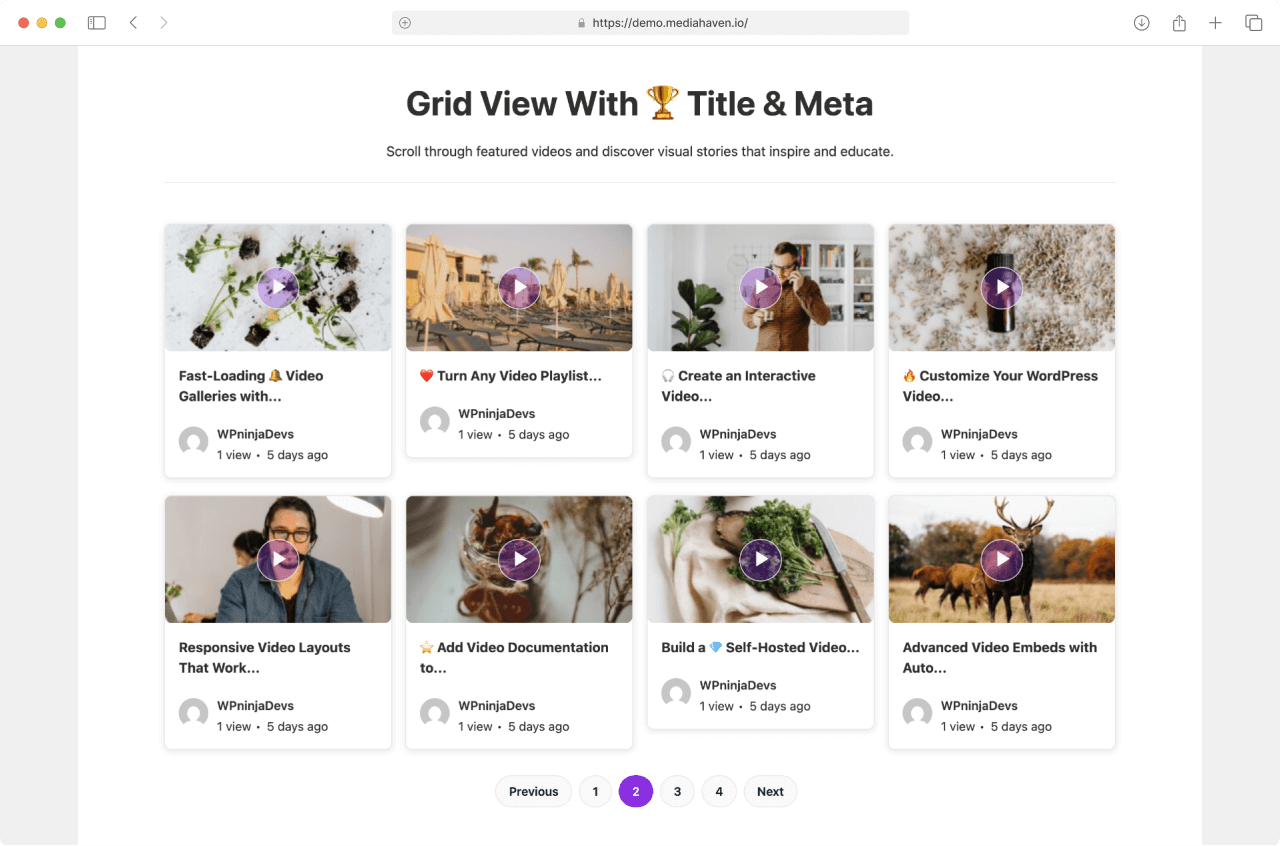
- Layout: Grid — 3 columns on desktop, 2 on tablet, 1 on mobile
- Source: All portfolio videos, no filter restriction
- Display: Title, category tags, view count
- Pagination: Ajax Load More button — visitors browse more work without page reload
- Responsive column controls: MediaHaven provides 5 independent breakpoints (XS, S, M, L, XL) — confirmed in the v1.6.4 changelog. Set precise column counts for every device size without writing CSS.
Save → copy shortcode: [wpnd_mhpro_views id="x"]View 3: Category-Specific Galleries (One Per Service)
Create a separate View for each major category:
- Source: Filter to “Brand Films” category
- Layout: Grid, 2–3 columns
- Use the same configuration structure for “Product Demos,” “Motion Graphics,” etc.
Why separate views per category matter for business: Each category View gets embedded on a dedicated service page (e.g., /services/brand-films/). This creates:
- A targeted SEO page for each service keyword (“brand film company,” “product demo video agency”)
- A cleaner browsing experience for clients evaluating a specific service
- Individual pages you can track in Google Analytics to see which service generates the most engagement
View 4: Term Grid / Term Carousel Navigation
Go to Views → Add New → set source to Term Grid or Term Carousel.
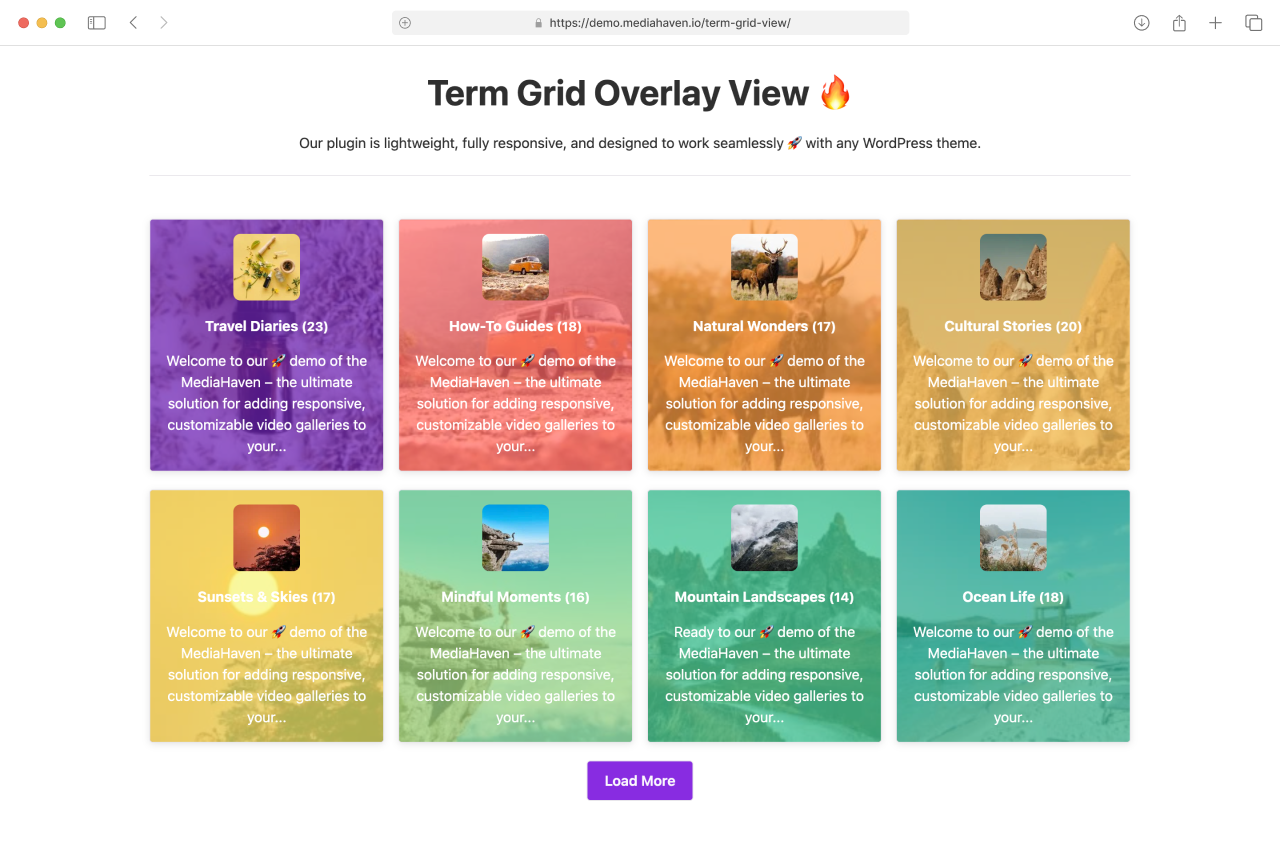
Term Grid displays your video categories as clickable tiles, each with a background image (a representative frame from that category), title, and hover state.
Term Carousel displays categories as a horizontally scrollable row — more space-efficient when you have 6+ categories.
Configure:
- Add a background image per category from your media library
- Set hover colors and border radius in the style controls
- Arrange category order by dragging in the Term editor
Embed the Term Grid shortcode on your portfolio homepage above the main gallery. Visitors choose their category of interest before seeing the full gallery — filtering by intent before they browse.
Save → copy shortcode: [wpnd_mhpro_views id="x"]Step 4: Build the Single Video Page (Case Study Layout)
Every video in your MediaHaven library has a dedicated single video page — a standalone URL at /mhpro-video/[video-slug]/.
MediaHaven includes:
- Multiple single page template variations (free) — choose the template that best suits your brand
- Drag & Drop video single page sections (Pro) — control exactly what appears and in what order
- Custom CSS code editor (free) — apply brand-specific styling without theme modification
Recommended portfolio case study page section order:
- Video player — full width, above the fold, autoplay off
- Video title (H1) — also the VideoObject
nameproperty - Client, project type, year
- Brief description — what was the goal, who was the audience
- Creative approach — your process, specific decisions you made
- Production details — equipment, software, team size (relevant for production clients)
- Results / impact — views, campaign outcomes, client quote (if permitted)
- Related portfolio videos — pulled automatically from the same category
With Pro’s Drag & Drop Video Single Page Sections, this order is configurable through the admin without touching code.
Single page URL structure: The plugin includes rewrite slug options (confirmed free feature from WP.org plugin page) — customize your video URLs to /portfolio/brand-film-client-name/ or /work/product-demo-software/ for SEO-friendly, meaningful paths.
Step 5: Embed Everywhere With One Shortcode
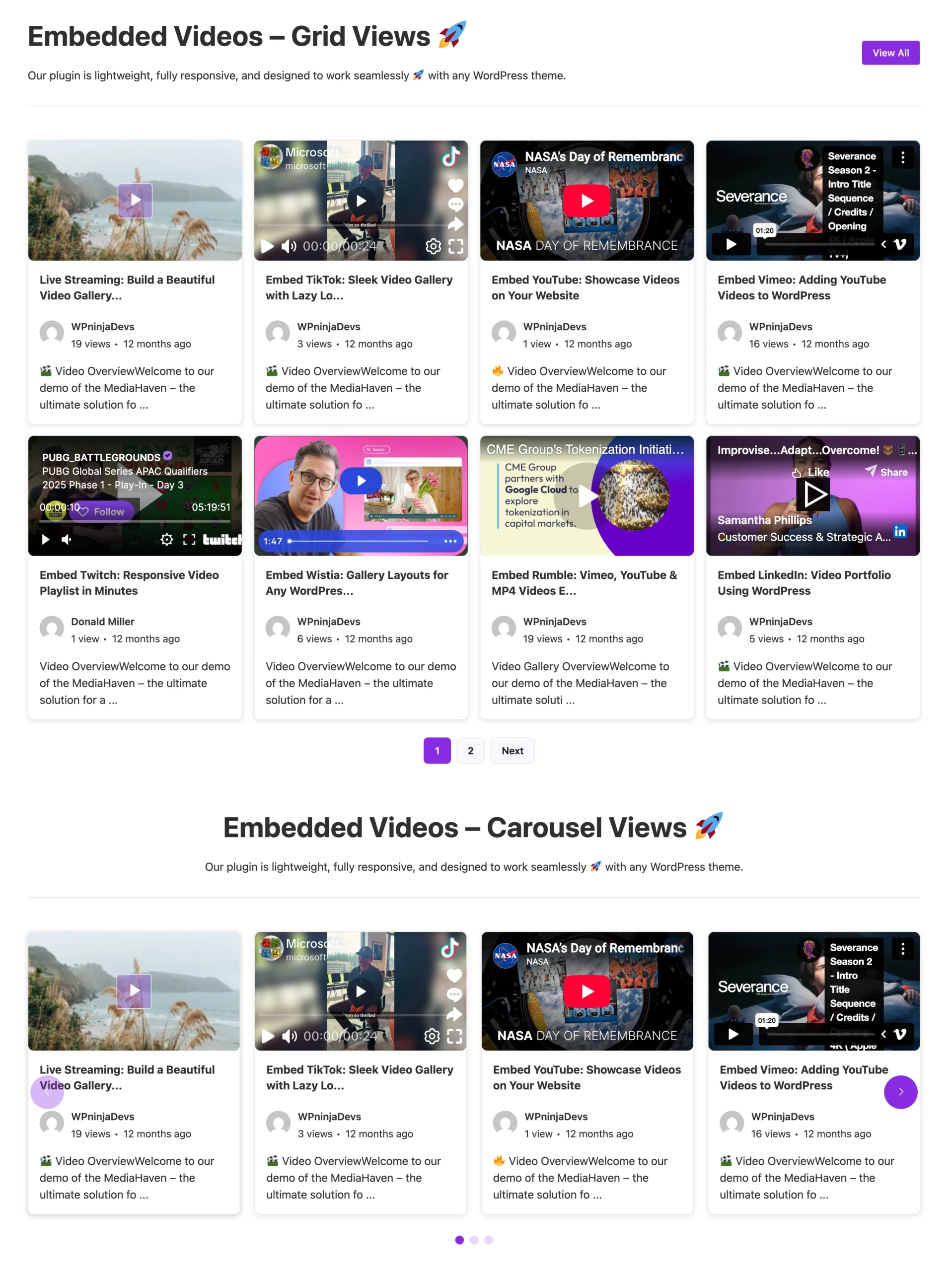
Gutenberg block editor: Add the MediaHaven Shortcode View block → select gallery from dropdown → live preview renders inside the editor. See exactly what your portfolio visitors will see before publishing.
Elementor: Add a Shortcode widget → paste [wpnd_mhpro_views id="X"]. Confirmed compatible (WP.org FAQ: "Works seamlessly with Elementor, WPBakery Page Builder, Divi Builder, Beaver Builder, Gutenberg, and more").Classic editor or any page builder: Add a Shortcode element → paste the shortcode.
Portfolio page architecture:
| Page | Shortcodes to embed |
|---|---|
| Homepage | Featured Work Carousel + Term Grid navigation |
/portfolio/ | Full Portfolio Grid (with Load More) |
/services/brand-films/ | Brand Films Category View |
/services/product-demos/ | Product Demos Category View |
| Any service page | The relevant category View |
Step 6: Performance Optimization for Portfolio Pages
A portfolio’s page speed is itself a portfolio element — it communicates professionalism before a visitor has watched a single video.
MediaHaven’s automatic performance stack (all free):
Smart per-shortcode asset loading: Plugin CSS and JavaScript load only on pages that contain a shortcode. Your Contact, About, and Services text pages carry zero MediaHaven overhead.
Built-in lazy loading: Video thumbnails, iframes, and files load only as they enter the viewport. A 12-video portfolio grid page loads as fast as a 1-video page on initial render.
Smart YouTube API caching: YouTube feed data is stored locally. Your YouTube-based portfolio pages don’t make live API calls on every page view.
Built-in image compression: All portfolio thumbnails are automatically compressed — no third-party optimization plugin required.
Pro additions:
- WebP thumbnail conversion: 30–50% smaller thumbnails → faster portfolio pages on mobile → lower bounce rate from slow loads
- Indexed lookup table: For portfolios with 100+ videos using Ajax Live Filtering — sub-100ms filter response times
Advanced Portfolio Features by Creator Type
Videographer / Cinematographer
- Primary layout: Multi-row Carousel for homepage reel, Grid for full portfolio
- Category structure: Wedding Films, Commercial, Music Videos, Documentary, Corporate Events
- Key video SEO target: “[City] videographer portfolio,” “[format] video examples”
- Single page layout: Full-width player → production details → client testimonial → related work
- VAST monetization (Pro): If your portfolio generates 5,000+ monthly video plays, pre-roll ads add incremental revenue on top of project income
Motion Designer / Animator
- Primary layout: Grid (3 columns) for visual density — motion design portfolios benefit from showing many pieces simultaneously
- Category structure: 2D Animation, 3D Motion, Kinetic Typography, Explainer Videos, Logo Animation
- Tags: Style tags (“Minimal,” “Bold,” “Illustrated”) help clients find aesthetic match
- Video Chapters (Pro): For full showreels with multiple animation styles — chapters let clients jump to their preferred style
Marketing Agency / Video Production Company
- Primary layout: Term Grid navigation → category-specific Grids
- Category structure: Matches service offerings — Brand Films, Social Content, Product Videos, Testimonials, Event Coverage
- Case study priority: Single video pages with campaign results — views, engagement rates, conversion data from campaigns
- Ajax Live Filter (Pro): Clients filter by industry (Retail, Technology, Healthcare) and format simultaneously
- Header Right Button (Pro): “Request a Quote” button embedded directly in the portfolio gallery header — confirmed feature from v1.6.4 changelog
Fitness / Wellness / Education Creator
- Primary layout: Category Grid for content type, not chronological feed
- Source mix: YouTube feed (auto-updating) + self-hosted exclusives
- Ajax Live Filter (Pro): Visitors filter by workout type, duration, intensity, equipment — turns a video portfolio into a content discovery engine
- VAST pre-roll ads (Pro): Portfolio traffic from YouTube channel visitors generates ad revenue — same viewer session, additional income stream
Freelance Developer or Technical Creator
- Primary layout: Compact Grid showing demos, feature walkthroughs, and case study videos
- HLS source for self-hosted screen recordings: Adaptive bitrate means demos load perfectly on any connection
- Video Subtitles: Upload
.vttcaptions for all technical demos — many technical viewers watch without sound, and captions make technical content scannable - Video Chapters: For long product walkthroughs — “0:00 Overview, 1:30 Installation, 3:15 Configuration, 5:00 Advanced Features”
Business Outcome: What a Properly Built Video Portfolio Delivers
| Metric | Without video portfolio | With MediaHaven video portfolio |
|---|---|---|
| Client acquisition rate | Baseline | +78% (Adobe 2026 survey) |
| Google search visibility | Text pages only | VideoObject rich results eligible |
| Average dwell time on portfolio pages | Lower | Higher (video increases time on page significantly) |
| Mobile experience | Text or broken embeds | Fully responsive across 5 breakpoints |
| Portfolio maintenance | Manual per video update | Auto-updates via YouTube feed |
| SEO equity | Platform-owned (Behance, YouTube) | Your domain |
| Revenue from portfolio traffic | $0 | VAST ad revenue with Pro (for high-traffic portfolios) |
| Schema markup | None | Automatic VideoObject on every video (free) |
The final number that ties the business case together: MediaHaven Pro at $79/year costs less than 30 minutes of most creative professionals’ client billing rates. A portfolio built on MediaHaven that converts one additional client inquiry into a project at a typical creative agency rate ($2,000–$10,000) delivers 25x–125x ROI on the annual Pro license investment.
Frequently Asked Questions
How do I create a responsive video portfolio on WordPress with MediaHaven?
MediaHaven makes it easy to build a professional video portfolio by adding your videos, organizing them into categories, creating a gallery View, and embedding it anywhere with a Gutenberg block or shortcode. The result is a fast, mobile-friendly portfolio that looks polished on every screen size.
Why is MediaHaven better than using YouTube alone for a video portfolio?
MediaHaven gives you full control over your portfolio on your own WordPress website instead of relying entirely on YouTube. Your videos become part of your brand, benefit from VideoObject schema, support multiple video sources, and can be organized into professional galleries that help convert visitors into clients.
Can I mix YouTube, Vimeo, HLS, and self-hosted videos in one portfolio?
Yes. MediaHaven lets you combine YouTube, Vimeo, HLS streams, self-hosted videos, TikTok, Instagram, and other supported sources within a single responsive gallery. This flexibility allows creative professionals to showcase every project in one organized portfolio instead of managing multiple plugins or pages.
How does MediaHaven make my video portfolio responsive?
MediaHaven automatically adapts your video galleries to desktops, tablets, and smartphones without requiring custom CSS. Responsive layouts, flexible column controls, and optimized video rendering ensure every visitor enjoys a consistent viewing experience regardless of screen size.
Can I organize my portfolio videos by category and service?
Absolutely. MediaHaven lets you organize videos using categories and tags, making it simple to create separate galleries for services like Brand Films, Product Demos, Motion Graphics, or Client Projects. Visitors can quickly browse the work most relevant to their needs.
Does MediaHaven help improve the SEO of my video portfolio?
Yes. MediaHaven automatically generates Schema.org VideoObject markup for every published video, helping search engines better understand your content. Combined with dedicated video pages, optimized gallery layouts, and descriptive metadata, your portfolio has a stronger opportunity to earn visibility in video search results.
Can I create different video galleries for different services?
Yes. MediaHaven’s View system allows you to build multiple galleries from the same video library. You can create separate portfolio pages for commercial work, documentaries, product videos, weddings, or any other specialty while managing everything from one centralized dashboard.
Does MediaHaven work with Gutenberg, Elementor, and other page builders?
Yes. MediaHaven integrates with the WordPress Block Editor through dedicated blocks and also provides shortcodes that work with Elementor, Divi, Beaver Builder, WPBakery, and other popular page builders. You can place your portfolio anywhere without writing custom code.
Can I customize individual video portfolio pages?
Yes. Every MediaHaven video includes its own dedicated page where you can showcase project details, client information, descriptions, and related videos. MediaHaven also offers multiple single-video templates, giving you greater control over how each portfolio project is presented.
Is MediaHaven suitable for filmmakers, agencies, and creative professionals?
Absolutely. MediaHaven is built for filmmakers, videographers, motion designers, photographers, agencies, freelancers, educators, and businesses that need more than a simple video player. Its gallery system, responsive layouts, multiple video sources, and SEO features help transform a portfolio into a powerful client acquisition tool.
Can I start with MediaHaven Lite and upgrade as my portfolio grows?
Yes. MediaHaven Lite includes everything needed to build a professional responsive video portfolio, including galleries, multiple video sources, responsive layouts, and SEO features. As your business expands, MediaHaven Pro adds advanced filtering, chapters, monetization, and additional customization options for larger portfolios.
Why choose MediaHaven for a WordPress video portfolio?
MediaHaven combines responsive video galleries, multiple video sources, automatic VideoObject schema, flexible gallery Views, page builder compatibility, and scalable video management in one plugin. Instead of piecing together multiple tools, you get a complete platform designed to help creators showcase their work professionally and grow their online presence.
- Install free: Mediahaven Lite
- View live portfolio demos: MediaHaven Demo
- View Term Grid demo: Term Grid View
- View chapters demo: Chapters Demo
- Upgrade to Pro: mediahaven.io/pricing — from $79/year · 14-day money-back guarantee
Leave a Reply