

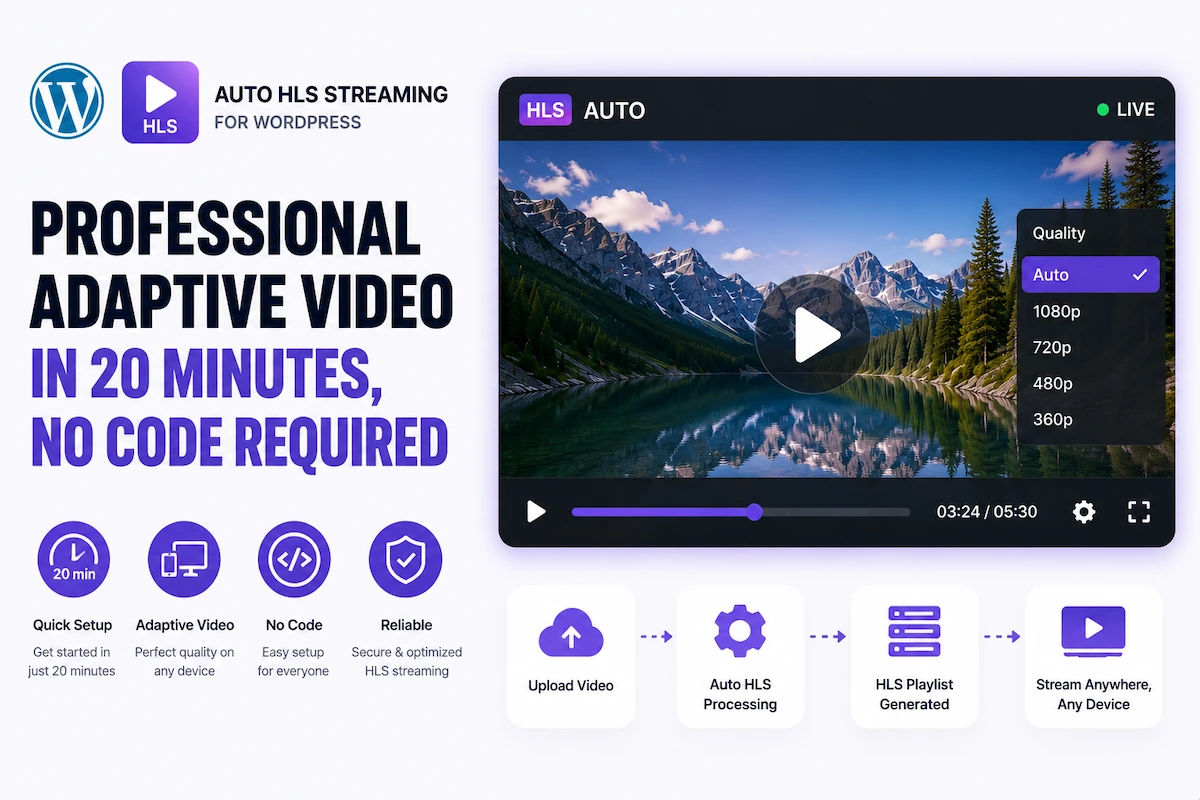
“Auto HLS streaming” describes what every WordPress site owner wants from video: upload a file, get professional adaptive streaming that works on every device, at every connection speed, without buffering — automatically. No server configurations. No ffmpeg commands. No streaming engineering.
In 2026, this is genuinely achievable on WordPress in under 20 minutes using the right combination of tools. This guide shows you exactly how — with MediaHaven as your WordPress HLS player and any modern CDN (Bunny.net, Cloudflare Stream, or AWS) handling the encoding.
What “Auto HLS Streaming” Actually Means
When we talk about automatic HLS streaming on WordPress, two things need to be “automatic”:
1. Using Bunny Stream Automatic Video Encoding and Segmentation
HLS (HTTP Live Streaming) doesn’t play a single video file. It plays a network of small segments (2–10 seconds each) across multiple quality renditions. Creating this manually used to require ffmpeg, server access, and scripting.
Modern CDNs like Bunny.net, Cloudflare Stream, and AWS MediaConvert automate this entirely:
- Upload one MP4 → the CDN auto-encodes multiple quality renditions
- Segments are created and stored automatically
- A master
.m3u8playlist file is generated automatically - You get one URL — that’s your auto-encoded HLS stream
2. Automatic Quality Adaptation (Adaptive Bitrate)
The “adaptive” part of HLS streaming means the player automatically monitors the viewer’s bandwidth in real time and switches quality renditions seamlessly:
- Fast connection → serves 1080p or 4K automatically
- Slow connection → drops to 480p or 360p to prevent buffering
- Bandwidth improves → steps back up without interruption
MediaHaven handles this automatically via its built-in hls.js implementation. No viewer input, no manual quality selection — the optimal stream is always selected.
Why Auto HLS Streaming on WordPress Drives Revenue
Eliminates Buffering = Recovers Abandoned Sessions
Research across streaming platforms consistently shows 20–40% of viewers abandon video within 30 seconds of a buffering event. On a standard WordPress MP4 embed, viewers on slow mobile connections buffer. On auto HLS streaming via MediaHaven, those same viewers get the 360p rendition instead of buffering.
At 1,000 monthly video plays on a product demo page: recovering 200–400 abandoned sessions with better content delivery can mean tens of thousands of dollars in recovered purchase intent.
Reaches Global Audiences Without Performance Tradeoffs
A fixed-quality MP4 that plays well on a fast US broadband connection stutters for a viewer in Southeast Asia on a 3G connection. Auto HLS streaming with a global CDN (Bunny.net’s 100+ PoPs) gives international viewers the quality level their connection supports — the same user experience, globally.
Platform Independence = Revenue Control
Self-hosted auto HLS streaming via MediaHaven means:
- No YouTube ad sharing — 100% of ad revenue (VAST, Pro) stays on your site
- No platform algorithm controlling your content distribution
- No risk of demonetization or account suspension
- Full audience data ownership
Live Streaming Capability
Auto HLS streaming isn’t just VOD. A live RTMP stream from OBS or any encoder converts to HLS in real time at your CDN — and MediaHaven plays it with automatic live/VOD detection. The same plugin handles your live event and the VOD replay afterward.
The Complete Auto HLS Streaming Stack for WordPress
You need three components:
| Component | Role | Recommended Option |
|---|---|---|
| Video CDN | Auto-encode MP4 → HLS; store segments; deliver globally | Bunny.net Stream |
| M3U8 URL | The output of auto-encoding — MediaHaven’s video source | From your CDN dashboard |
| MediaHaven | WordPress player, gallery, schema, lazy loading, monetization | Free on WordPress.org |
Setting Up Auto HLS Streaming: The 20-Minute Guide
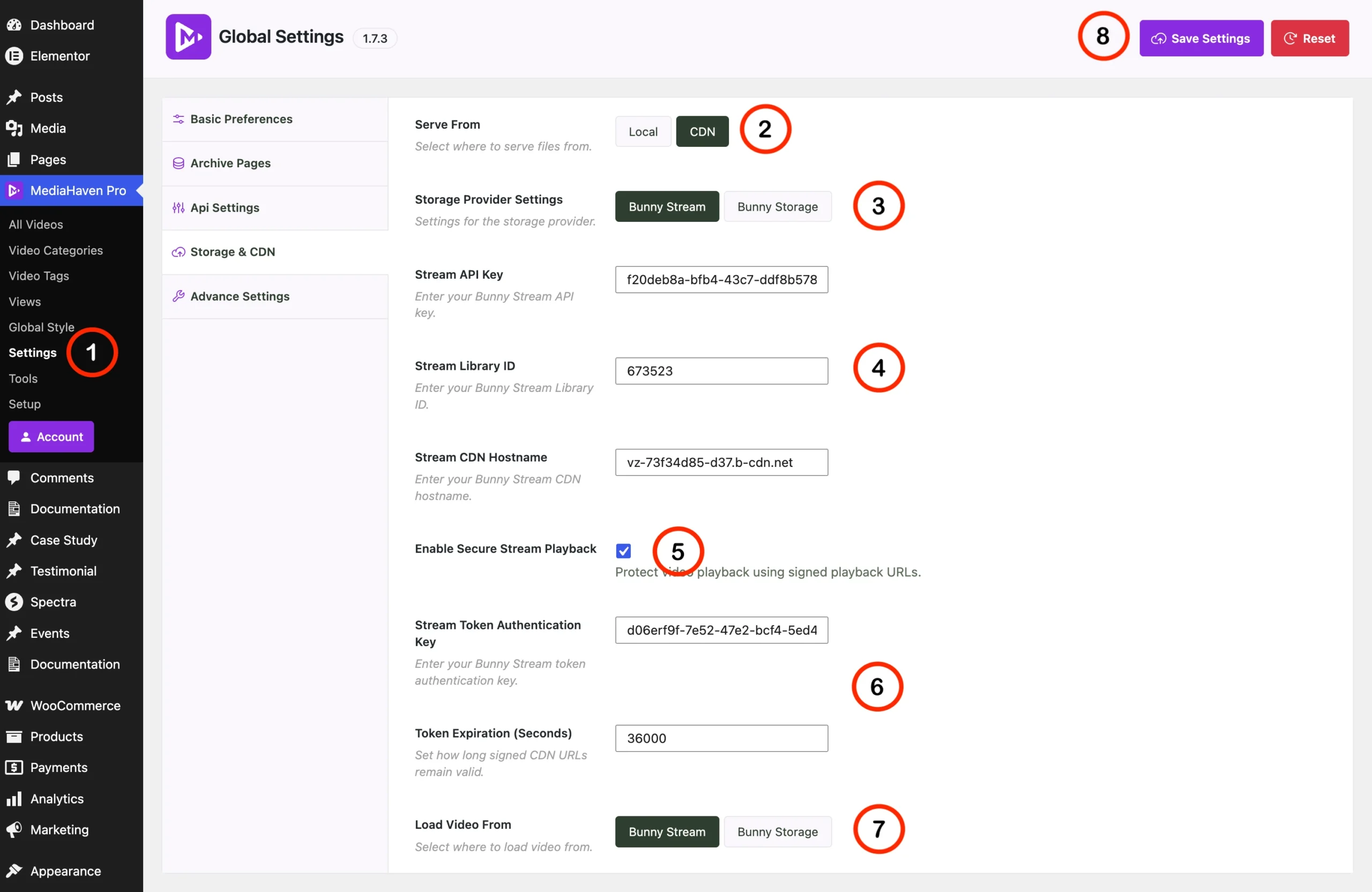
Phase 1: Encode to HLS Automatically (5–10 minutes)
Option A: Bunny.net Stream (Recommended)
- Sign up at bunny.net — no credit card required to start
- Stream → Video Libraries → Add Video Library
- Name your library, select a primary storage region
- Upload Video → drag and drop your MP4
- Wait 2–5 minutes for Bunny to auto-encode HLS renditions
- Click your video → copy the HLS URL (M3U8):
https://vz-xxxxxxxx.b-cdn.net/YOUR-VIDEO-GUID/playlist.m3u8
Option B: Cloudflare Stream
- Cloudflare Dashboard → Stream → Upload a Video
- After processing, copy the HLS manifest URL from the video settings
Option C: For Live Streaming
Configure your encoder (OBS Studio → Settings → Stream → Service: Custom):
- Stream URL:
rtmp://[bunny-live-ingest]/[stream-key] - Bunny converts RTMP → HLS in real time
- Get the live M3U8 playback URL from Bunny’s live streaming dashboard
Phase 2: Add to MediaHaven (5 minutes)
- Install MediaHaven Lite in WordPress → Activate → Run Setup Wizard
- MediaHaven → Videos → Add New
- Video Source: HLS / Live Stream (M3U8)
- HLS URL: Paste your M3U8 URL
- Title: SEO-optimized title
- Description: Keyword-rich content
- Poster Image: Upload a custom branded thumbnail
- Categories/Tags: Assign for organization
- Click Publish
Phase 3: Create Display and Embed (5 minutes)
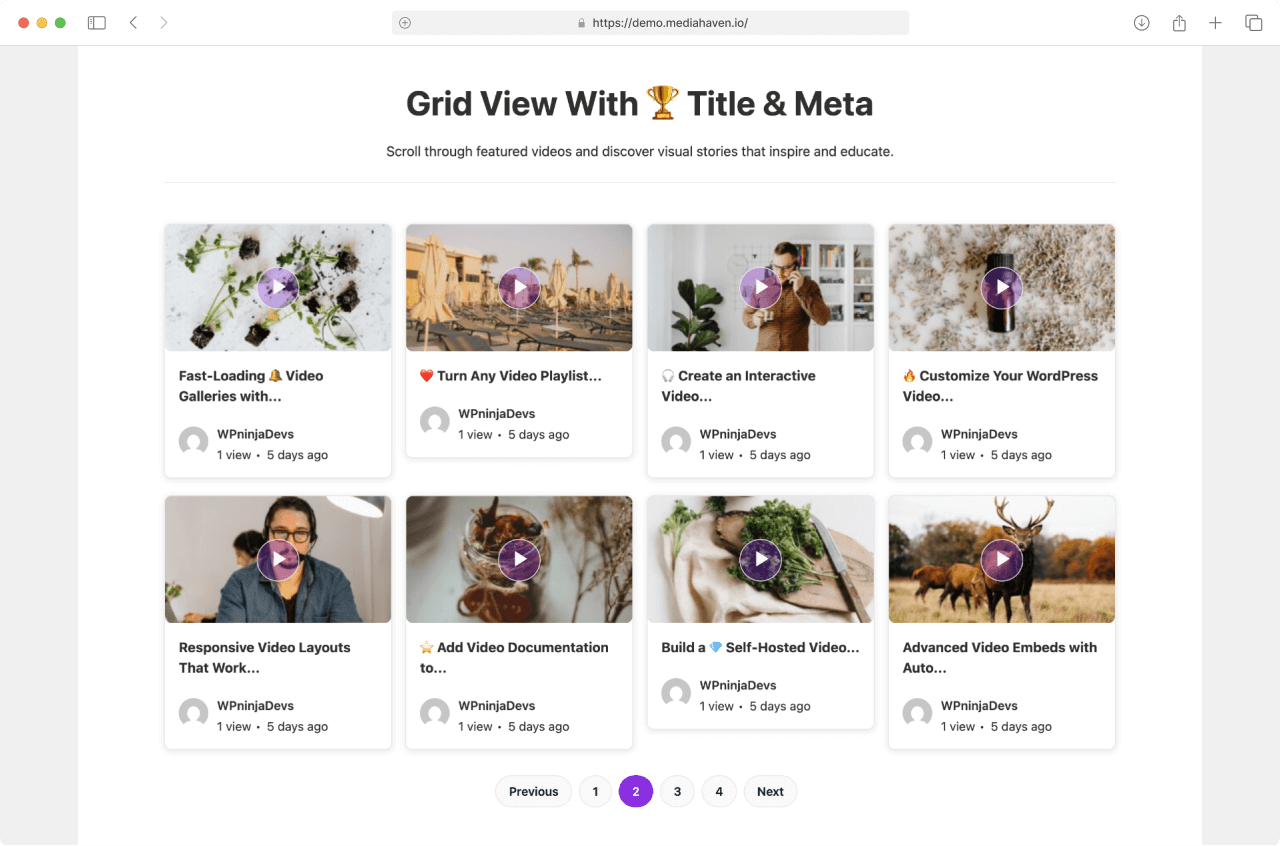
Single video player:
- Use the video’s single page permalink, or
- Create a View shortcode configured for single-video display
Video library:
- MediaHaven → Views → Add New
- Choose layout (Grid / Carousel / Multi-row Carousel)
- Configure columns, elements, pagination
Embed:
[wpnd_mhpro_views id="x"]Or use the Gutenberg Shortcode View Block with live preview.
MediaHaven Auto HLS Features: What’s Automatic
MediaHaven handles these aspects of HLS streaming automatically — no configuration required:
✅ Adaptive Quality Switching The hls.js player inside MediaHaven continuously monitors download bandwidth and buffer levels. It switches renditions automatically — the viewer always gets optimal quality for their connection.
✅ Schema.org VideoObject Markup Every HLS video receives VideoObject structured data automatically. No SEO plugin configuration. Google can index and display your self-hosted HLS content as video rich results in search.
✅ Responsive Sizing The player automatically scales to its container width. Mobile, tablet, 4K desktop — correct aspect ratio with no overflow or black bar issues.
✅ Lazy Loading The HLS player initializes automatically when scrolled into the viewport. Before that point, only a static poster image loads — your page performance stays fast.
✅ Live/VOD Detection MediaHaven automatically detects whether an M3U8 URL is a live stream or VOD and displays the appropriate UI (live badge for live streams, standard controls for VOD).
✅ Smart Asset Loading Plugin CSS and JS load only on pages where a gallery shortcode is present. No site-wide overhead.
Business Use Cases
Course Creator: Professional Streaming Without Platform Fees
Problem: Hosting courses on Teachable, Udemy, or Thinkific means 5–50% revenue sharing. Hosting on Vimeo Pro means strict storage limits and no real monetization control.
Auto HLS Solution:
- Bunny.net auto-encodes all course videos → MediaHaven serves them with chapters and subtitles → membership plugin gates access
Result:
- 100% course revenue stays with you
- Professional adaptive streaming matches Udemy’s quality
- Video chapters improve student navigation and completion rates
- Infrastructure cost: ~$10–15/month (Bunny + MediaHaven Pro annual, amortized)
Live Event: Stream and Archive From One Plugin
Problem: Most WordPress sites use Zoom for live events and a separate platform for replay archives — creating a fragmented, unbranded experience.
Auto HLS Solution:
- OBS → RTMP → Bunny Live → Live M3U8 URL → MediaHaven on gated event page
- After event: Bunny generates VOD recording → new M3U8 URL
- Update MediaHaven video source URL to VOD version
- Add video chapters to replay for session navigation
Result:
- Unified experience from live event to replay archive, all on your WordPress domain
- VAST ad monetization (Pro) on the replay generates ongoing revenue
- No Zoom, no Vimeo Premium, no third-party event platform required
Fitness Platform: Dual-Tier Monetization
Architecture:
- Free tier: publicly accessible HLS workout videos with VAST ads (Pro)
- Premium tier: full library, no ads, higher-quality renditions — gated by membership subscription
Result:
- Two revenue streams from the same video content and infrastructure
- Adaptive bitrate ensures mobile viewers on gym WiFi don’t experience buffering during workouts
- Self-hosted content means no YouTube copyright claims on music used in workout videos
Auto HLS vs. Alternative Approaches
| Approach | Auto Quality Adaptation | Live Streaming | Monetization Control | Setup Complexity |
|---|---|---|---|---|
Standard <video> tag (MP4) | ❌ | ❌ | ❌ | Easy |
| YouTube embed | ✅ (YouTube’s ABR) | ❌ (via YouTube Live) | YouTube controls | Easy |
| Vimeo embed | ✅ (Vimeo’s ABR) | Limited | Limited | Easy |
| DIY HLS (ffmpeg + nginx) | ✅ | ✅ | ✅ | Very hard |
| CDN auto-HLS + MediaHaven | ✅ (hls.js ABR) | ✅ | ✅ Full | Easy |
Performance: Auto HLS + MediaHaven Core Web Vitals
| Core Web Vital | Without Optimization | With MediaHaven + Bunny |
|---|---|---|
| LCP (Largest Contentful Paint) | Slow (video thumbnail unoptimized) | Fast (lazy load + WebP Pro) |
| INP (Interaction to Next Paint) | Slow (blocking video scripts) | Fast (smart asset loading) |
| CLS (Cumulative Layout Shift) | High (undefined video dimensions) | Zero (responsive container sizing) |
MediaHaven’s lazy loading, smart asset loading, poster-first rendering, and WebP thumbnail conversion (Pro) ensure that adding professional HLS streaming to your WordPress pages doesn’t break your Core Web Vitals — the exact tradeoff most competing solutions fail to manage.
Frequently Asked Questions
Can I do auto HLS streaming with the free Lite version? Yes — HLS M3U8 playback (both live and VOD) is a core free feature in MediaHaven Lite. Pro adds video chapters, VAST monetization, player branding, WebP conversion, and the full Ajax filter.
Do I need any server configuration for HLS on WordPress? No. The CDN (Bunny.net etc.) handles all encoding and segment management. MediaHaven handles the player. Your WordPress server just serves the page — no streaming infrastructure needed.
What’s the minimum upload quality I should start with? Upload the highest quality source video available. Bunny.net’s auto-encoder creates downward renditions from your source. A 1080p source gives you 1080p, 720p, 480p, and 360p renditions automatically. Always start with the best quality you have.
Does auto HLS streaming work with password-protected or members-only pages? Yes — MediaHaven embeds on any WordPress page, including those restricted by a membership plugin. The video player doesn’t require any special configuration for gated content.
How do I handle auto HLS for very long videos (3+ hours)? HLS is specifically designed for long-form content — it’s what Netflix uses for multi-hour films. Break content into chapters (Pro) so viewers can navigate. Bunny handles the storage and delivery regardless of video length.
Conclusion: 20 Minutes to Professional Auto HLS Streaming
Auto HLS streaming on WordPress used to require DevOps skills, server configurations, and expensive infrastructure. In 2026, it requires:
- A Bunny.net account (free to start) — upload your MP4, get an M3U8 URL
- MediaHaven Lite installed on WordPress (free) — paste the M3U8, embed the shortcode
That’s the entire workflow. Professional adaptive streaming, globally delivered, with automatic quality switching, schema.org markup, and lazy loading — in 20 minutes.
When you’re ready for monetization (VAST ads), chapters, player branding, or WooCommerce overlays, MediaHaven Pro starts at $79/year.
→ Download MediaHaven Lite Free
→ Upgrade to Pro from $79/year
Last updated: June 2026 | Based on MediaHaven Lite v1.7.1 & Pro | Plugin by WPninjaDevs
Leave a Reply