

You put hours into every YouTube video. You optimize titles, write descriptions, design thumbnails, and build your channel. But here’s the uncomfortable reality: every view on YouTube is a view on their platform — generating ad revenue for them, building their domain authority, and placing competitor content a single sidebar click away from your audience.
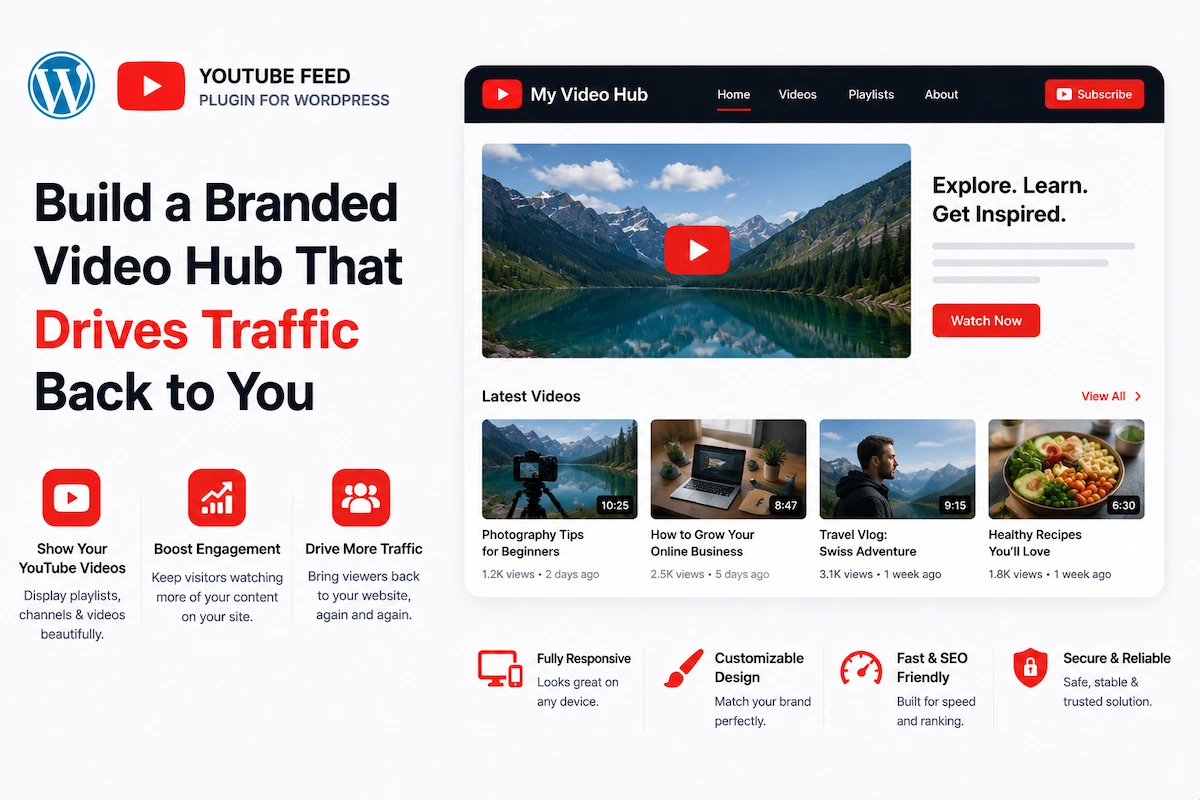
A WordPress YouTube feed plugin flips this dynamic. By pulling your YouTube content directly into your WordPress site, you build a branded video hub on your domain — capturing organic search traffic for your content, retaining audiences where you control every next step, and creating monetization opportunities that YouTube’s platform actively prohibits.
This guide covers everything: why a YouTube feed on WordPress is one of the highest-ROI moves in content marketing, exactly how to implement it with MediaHaven, and the strategies that turn a video gallery into a compounding revenue engine.
Why Every YouTube Creator and Business Needs a WordPress YouTube Feed
You’re Building YouTube’s SEO, Not Yours
When someone searches Google for topics you cover and clicks your YouTube video, they spend that session time on YouTube.com — contributing to YouTube’s domain authority, not yours. Your WordPress site gets none of the SEO equity from that engagement.
A YouTube feed embedded on WordPress with proper VideoObject schema markup means Google associates that video with your domain. Your site earns the rich result. Your site gets the organic click. Your domain accumulates the authority.
YouTube’s Algorithm Controls Your Distribution
YouTube’s recommendation algorithm can promote your content one week and bury it the next — based on engagement signals, watch time patterns, or competitor ad spend against your keywords. When your audience primarily lives on YouTube, you have no distribution control.
A WordPress YouTube feed creates a parallel, algorithm-independent channel. Visitors who find you via Google search land on your domain — where you present your content in your order, with your CTAs, without YouTube’s sidebar pulling them elsewhere.
You’re Losing Email Subscribers and Sales
A viewer who watches your YouTube content on YouTube might like the video, maybe subscribe. A visitor who watches your YouTube content on your website is in your ecosystem — where you can offer a lead magnet, promote a product, collect an email, or present a paid offer, all on the same page.
The conversion path from YouTube viewer to paying customer requires your viewer to be on your platform, not YouTube’s.
YouTube’s Policies Can Change Overnight
Demonetization, content strikes, policy changes, account suspensions — all can happen without warning on YouTube. Building your primary audience relationship through your WordPress site means you have an owned channel that isn’t subject to platform rule changes.
What to Look For in a WordPress YouTube Feed Plugin
Not all YouTube feed plugins deliver equal value. The critical features for business:
Auto-updating channel and playlist feeds — New videos appear without manual intervention the moment you publish on YouTube.
Multiple YouTube API key support with rotation — YouTube Data API v3 has a daily quota. A plugin that intelligently rotates across multiple keys prevents quota exhaustion, which would break your feed mid-day.
Smart caching — API results should be cached intelligently to minimize calls while keeping content fresh. Fresh-enough data + fewer API calls = reliable, fast feeds at scale.
Real-time view and like counts — These display social proof directly in your gallery, increasing click-through rates on your most-watched content.
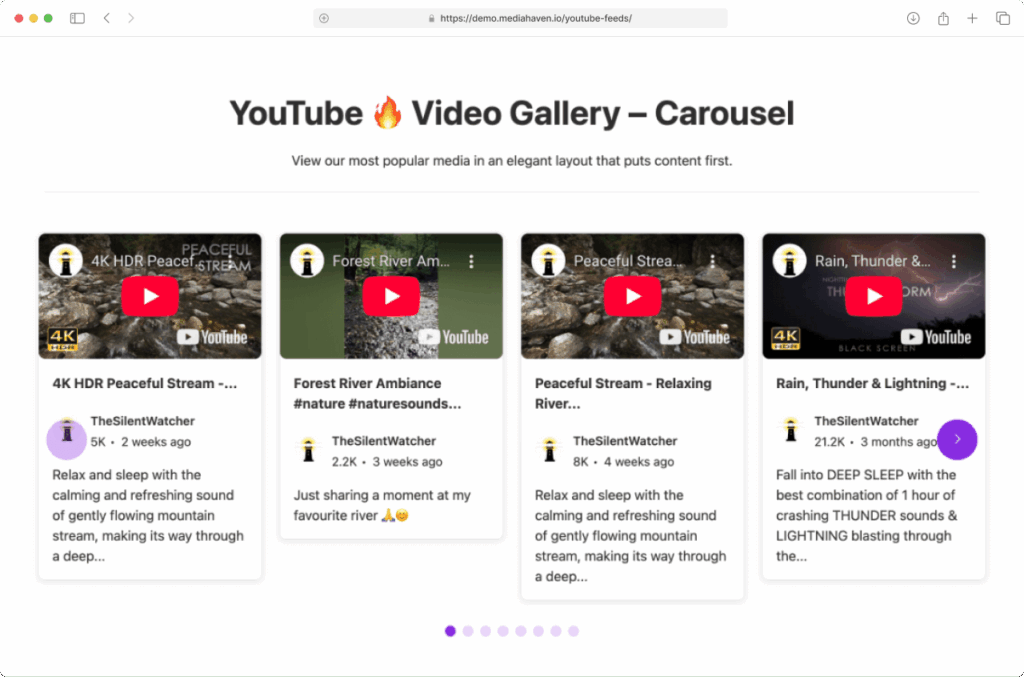
Layout flexibility — Grid, Carousel, and Multi-row Carousel to match your design goals, all fully responsive.
Automatic VideoObject schema.org markup — Without this, your YouTube content on WordPress generates zero additional SEO value. With it, you’re eligible for Google Video Rich Results on your own domain.
Performance-first architecture — Smart asset loading, lazy loading, and thumbnail optimization so the feed doesn’t hurt your Core Web Vitals.
YouTube subscribe button — Keep building your channel while your site runs.
MediaHaven: The WordPress YouTube Feed Plugin Built for Growth
MediaHaven is a high-performance WordPress video gallery plugin with deep YouTube feed integration at its core. Available free in MediaHaven Lite with advanced monetization features in Pro.
MediaHaven’s YouTube integration was built specifically to solve the problems that make YouTube feeds unreliable and SEO-ineffective on most WordPress sites: API quota failures, slow loading, missing schema markup, and inflexible layouts.
YouTube Feed Features in MediaHaven
Free (Lite) — Core YouTube Integration
YouTube Channel Feed Connect any YouTube channel by Channel ID. MediaHaven auto-pulls all videos from the channel and displays them in your chosen layout.
- Auto-generates Channel ID from a channel handle — no manual ID lookup required
- Supports multiple channels on a single site with separate gallery configurations
- Feed updates automatically as you publish new content
- Configurable cache duration balances freshness with API efficiency
YouTube Playlist Gallery Connect any YouTube Playlist ID to display a curated, ordered set of videos. Ideal for:
- Course prerequisite video series
- Product feature highlights
- Campaign-specific content collections
- Event recap playlists
Real-Time View and Like Counts Live view counts and like counts display on each video card, synced intelligently to minimize API calls. Social proof at scale — your 200,000-view tutorial sits in your gallery with that number displayed, building immediate credibility with new visitors.
Multiple YouTube API Keys with Rotation Add as many YouTube Data API v3 keys as you need. MediaHaven rotates them randomly — distributing API quota usage and dramatically reducing the risk of hitting daily limits. For high-traffic sites with large libraries, this is not optional — it’s essential.
Smart API Caching Results are cached server-side. Configurable cache duration (recommended: 6–12 hours for most channels). Means:
- Fast feed loading for visitors — no live API call on each page load
- Reliable display even during YouTube API downtime
- Reduced quota consumption extending the life of each API key
AJAX Load More Visitors browse your entire video library with a smooth “Load More” button. No pagination clicks, no full page reloads, no engagement interruption. Essential for channels with 50+ videos.
YouTube Inline Play Videos play directly within the gallery grid — no page navigation required. Keeps viewers in your page flow and increases per-session video views.
YouTube Live Video Badge Automatically detects and displays live streams from your connected channel, with a “LIVE” indicator badge in the gallery.
YouTube Subscribe Button with Subscriber Count Display a subscribe button with live subscriber count in your gallery header. Keeps your YouTube channel growth synced with your website engagement.
Flexible Thumbnail Selection Choose from YouTube’s available thumbnail sizes. Balance visual quality with page loading speed per your specific audience.
Layout Options
- Grid — Standard multi-column library layout; best for large channel archives
- Carousel — Horizontal slider with navigation; best for featured videos in homepage sections
- Multi-row Carousel — Rich content hub; best for full-page video experiences
All layouts fully responsive across xs, sm, md, lg, xl breakpoints.
Schema.org VideoObject Markup (Automatic) Every YouTube video in your MediaHaven feed receives VideoObject structured data automatically. This enables Google to:
- Display Video Rich Results with thumbnail, duration, and date in search results
- Associate that video content with your domain rather than YouTube’s
- Index your video gallery pages as rich media content
Smart Asset Loading MediaHaven’s CSS and JavaScript only load on pages where a gallery is present. No site-wide performance penalty.
Lazy Loading YouTube thumbnails and iframes only load when the viewer scrolls them into view. Pages with 50+ YouTube thumbnails still achieve excellent LCP scores.
Pro — Advanced YouTube Feed Capabilities
Blazing Fast Ajax Video Live Filter Full-power YouTube content discovery:
- Real-time Ajax search across your entire YouTube library
- Filter by category, tag, duration, resolution, featured status, author
- SEO-friendly filter URLs — each filtered view is separately indexable
- Compatible with YouTube feeds, playlists, and mixed-source galleries
- Built on indexed lookup table for instant response even on large libraries
Video Chapters Add clickable chapters to self hosted video with precise timestamps. Viewers jump directly to relevant sections. For tutorial channels with long-form content, chapters are a documented engagement multiplier.
VAST Ad Monetization on YouTube Feed Pages Run VAST ads on pages that display your video library — banner ads, video ads, or link ads at any position. Generate additional ad revenue from video traffic without needing YouTube’s monetization eligibility requirements. Your page, your ads, your revenue.
WooCommerce, FluentCart, SureCart Product Overlays Feature a product demo video and display an add-to-cart button inside the player. The viewer watches the demo and buys — without leaving the page.
Drag & Drop Video Card Builder Control exactly how each YouTube video card displays:
- Reorder sections: media, title, meta, description
- Show/hide any element
- Custom borders, spacing, hover states
- Toggle views, likes, author, date, categories
Player Unlimited Styles Brand your YouTube player embed with custom colors, button styles, and control bar appearance.
WebP Thumbnail Conversion Auto-convert all YouTube thumbnails to WebP format — 25–35% smaller files, faster page loads, better Core Web Vitals.
Header Right Button Add a CTA button in your YouTube gallery header: “Subscribe,” “Download the Guide,” “Get Free Trial” — whatever your conversion goal.
Advanced Term Appearance Turn YouTube video categories into visual, clickable navigation with icons, images, and hover effects.
Setting Up Your YouTube Feed: Step-by-Step
Step 1: Get a YouTube Data API v3 Key
- Go to Google Cloud Console
- Create a project → APIs & Services → Library → Search “YouTube Data API v3” → Enable
- APIs & Services → Credentials → + Create Credentials → API key
- Copy the key
Tip: Create 2–3 keys immediately for rotation. It’s free and takes 2 minutes per key.
Step 2: Configure MediaHaven
- Install MediaHaven Lite → Activate → Run Setup Wizard
- MediaHaven → Settings → API Settings → YouTube API Key — paste your key(s)
Step 3: Set Your YouTube Source
MediaHaven → Videos → (in YouTube feed settings)
- Select YouTube Channel → enter your Channel ID
- Use the auto-generator: paste your channel handle (e.g.,
@YourChannel) and let MediaHaven convert it
- Use the auto-generator: paste your channel handle (e.g.,
- Or select YouTube Playlist → paste the Playlist ID from the URL after
list=
Step 4: Build Your Gallery View
MediaHaven → Views → Add New:
- Choose Layout: Grid / Carousel / Multi-row Carousel
- Set column counts per breakpoint
- Configure display elements: title, views, likes, date, description
- Set pagination: AJAX Load More (recommended for channels with many videos)
- Enable YouTube Subscribe button in header
- Configure header right button if applicable (Pro)
Step 5: Embed Everywhere That Matters
[wpnd_mhpro_views id="x"]Strategic placement:
- Homepage — “Latest Videos” carousel in a mid-page section
- Dedicated /videos/ page — Full channel feed with Ajax filters
- About page — Your most-viewed introductory video as a single player
- Blog posts — Related YouTube videos within article content
- Product pages — Relevant tutorial or demo videos adjacent to buy CTAs
- Landing pages — Social proof via your most-watched content
YouTube Feed Business Strategies That Drive Revenue
Strategy 1: The Parallel Content Hub
Create a /videos/ page that mirrors your YouTube channel but on your domain. Organize with MediaHaven categories and Ajax filters (Pro). Every URL is indexable by Google.
Result: Your YouTube content earns organic search traffic to your WordPress site instead of to YouTube. Visitors who arrived via Google search for a tutorial stay on your domain for the conversion.
Strategy 2: The Email Capture Funnel
Place your YouTube feed alongside a lead magnet opt-in:
[Column 1: YouTube Feed Gallery] | [Column 2: Email Opt-in Form]
"Watch 3 free lessons → Get the full course free"
Visitors who watch 2–3 videos are highly qualified leads. MediaHaven’s gallery keeps them watching; your opt-in captures them.
Strategy 3: The Social Proof Wall
Curate a playlist of your highest-view YouTube videos and embed it as a “Proof of Expertise” section on your services or sales page. A video with 150,000 views displayed on your page is more credible than any written testimonial.
Strategy 4: The YouTube-to-WooCommerce Pipeline
For e-commerce businesses:
- Create YouTube demo/tutorial content featuring products
- Embed the YouTube feed on the relevant WooCommerce product category page
- Add WooCommerce product overlay (Pro) to the most-watched demo videos
- Viewers: watch demo → click add-to-cart — without leaving the page
Strategy 5: The Multi-Channel Content Hub
MediaHaven supports multiple YouTube channels simultaneously. If you manage a brand channel, a tutorial channel, and a behind-the-scenes channel, consolidate all three into a single WordPress content hub with category-separated sections.
Visitors get one unified experience. You get all engagement signals staying on your domain.
SEO Deep Dive: How Your YouTube Feed Multiplies Search Presence
VideoObject Schema and Google Rich Results
MediaHaven’s automatic VideoObject markup tells Google:
- Video title, description, thumbnail URL
- Duration and publication date
- Content URL and embed URL
- Your domain as the host
Google uses this to display Video Rich Results — video thumbnails, duration badges, and publication dates directly in SERPs. These earn click-through rates significantly higher than standard text links.
Action: After setup, verify at Google’s Rich Results Test. Expect VideoObject entries for every video on your gallery page.
Domain Authority Signals From Video Engagement
When visitors spend 5, 10, or 15 minutes watching YouTube videos on your WordPress site, that session time counts toward your domain’s engagement signals. Google sees your domain as a high-engagement destination — rewarding it with higher rankings across your entire site, not just video pages.
Freshness Signals From Auto-Updating Feeds
Every time you publish to YouTube and your MediaHaven feed auto-updates, Google’s crawler sees new content on your site. Fresh content triggers more frequent crawls. More crawling means faster indexing of all your content — videos and non-video pages alike.
Long-Tail SEO From Individual Video Pages
When MediaHaven creates single video pages for each YouTube video (configurable), each page targets the keyword intent of that video’s title and description. A 100-video channel creates 100 indexable pages from a single setup — all ranking for different long-tail queries with zero additional content creation.
Ajax Filter URLs as Content Category Pages
With MediaHaven Pro’s SEO-friendly filter URLs, your YouTube library becomes:
/videos/— Main channel hub/videos/?category=tutorials— Tutorials category page/videos/?category=case-studies— Case studies page/videos/?tag=2026— Content tagged with the year
Each URL is indexable. Multiple YouTube content categories create multiple organic entry points from search.
Common YouTube Feed Setup Mistakes to Avoid
Mistake 1: Not adding multiple API keys A single YouTube API key with 10,000 daily units exhausts quickly on high-traffic sites. Add 2–3 keys in MediaHaven settings for rotation. Each takes 2 minutes to create.
Mistake 2: Setting cache duration too short A 5-minute cache means MediaHaven calls the YouTube API on nearly every page visit — burning through quota and slowing down loads. Set cache to 6–12 hours. Your feed updates; your quota survives.
Mistake 3: Embedding the feed without verifying schema The biggest missed SEO opportunity. After embedding, always verify VideoObject schema at Google’s Rich Results Test. If it’s not appearing, check that MediaHaven’s schema settings are enabled in MediaHaven → Settings.
Mistake 4: One generic gallery with no organization A feed of 200 mixed videos with no categories or filters loses visitors who want specific content. Use MediaHaven’s category system from day one. Add Ajax filters (Pro) for the full search experience.
Mistake 5: Ignoring the Subscribe button MediaHaven’s YouTube Subscribe button in the gallery header is a free channel growth tool. Enable it. Visitors who watch your content on WordPress and then subscribe on YouTube create a compounding audience relationship.
Measuring Success: Key Metrics to Track
| Metric | How to Measure | Target Benchmark |
|---|---|---|
| Organic sessions from /videos/ pages | Google Search Console | Growing month-over-month |
| Avg. session duration on video pages | Google Analytics | 3+ minutes |
| Video page conversion rate | GA4 Goals/Conversions | 2–5% depending on CTA |
| Video Rich Results impressions | Google Search Console | Increasing after 60–90 days |
| YouTube API quota usage | Google Cloud Console | <80% of daily limit |
| Email opt-ins from video pages | Email platform | Track source attribution |
Frequently Asked Questions
Do I need the Pro version for YouTube feeds? No — YouTube channel feeds, playlist galleries, real-time counts, smart caching, and API key rotation are all included in the free MediaHaven Lite. Pro adds Ajax Live Filters, video chapters, VAST ads, WooCommerce overlays, and player branding.
Can I show YouTube feeds from channels I don’t own? Yes — any public channel ID or playlist ID works as a source. Useful for curating industry content, featuring partner channels, or building community video hubs.
How often does MediaHaven refresh the YouTube feed? Configurable cache duration in MediaHaven settings. 6–12 hours is the typical recommendation — fresh enough for daily publishers, conservative enough to protect API quota.
What happens if I hit the YouTube API quota limit? MediaHaven serves cached data while the quota is exhausted. The feed continues displaying normally using the last cached snapshot, until the quota resets at midnight Pacific Time.
Can I combine YouTube feed videos with other sources in the same gallery? Yes — MediaHaven galleries are source-agnostic. Mix YouTube, TikTok, Vimeo, HLS, and self-hosted content in a single view.
Conclusion: Your YouTube Channel + Your WordPress Site = Unstoppable
The content businesses winning in 2026 use YouTube as a discovery engine and their WordPress site as the conversion engine. MediaHaven is the bridge — pulling YouTube content into a branded, SEO-rich, conversion-focused hub on your domain.
Your YouTube content earns you reach. MediaHaven makes sure that reach flows to your platform, not YouTube’s — where every session can become an email subscriber, a product buyer, or a course enrollment.
Start with MediaHaven Lite for free. Your first YouTube feed will be live in under 30 minutes.
→ Download MediaHaven Lite Free
→ Upgrade to Pro from $79/year
Last updated: June 2026 | Based on MediaHaven Lite v1.7.1 & Pro | Plugin by WPninjaDevs
Leave a Reply