


WordPress runs 43.5% of all websites globally, yet it ships with no native video gallery system. You can paste a YouTube link and WordPress auto-embeds a single player — but the moment you want a responsive grid of videos from multiple sources, with category filtering, lazy loading, view counters, and SEO-ready schema markup, you have gone beyond what core WordPress offers.
That gap is exactly what MediaHaven fills — a free plugin on WordPress.org that lets you build complete, production-ready video galleries without writing a line of code.
This guide covers everything: why the default WordPress options fall short, what MediaHaven actually is, a full step-by-step setup walkthrough, and how to get the most SEO and performance value from the plugin right away.
Why WordPress Has No Real Video Gallery Out of the Box
The WordPress block editor gives you a Video block for embedding a single video and an oEmbed system that auto-converts YouTube or Vimeo links into inline players. That is where built-in support ends.
There is no gallery view, no grid layout, no filtering by category or tag, no lazy loading for multiple thumbnails, no view counter, and no automatic schema.org output for video rich results.
The workarounds most WordPress users reach for each carry a cost:
- Uploading video files directly to WordPress consumes enormous server storage and bandwidth. WordPress is not a video streaming platform. A few high-resolution uploads can exhaust a shared hosting plan’s storage quota and slow every page on the site.
- Manually embedding YouTube or Vimeo iframes creates a maintenance problem at scale. When URLs change or you want to reorganize, you have to edit every page by hand.
- Using a page builder’s video widget gives you a single player element per block, not a gallery. Many page builders also load their video player assets globally — on every page of your site — even pages with no video, which hurts Core Web Vitals scores sitewide.
A purpose-built video gallery plugin solves all three problems. It fetches video data and thumbnails from external platforms rather than hosting the files yourself. It loads assets only on pages that contain a gallery. It outputs structured data that Google needs to show video thumbnails directly in search results.
What Is MediaHaven?
MediaHaven is a WordPress video gallery and HLS player plugin built by WPninjaDevs, a team with 10+ years of WordPress development experience. The free version is available at MediaHaven Lite — no credit card, no account creation required.
Quick Video Tutorial
Supported video sources in the free version
MediaHaven supports embedding from all of the following out of the box:
- YouTube — individual video embeds, YouTube channel feeds, and YouTube playlist galleries
- Vimeo — individual video embeds
- TikTok, Facebook, Instagram, LinkedIn
- Twitch, Wistia, Dailymotion, Rumble
- HLS live streams (M3U8 format)
- Self-hosted video files and external video URLs
Gallery layouts available in the free version
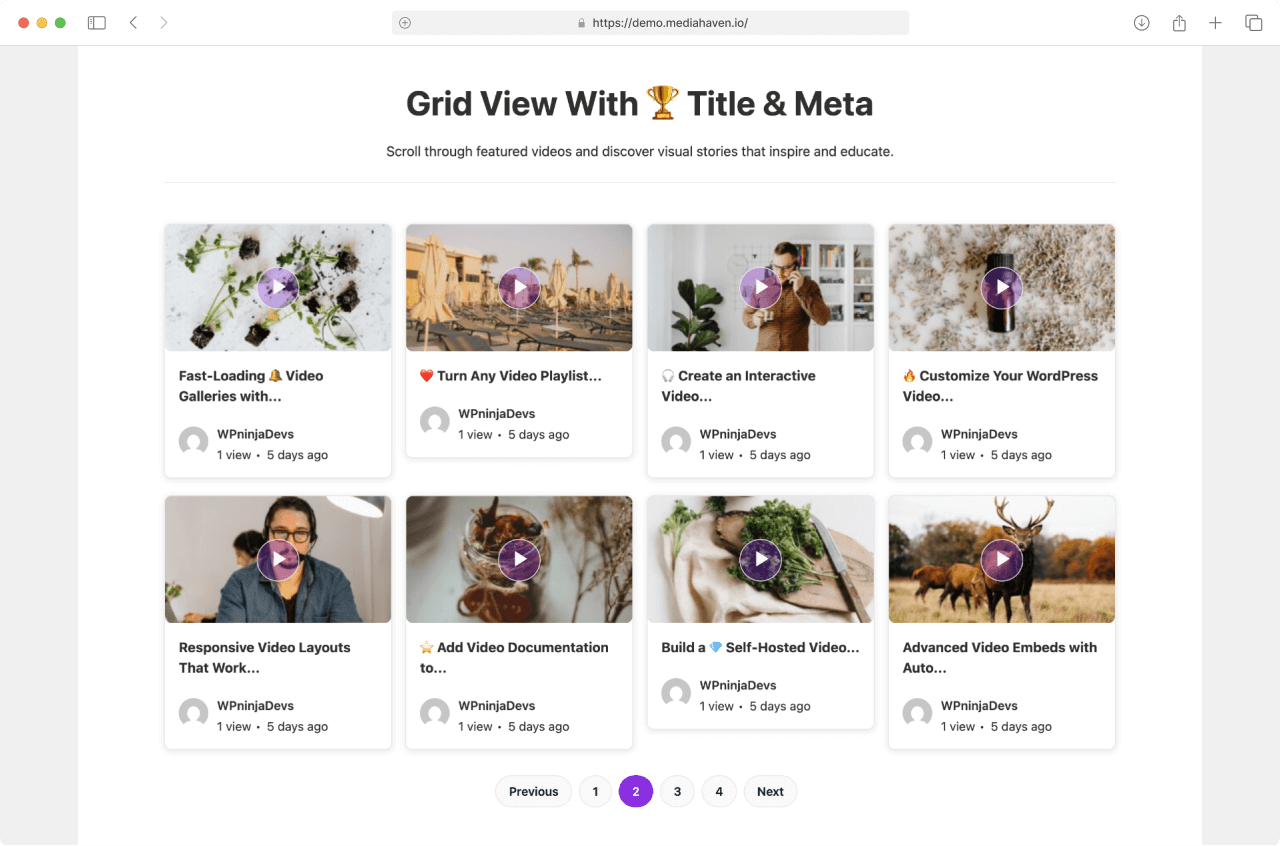
- Grid — responsive multi-column layout
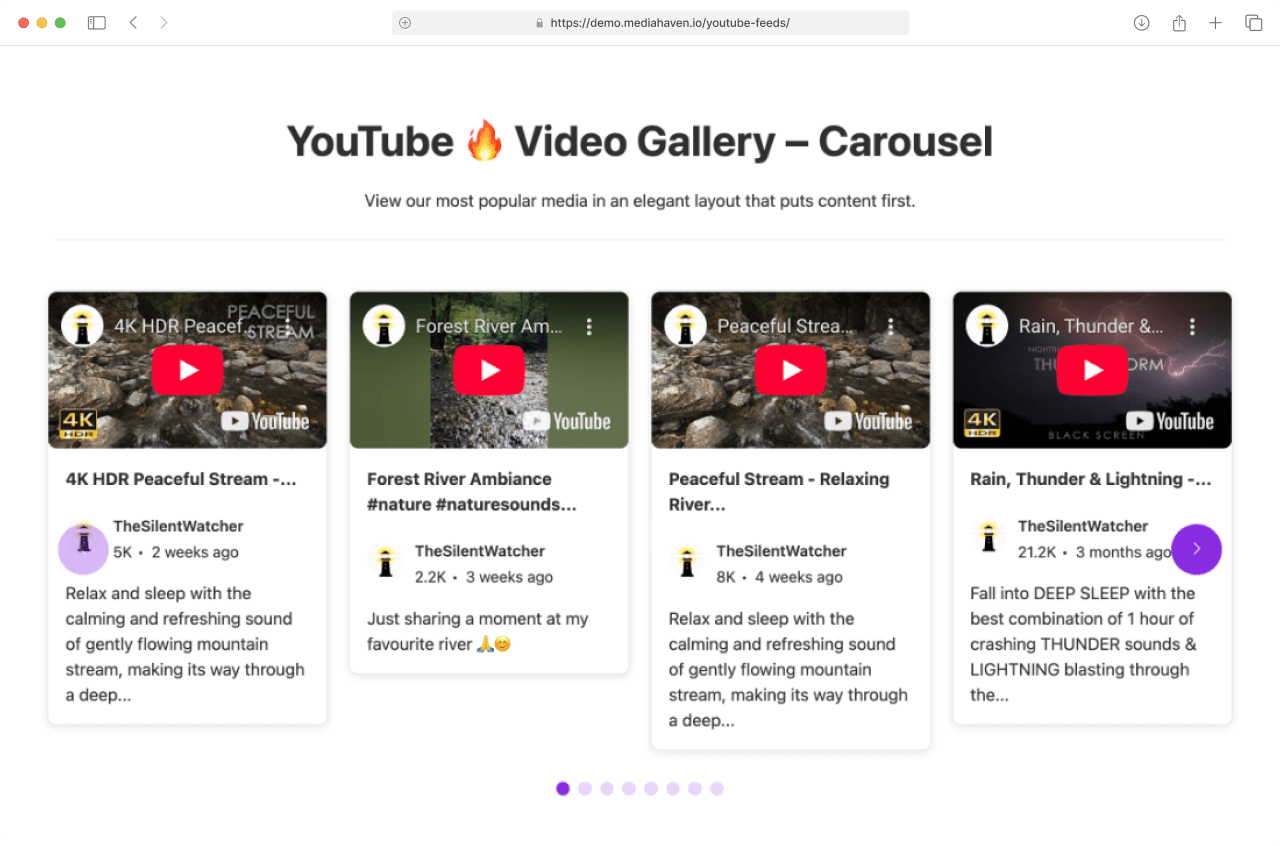
- Carousel — horizontal scrolling carousel
- Multi-row Carousel — stacked multi-row carousel format
Every gallery is fully responsive across desktop, tablet, and mobile and generates a shortcode for embedding anywhere in WordPress. The plugin also provides a native Shortcode View Gutenberg block — a live-preview block in the block editor that lets you select and preview any saved gallery by name.
What is free vs. what requires Pro
The following are all available in the free version:
| Free Feature | Notes |
|---|---|
| Grid, Carousel, Multi-row Carousel layouts | All three layout types |
| YouTube Feeds (channel + playlist) | Grid, Carousel, Multi-row Carousel |
| All 11+ video source embeds | YouTube, Vimeo, TikTok, HLS, etc. |
| Setup Wizard | Guided onboarding with wizard |
| Schema.org structured data for SEO | Built into every gallery |
| Ajax video view counter | Auto-updates on each view |
| AJAX-based like/dislike thumbs | Built-in engagement feature |
| Image Optimization | Thumbnail compression built in |
| Keyboard Shortcuts for Video Playback | Full keyboard control support |
| Smart Assets Control | Per-shortcode loading |
| Video Subtitles | WebVTT and SRT support |
| Export and Import (JSON and CSV) | Gallery settings portability |
| Shortcode View Gutenberg block | Live preview in editor |
| Lazy loading (images, video, iframes) | Built in, on by default |
| WCAG-compliant accessibility | Semantic HTML5 output |
The following require MediaHaven Pro:
| Pro-only Feature | Notes |
|---|---|
| Video Chapters | Clickable chapter navigation |
| Blazing fast Ajax Video Live Filter | Real-time filter by category, tag, author, duration, resolution, featured status |
| VAST Video Ad Monetization | Pre-roll, mid-roll, post-roll, banners, link ads |
| Cross-sell / Upsell via video | What this becomes in practice 🎬 Scenario User is watching: Product A video (e.g., sneakers) Then: ▶️ Pre-roll Show: “Complete your look → Buy socks” ⏸ Mid-roll Show: “Limited offer: 20% off hoodie” ⏹ Post-roll Show: “You may also like → 3 related products” Live demo: Dynamic Positions for Image, Video & Text Ads |
| Drag & Drop Video Card Sections | Full control over card layout and styling |
| Player Unlimited Styles | Custom control bar, button, and progress bar styles |
| Indexed lookup table | High-performance filtering for large libraries |
| WebP thumbnail conversion | Automatic WebP output for faster loading |
Pro pricing: $79/year (1 site), $159/year (5 sites), $249/year (10 sites), $499/year (50 sites). Every plan includes a 14-day money-back guarantee, 1 year of updates, and premium support.
Step-by-Step Setup Guide
Step 1: Install MediaHaven from WordPress.org
- Log into your WordPress admin dashboard
- Go to Plugins → Add New
- In the search field, type MediaHaven
- Locate the plugin called “MediaHaven – Video Gallery & HLS Player for YouTube and TikTok” published by WPninjaDevs
- Click Install Now, then Activate
You can also download the plugin zip directly from MediaHaven Lite and install it via Plugins → Add New → Upload Plugin.
The plugin menu appears in your WordPress admin sidebar as “MediaHaven Lite” after activation.
Multisite note: On a WordPress multisite network, activate the plugin per individual subsite rather than using network activation. The plugin is designed and tested for per-site activation.
Step 2: Complete the Setup Wizard
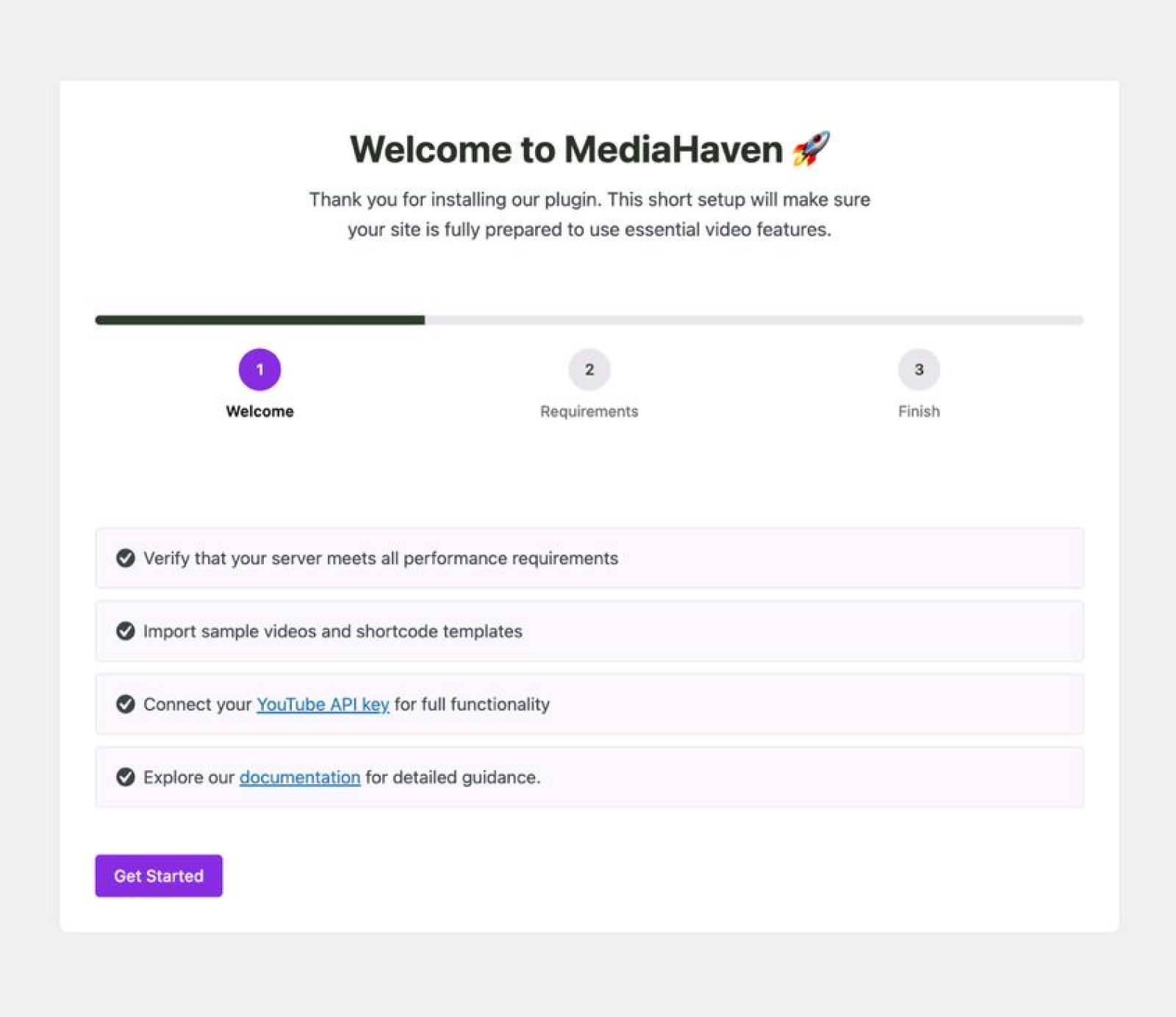
Immediately after activation, MediaHaven launches a guided setup wizard automatically. This wizard is one of the things that sets MediaHaven apart from most gallery plugins, which drop you directly into a raw settings screen with no guidance.
The wizard walks through:
- YouTube API connection — paste your YouTube Data API v3 key here. Required for YouTube channel feeds and playlist galleries. Optional if you only want to embed individual YouTube videos by URL.
- Sample videos and shortcode templates — the wizard includes ready-made examples so you can see the gallery working on your site immediately.
- Server and performance checks — automatic checks to confirm the plugin loads correctly in your server environment.
- Clear next steps — the wizard closes with a checklist of next actions to explore.
You can skip any step and return to it at any time via MediaHaven → Settings.
How to get a YouTube API key:
- Go to Google Cloud Console
- Create a new project (or use an existing one)
- Go to APIs & Services → Library
- Search for “YouTube Data API v3”, click it, and click Enable
- Go to APIs & Services → Credentials
- Click + Create Credentials → API key
- Copy the generated key
- Paste it into MediaHaven → Settings → API Settings → YouTube API Key
The plugin also supports adding multiple YouTube API keys that rotate automatically to prevent hitting quota limits on high-traffic sites.
Step 3: Create Your First Gallery
Go to MediaHaven Lite → Views (or look for the “Views” item under the MediaHaven Lite menu) and click Add New.
The gallery editor is organized into sections:
Basic settings:
- Title — internal label only, not shown publicly
- Source Type — YouTube Feed, YouTube Playlist, individual video embeds, HLS, self-hosted, etc.
- Layout — Grid, Carousel, or Multi-row Carousel
Display controls:
- Columns — set column counts independently for extra-small, small, medium, large, and extra-large screen sizes (responsive column controls added in version 1.6.4)
- Show/hide — toggle author name, avatar, view count, like/dislike, publish date, comment count, categories, tags, and description per gallery
- Poster — show or hide video poster/thumbnail
Pagination and loading:
- Pagination controls — standard pagination or Ajax Load More button
- Button controls — customize button labels and appearance
Once you have configured the gallery, click Save. MediaHaven generates a shortcode at the top of the editor — something like [wpnd_mhpro_***** id="1"]. Copy it.
Note: The shortcode format is
— not a generic[mediahaven]shortcode. Use the exact shortcode shown in the gallery editor.
Step 4: Embed the Gallery
In the Gutenberg block editor:
- Click + to add a new block
- Search for MediaHaven — select the Shortcode View block
- The block shows a dropdown of all your saved galleries — select by name and the gallery renders as a live preview inside the editor itself
Using the Shortcode block:
- Click +, search for Shortcode, select the Shortcode block
- Paste your
shortcode
In any page builder: MediaHaven is fully compatible with Elementor, WPBakery, Divi, Beaver Builder, and all major builders. Add a shortcode widget in your builder and paste the gallery shortcode.
Click Publish or Update. Visit the page on the front end to see your gallery live.
Step 5: Configure Performance Settings
The plugin includes smart asset loading by default — but confirm these settings are active:
Go to MediaHaven Lite → Settings:
- Smart Assets Control — plugin CSS and JavaScript load only on pages that contain a MediaHaven gallery shortcode. Pages without a gallery load zero plugin assets. This is the default behavior and protects sitewide Core Web Vitals scores.
- Lazy Loading — images, video iframes, and video files load only as they enter the viewport. This is on by default.
- Image Optimization — built-in thumbnail compression runs automatically. No third-party plugin required.
- WebP conversion — Pro only. Converts gallery thumbnails to WebP format automatically, reducing image payload by 30–50% compared to JPEG.
Image quality and crop: The plugin includes image quality control and both hard crop and soft crop options for thumbnails. These are accessible in the global styles settings.
Setting Up a YouTube Channel Feed
The most requested use case: connect your YouTube channel so that every new video you upload appears automatically in your WordPress gallery — with no manual work after the initial setup.
- In the gallery editor (Views → Add New), look for the Source section
- Select YouTube Feeds as the source type
- Enter your Channel ID — the plugin supports auto-generating the ID from a channel handle
- Set how many videos to show initially
- Enable the Load More button if you want visitors to browse additional videos via Ajax (no page reload)
- Choose a layout — a 3-column grid works well for most channel feeds
- Select your YouTube thumbnail size — the plugin supports medium and other size options
- Save the gallery and embed the shortcode
Smart caching: MediaHaven stores a local copy of the YouTube API response data. This means the gallery loads from cache rather than hitting the API on every page view, reducing load times and preventing API quota exhaustion. The cache refreshes automatically to keep content current.
Setting Up a Self-Hosted or HLS Streaming Gallery
For videos on your own server, a CDN, or a live stream:
- Set the Source Type to Self-Hosted Video or HLS
- Add each video by pasting its direct file URL or
.m3u8stream URL - Upload a custom poster image (thumbnail) for each video from your WordPress media library — important for self-hosted videos that don’t have an auto-generated thumbnail
- Add a video subtitle file if needed — the plugin supports WebVTT (
.vtt) and SRT (.srt) subtitle formats in the free version
MediaHaven’s player handles HLS adaptive bitrate streaming natively — it automatically selects the appropriate video quality for each viewer’s connection speed.
Single video player: If you want to embed just one video without any gallery wrapper — no title, description, or metadata — use the “Only Video Player” shortcode option, which creates a clean, standalone player. See demo
How MediaHaven Handles SEO
Most video gallery plugins treat SEO as an optional extra. MediaHaven builds it into the gallery output from the start.
Schema.org VideoObject markup is generated automatically for every gallery — no additional SEO plugin configuration required. The structured data includes the video’s name, description, thumbnail URL, upload date, and duration. This is the markup Google requires to consider a page for video rich results — the clickable video thumbnail that appears directly in search results alongside your link.
Semantic HTML5 output means the gallery renders with proper HTML5 elements, not a mass of generic <div> tags. Proper semantic markup improves how search engine crawlers categorize and interpret your content.
WCAG-compliant accessibility is built in, including full keyboard navigation support:
| Keyboard shortcut | Action |
|---|---|
| Space | Play or pause |
| F | Toggle fullscreen |
| M | Mute or unmute |
| Left Arrow | Rewind 5 seconds |
| Right Arrow | Fast-forward 5 seconds |
| Up Arrow | Increase volume 10% |
| Down Arrow | Decrease volume 10% |
| 0–9 | Jump to that percentage of the video |
Clean URL slugs — the plugin includes rewrite slug options to create clean, SEO-friendly video page URLs.
Custom CSS editor — available in the plugin for applying custom styling without touching theme files.
Category and Tag Navigation (Term Appearance)
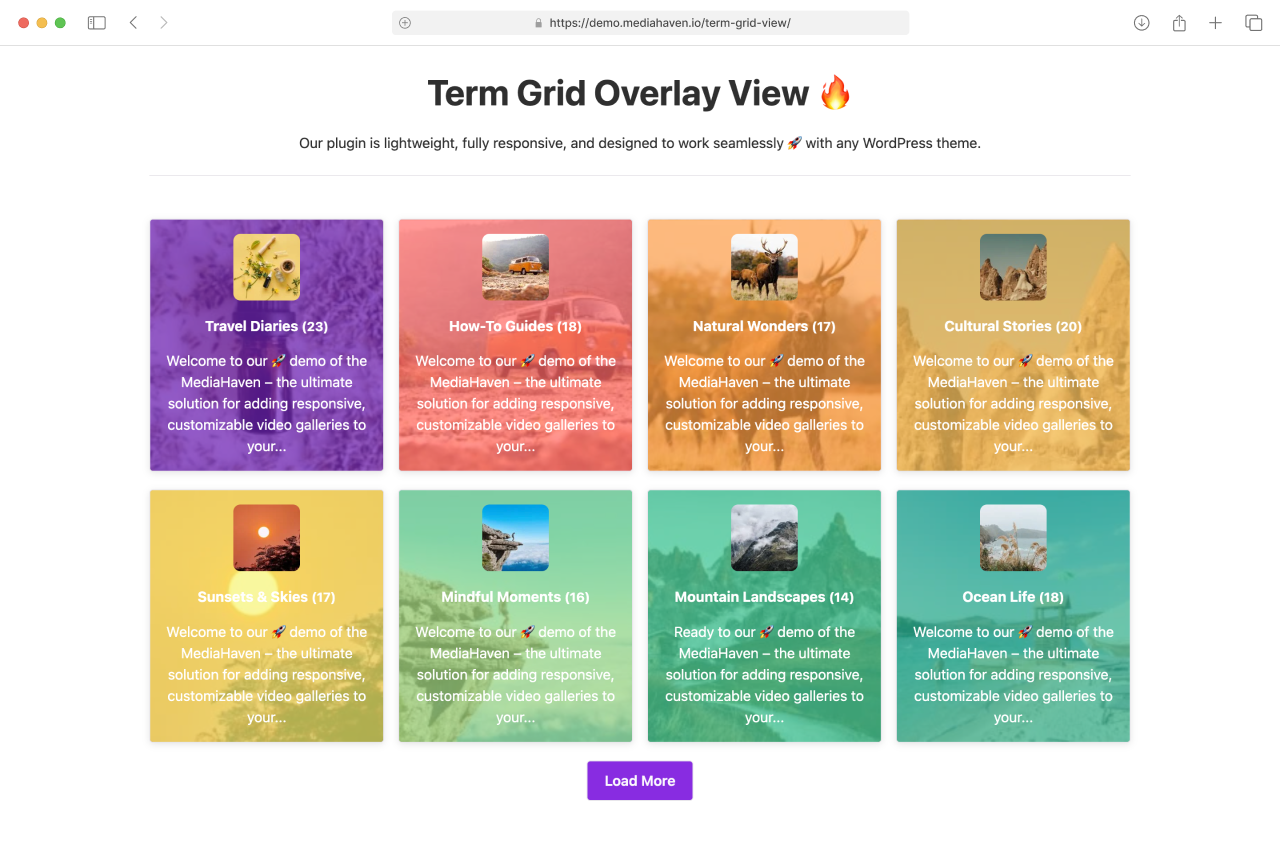
MediaHaven includes a Term Appearance system for building visual navigation from your video categories and tags. Rather than plain text links, you can create:
- Category and tag grids with icons or background images
- Carousel layouts for term navigation
- Custom hover states, border radius, and color controls per term
This is accessible from the Views section — create a new view and select “Term Grid” or “Term Carousel” as the source type.
Troubleshooting Common Problems
YouTube channel feed not loading Confirm your YouTube Data API v3 key is entered in MediaHaven Lite → Settings → API Settings. In Google Cloud Console, verify the YouTube Data API v3 is enabled for that project (not just created). Check that the API key does not have a domain restriction that excludes your WordPress site’s domain.
Gallery renders slowly Confirm lazy loading is enabled in plugin settings. If you use a caching plugin (WP Rocket, W3 Total Cache, LiteSpeed Cache), clear the cache after making gallery changes — cached HTML does not update automatically.
Shortcode appears as plain text The plugin has been deactivated. Go to Plugins → Installed Plugins and confirm MediaHaven shows as Active.
HLS stream not playing on iPhone iOS Safari requires HTTPS for HLS playback. Confirm your .m3u8 URL starts with https://, not http://. A non-secure stream URL will silently fail on iOS devices.
PHP compatibility Version 1.6.4 confirmed full compatibility with PHP 8.5.
Verified Free vs. Pro Comparison
Sourced directly from the MediaHaven Pricing page:
| Feature | Free | Pro |
|---|---|---|
| Carousel layout | ✅ | ✅ |
| Multi-rows Carousel layout | ✅ | ✅ |
| Grid layout | ✅ | ✅ |
| Setup Wizard | ✅ | ✅ |
| Export and Import (JSON and CSV) | ✅ | ✅ |
| Schema.org structured data for SEO | ✅ | ✅ |
| Ajax video view counter | ✅ | ✅ |
| AJAX-based like/dislike thumbs | ✅ | ✅ |
| Image Optimization | ✅ | ✅ |
| All video source embeds (YouTube, Vimeo, TikTok, HLS, etc.) | ✅ | ✅ |
| Keyboard Shortcuts for Video Playback | ✅ | ✅ |
| Smart Assets Control | ✅ | ✅ |
| Video Subtitles | ✅ | ✅ |
| YouTube Feeds (Grid, Carousel, Multi-rows Carousel) | ✅ | ✅ |
| Shortcode View Gutenberg block | ✅ | ✅ |
| Video Chapters | ❌ | ✅ |
| Indexed lookup table for high-performance filtering | ❌ | ✅ |
| VAST Video Ads & E-commerce Product Promotions | ❌ | ✅ |
| Drag & Drop Video Card Sections | ❌ | ✅ |
| Player Unlimited Styles | ❌ | ✅ |
| Blazing fast Ajax Video Live Filter | ❌ | ✅ |
| WebP image conversion | ❌ | ✅ |
Frequently Asked Questions
How do I add a video gallery to WordPress without coding?
MediaHaven makes creating a WordPress video gallery simple. Install the plugin, add your videos, create a gallery View, choose a layout, and embed it anywhere using a Gutenberg block or shortcode. You can build professional video galleries in minutes without writing a single line of code.
Why should I use MediaHaven instead of the default WordPress Video block?
The default WordPress Video block only displays one video at a time. MediaHaven adds responsive Grid, Carousel, and Multi-row Carousel layouts, category organization, lazy loading, SEO schema, view counters, and support for multiple video sources, making it a complete video gallery solution.
Can I create responsive video galleries that work on mobile devices?
Yes. MediaHaven automatically creates responsive video galleries that adapt to desktops, tablets, and smartphones. You can even customize the number of columns for different screen sizes, ensuring every visitor enjoys a consistent and professional viewing experience across all devices.
Which video platforms does MediaHaven support?
MediaHaven supports YouTube, Vimeo, TikTok, Facebook, Instagram, LinkedIn, Twitch, Wistia, Dailymotion, Rumble, HLS (M3U8), self-hosted videos, and external video URLs. Managing all your video content from one dashboard eliminates the need for multiple plugins or complicated workflows.
Can I display YouTube channel and playlist galleries in WordPress?
Yes. MediaHaven lets you connect your YouTube channel or playlists using the YouTube Data API and automatically display new videos in responsive galleries. Built-in caching reduces API requests while keeping your content synchronized and loading quickly for visitors.
Does MediaHaven improve the SEO of my video gallery?
Yes. MediaHaven automatically generates Schema.org VideoObject structured data for every published video gallery. Combined with semantic HTML, SEO-friendly video pages, and organized gallery layouts, it helps search engines better understand your content and improves opportunities for video-rich search results.
How does MediaHaven keep WordPress video galleries fast?
MediaHaven includes Smart Assets Control, which loads plugin CSS and JavaScript only on pages containing a gallery. It also features built-in lazy loading and image optimization, helping improve Core Web Vitals while delivering smooth video playback across your website.
Can I organize videos into multiple galleries?
Absolutely. MediaHaven’s View Builder allows you to create unlimited galleries using different layouts, video sources, and display settings. You can build separate galleries for tutorials, product videos, portfolios, client projects, or educational content while managing everything from one centralized library.
Does MediaHaven work with Gutenberg and page builders?
Yes. MediaHaven includes a dedicated Gutenberg block with live gallery previews and also generates shortcodes compatible with Elementor, Divi, Beaver Builder, WPBakery, and other popular WordPress page builders. Embedding video galleries anywhere on your site takes just a few clicks.
Can I add subtitles and HLS streaming to my video gallery?
Yes. MediaHaven supports WebVTT and SRT subtitles alongside HLS (M3U8) streaming for adaptive video playback. These features help improve accessibility, deliver smoother streaming, and create a more engaging viewing experience across desktop and mobile devices.
Is MediaHaven suitable for large WordPress video libraries?
Yes. MediaHaven is designed to grow with your website. The free version supports unlimited video galleries, while MediaHaven Pro adds high-performance filtering, indexed lookup tables, advanced gallery controls, and additional optimization features for managing extensive video collections efficiently.
Why choose MediaHaven as your WordPress video gallery plugin?
MediaHaven combines responsive video galleries, multiple video sources, YouTube feeds, HLS streaming, automatic SEO schema, Gutenberg integration, WooCommerce compatibility, and performance optimization in one plugin. Instead of piecing together several tools, you get a scalable video platform built specifically for modern WordPress websites.
Getting Started
The free version has no gallery count limits and no video count limits. You can create as many galleries as you need.
- Install free: MediaHaven Lite
- View live demo: MediaHaven Demo
- Upgrade to Pro: MediaHaven Pricing
- Support: MediaHaven Support
Leave a Reply